Showing posts with label opensource. Show all posts

2016-11-27

Introducing wiconn: A text-based 802.11 wireless network manager for OpenBSD

When I switched back to OpenBSD as my primary daily-use operating system back in 2011, my biggest complaint was the lack of an easy-to-use tool for managing wireless networks. I only used maybe two or three different wireless networks daily. I just used a few shell scripts that statically configured the network card for each of these environments. Any time I'd go somewhere else, though, it would be a pain to manually configure it.

Almost exactly five years ago, I did something about it, and I called it wiconn.sh. Since I already had one-off scripts for my home and office networks, Wiconn started as a script to display open networks. It would display only the open ones, and prompt me for an SSID, and it could remember the BSSID (MAC Addresses) of open networks I used to protect me from things like my own Evil WiFi setup and other "evil twin" style wireless attacks.
That first version looked something like this:


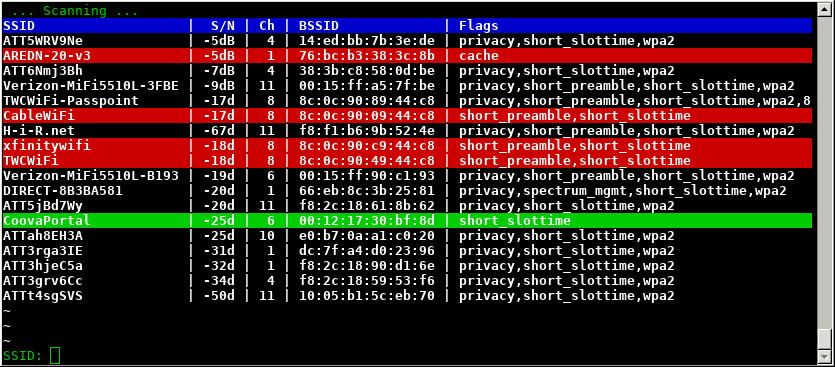
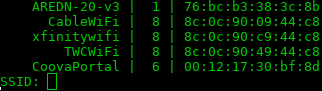
Wiconn evolved over time. By late 2012, I'd given it a bunch of features and made the interface look nicer. All SSIDs were being listed with color-coded backgrounds for the network you're connected to, and open networks. Visually, it hasn't changed much since 2012. This is how Wiconn looks today:
https://github.com/n0xa/wiconn

Over this long holiday weekend, I finally got it to a place where I feel like sharing it. Since it's already in the garage for maintenance, I figured I might as well put wiconn on GitHub.

Features:
  • Written primarily in Bourne shell (/bin/sh)
  • No dependencies: Relies only on the OpenBSD base distribution
  • Built-in protection from common wireless attacks
  • Easily connect to saved networks with one command (no scanning or prompt)
  • 2-Clause Simplified BSD license
There's still some more work to do.  I'd like to have it detect that one of your saved networks is in the list and ask if you'd like to join it. I'm also using NetBSD a bit more, and feel like there might be a way to make it work well on both OpenBSD and NetBSD from the same codebase, despite small differences in command syntax and output format between them.

Anyhow, for the growing number of folks who are giving OpenBSD a shot lately, I thought I'd share. Feedback is welcome, and more information is available through the documentation via GitHub.

n0xa/wiconn on GitHub

2011-11-12

OpenBSD 5.0: Apache, PHP and MySQL

The basic steps for taking a bare-bones install of OpenBSD and adding an AMP stack for web applications hadn't changed much in the past 2 years. Although 5.0 is not seen as a "major update", but simply a continuation of the normal development cycle, the OpenBSD team did a few things that make the installation a bit different this go around. I'll cover some of the recent changes to OpenBSD and its packages in this post, then you can dive right into the updated OpenBSD Chroot Apache, PHP, MySQL setup guide.

Initialization scripts: Starting with OpenBSD 4.9, the RC scripts became modular. This is similar to how NetBSD and FreeBSD have worked for many years. Individual daemons have startup scripts in /etc/rc.d, but rc.conf, rc.local and rc.conf.local still work the same, so it wouldn't surprise me if many OpenBSD users didn't even notice the change. It seems like OpenBSD 5.0 packages for most of the popular services (samba, cups, postgres, etc) are actually creating these startup scripts now. If a third-party application from packages installs a startup script in /etc/rc.d, you can add it to the pkg_scripts variable in /etc/rc.conf.local like so, and it'll magically start.

pkg_scripts="mysqld cups samba"

See the OpenBSD man page for rc.d for more details.

MySQL and chroot: I'm not sure why it didn't dawn on me before, but one really simple way around hard-linking MySQL's socket file into the chroot environment is to simply have your web applications connect to MySQL's TCP port on 127.0.0.1 (not localhost, because that means "use the socket file" in MySQL-ese) I think I'll be doing it this way in the future.

PHP: PHP 5.3 added a lot of features, such that PHP 5.2.x and PHP 5.3 might as well be different major version numbers when complex web applications are considered. OpenBSD 5.0 adds packages for PHP 5.3 for the first time, but PHP 5.2 is still available in the repository. For this reason, the PHP core and module packages are no longer prefixed by php5-, they're just php, php-mysql, etc. Since PHP 5.2 is still supported, the version numbers are used to distinguish them, like this:

$ sudo pkg_add php-mysql
Ambiguous: php-mysql could be php-mysql-5.2.17p3 php-mysql-5.3.6

Further, some configuration file locations have been changed. If you pay attention to the text after installing packages, this shouldn't make much difference. Hint: you can always re-read the post-install notes afterward by using pkg_info -M.

All in all, the recent changes to OpenBSD are welcome. Some of the things I outlined here are areas where OpenBSD had some catching up to do. They've managed to do a lot of proactive stuff in the realm of hardware support and (of course) security and encryption. This is still one of my favorite platforms to tinker with.

2011-08-30

Installing OpenVAS on BackTrack 5

In preparation for a talk I'll be giving at BSidesKC in October, I've been playing with BackTrack 5 and OpenVAS. OpenVAS was a little bit of a pain to get compiled on Ubuntu, but now that the OpenSUSE guys have built .DEB packages of a fairly recent version of OpenVAS (4.x), it's pretty easy to install on most modern Debian-derived systems. In fact, this works on Ubuntu Server as well, and I have tested it on 10.04 LTS. You just have to do it as root, like you'd do on BackTrack, because I was too lazy to write these instructions with "sudo" in front of each line (and using "| sudo tee -a" instead of the append-redirect for adding a quick line to the sources.list file).

This will be a rough post just to get my install notes down. The instructions on OpenVAS' website do not currently work as designed (however, I'm basing this post on them) and at the time of writing, the OpenSUSE build packages are broken in a number of ways that are easily fixed. For example, the openvas-scanner package provides a startup script in /etc/init.d, but the greenbone-security-assistant, openvas-manager and openvas-administrator packages do not. Some of the binaries are built to read files from /var/lib/openvas while others go for /usr/local/var/lib/openvas. Whatever. We'll deal with it. Also, a lot of these command lines are insanely long and probably will get cut off or line-wrapped by HiR's template. Copy. Paste. View Source. I trust our readers to be smart enough to figure that out.

Before starting, I recommend making sure you're up to date:


apt-get update && apt-get upgrade


Add the OpenVAS branch of the OpenSUSE Build Service to your apt sources, get the apt key and update your repository cache:


echo "deb http://download.opensuse.org/repositories/security:/OpenVAS:/STABLE:/v4/Debian_5.0/ ./" >> /etc/apt/sources.list
apt-key adv --keyserver hkp://keys.gnupg.net --recv-keys BED1E87979EAFD54
apt-get update


Next, install all the fun packages and dependencies needed in one run of things. Consider adding "gsd" to this package list if you think you'll want to use the Greenbone Security Desktop GUI interface. I plan on doing no such thing.

apt-get -y install greenbone-security-assistant openvas-cli openvas-manager openvas-scanner openvas-administrator sqlite3 xsltproc texlive-latex-base texlive-latex-extra texlive-latex-recommended htmldoc alien rpm nsis fakeroot


Make some directories and some symlinks to compensate for the clustercoitus of path discrepancies in the OBS packages.

mkdir -p /var/lib/openvas/private /var/lib/openvas/CA
mkdir -p /usr/local/var/lib/openvas /usr/local/var/lib/openvas/users
ln -s /var/lib/openvas/users /usr/local/var/lib/openvas/users
ln -s /var/lib/openvas/CA /usr/local/var/lib/openvas/CA
ln -s /var/lib/openvas/private /usr/local/var/lib/openvas/private


Make the openvas server cert, fetch the latest NVT plugins, and make the client cert used by openvas-manager:

openvas-mkcert -q
openvas-nvt-sync
openvas-mkcert-client -n om -i


Start the OpenVAS Services manually, rebuilding the OpenVAS Manager database once your get openvassd started (it'll take a good couple of minutes to load all the plugins), and all that jazz. Hey, Greenbone Security Assistant (the Web UI) works over https when you install it this way! It would only do HTTP when I installed it from source.

openvassd
openvasmd --rebuild
openvasmd
openvasad
gsad


Add an admin-level account for yourself. I suggest a different username for the -u argument. -r specifies the role, and you want to leave that value set to "Admin" if you want to be able to do much with OpenVAS.

openvasad -c add_user -n axon -r Admin


At this point, you should be good to go. Hit https: on your machine and have a blast.

Look for another article related to BackTrack 5 and OpenVAS right after BSidesKC. I've got something fun up my sleeve. If you're anywhere in the region, you should probably just show up. It'll be a good time.

2011-05-19

Why I'm coming home to OpenBSD

Although those who know me will tell you I love OpenBSD, I'm generally an operating system agnostic. I enjoy tinkering with OSes, and always have. There have been a few I tried and couldn't enjoy for the life of me (Mac OS versions prior to OS X, PalmOS, HP-UX and plan9 among them) but since 1997, OpenBSD has always felt like home to me, and I've long been a little bit of a fan.


Not long ago, my primary computer was a 13" MacBook that was bought for me by one of my consulting customers in late 2006, and prior to that, I was using OpenBSD on a crappy old Dell desktop and OS X on a G3 PowerBook. OS X is just unixy enough to geek out on. I could get most BSD-type stuff to compile. My MacBook also ran Windows 7 pretty well. I got switched on to it when my wife upgraded to 7 from Vista. It also ran OpenBSD, Backtrack and Ubuntu in VirtualBox like a champ.

When the MacBook started showing its age about 6 months ago, I went to a Toshiba NB305 netbook. It came with Windows 7 Starter edition, which really isn't much of an operating system at all. It's basically a kernel meant to launch Internet Explorer. Not amused. I didn't feel like paying to "unlock" Windows Home Premium.

Figuring that the hardware and all of the funky function keys would probably work best under Ubuntu, I went that route. Webcam aside (I never use it anyway) the hardware worked pretty well. I had to wait around for patches to get the screen brightness keys to work. Power management was always funky right after getting unplugged. Otherwise, Ubuntu worked pretty well for me. I set it up to dual-boot alongside Windows 7 Starter, just so I could use my radio programming software.

3 months ago, Ubuntu managed to corrupt the partition table on the hard drive. Recovery involved spending 4 hours restoring Windows 7 starter edition from the factory media and re-installing Ubuntu. A few days ago, the same thing happened. A co-worker has had similar trouble lately, as well.

There are a bunch of distros out there -- probably too many. Netbook-specific distributions are hot stuff. Frogman's on a Crunchbang kick. More than one person tried to tell me to go to Gentoo, Debian, Arch or some other flavor of Linux. I've used them before. Every few years, Linux has to piss me off, I suppose.

Faced with the prospect of a half-day wasted getting my netbook back to the way I thought I liked it, I decided to see what OpenBSD offered, since I haven't run it on the desktop outside of a VM in several years. The install is always quick, so if anything, it wouldn't be too much of a waste of my time.

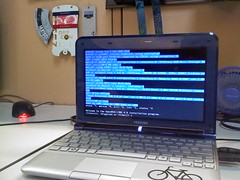
Taking the OpenBSD plunge on my NB305. Feels like $HOME again.

As expected, Xorg didn't need any configuring to determine and use my display to its maximum potential. X has come a long way since the late 1990s. I was worried about things like power management (suspend, resume), hardware drivers, support for WPA2 and of course the function keys for display brightness, volume and the like, since they gave me a bit of trouble on Ubuntu.

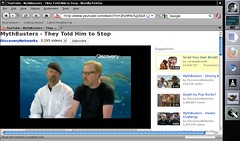
You know what, though? Everything worked right out of the box. I had to enable apmd in /etc/rc.conf to get suspend to work, but that was it. I also found a pretty neat trick to get most flash videos to play in Firefox, with only open source tools and not actually using anything from Adobe. Youtube, vimeo, blip and even Badgers all work great. Let's face it, life would suck if you couldn't watch Lolcats, Badgers and Mythbusters.

Flash video on OpenBSD

It's way too soon to tell if OpenBSD will be any more reliable than Ubuntu in the long run, but I feel much more at home for the time being.

Moar useful OpenBSD resources I ran across this week:


That reminds me, I'm behind schedule on my OAMP guide for OpenBSD 4.9, but I'm pretty sure the existing instructions haven't changed, save for version numbers.

2011-03-29

OpenVAS & Greenbone Security Assistant Basics

This is the second part of a series on OpenVAS, the open-source vulnerability scanner. In my last post, I walked you through compiling the various pieces of OpenVAS and getting it up and running. Now it's time to talk about the fundamentals. For this and future posts, we'll be using the web front-end to OpenVAS, called Greenbone Security Assistant, and we'll assume it's running on your local machine.


Why bother with OpenVAS, or vulnerability scanning in general?
Vulnerability scanners are not "hacking tools!" They're very noisy. They're ungainly. They lack finesse. They're riddled with false positives (vulnerabilities you try to manually verify and turn out to be non-existent) and false negatives (vulnerabilities that it doesn't know about or can't be easily detected and are thus missed). With so many weaknesses, why would you even bother?

Simply put, running frequent vulnerability scans on your network gives you a good baseline complete with the ability to notice a change from one week to the next. At the very least, you get a good feel for the "low-hanging fruit" -- the obvious and easy targets on your network. Additionally, many vulnerability scanners including OpenVAS have the ability to use a scanner agent installed on systems, and login credentials to inspect the local security of your servers, workstations and infrastructure. In this way, you can identify software that's out of date and security settings that are out of compliance. This can be a huge asset to your IT security stance once you have the scanner configured properly and running smoothly. That's easier said than done, unfortunately.

If you'll be using this system as a vulnerability scanner regularly, I recommend a few things:

Make sure the openvas services start at boot. I just added this stuff to /etc/rc.local on Ubuntu server:
echo "Starting OpenVAS Scanner Daemon..."
/usr/local/sbin/openvassd && echo [ OK ]
echo "Starting OpenVAS Manager Daemon..."
/usr/local/sbin/openvasmd && echo [ OK ]
echo "Starting OpenVAS Administrator Daemon..."
/usr/local/sbin/openvasad && echo [ OK ]
echo "Starting Greenbone Security Assistant Web Interface..."
/usr/local/sbin/gsad --http-only && echo [ OK ]
echo "Downloading NVT Updates..."
/usr/local/sbin/openvas-nvt-sync && echo [ OK ]
Make sure you have nightly NVT Updates. I put this in root's crontab to run at 4:00AM each day:
0 4 * * * /usr/local/sbin/openvas-nvt-sync
And there you have it.

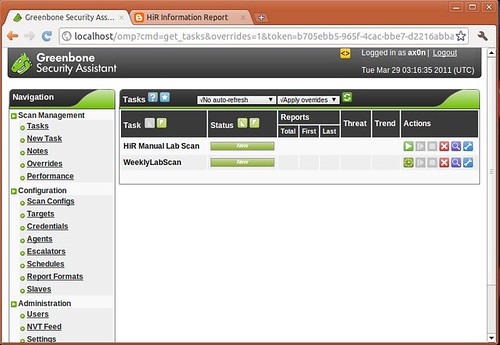
When you navigate to the web interface (usually http://localhost) and log in, you'll see the task screen, which I had shown you previously. Take note of the options on the left pane, as we'll be going through most of them.

258832485

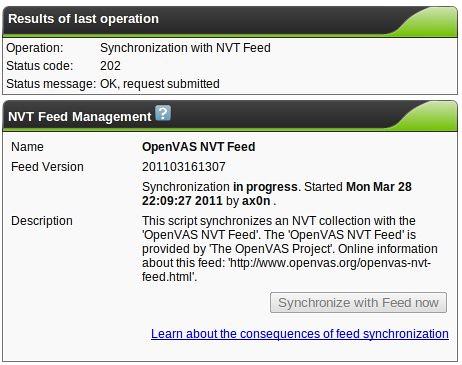
One of the first things you'll want to do if you didn't set up daily updates is to hit the "NVT Feed" link (not shown above) and update the NVT database.

00-NVTSync2

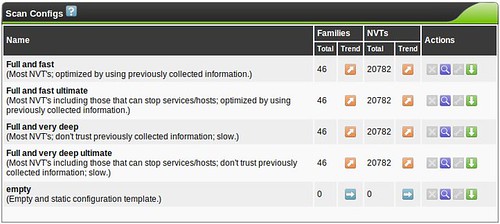
With that out of the way, our first stop is with scan configurations. OpenVAS comes with five template configurations, each of which might do something useful for you.
01-ScanConfigs


You don't need to create a custom scan config to get started with OpenVAS, but If you decide to create a new Scan Config, you'll have the ability to edit it (the wrench will not be greyed out)
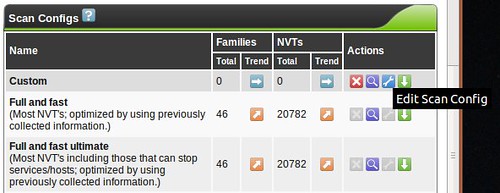
03-NewScanConfig2

and you'll be faced with a huge assortment of scanning options allowing you to fine-tune your scan. You'll also see options for so-called NASL Wrappers, which are scripts that help OpenVAS utilize third-party tools such as nmap, nikto, w3af and others. Tuning your scan parameters is important, but complicated enough that it's beyond the scope of this series. Most vulnerability scanners I've used (Nessus, ISS, etc...) have a configuration section like this, and it's always a very, very deep rabbit-hole. Mastering this is a bit of an art, but I usually break the enterprise up into "classes" so that like-systems are scanned with relevant checks so I'm not throwing 5,000 futile Windows checks at the Linux servers in the DMZ, for example. Feel free to leave me a comment if you want me to discuss this kind of classification setup in more detail.

When building custom configs, I recommend using the existing scan configs as a template, and tweaking things from there to get your bearings. Try the "Full and very deep" scan first if you have any doubts. It's unlikely to knock anything off the network, but be careful! The "Trend" radio button selects whether this scan config will grow and import new NVT plugins or remain static with only the plugins you selected for that particular plugin family. If you start using OpenVAS frequently, you'll probably want to become familiar with tuning scan configs to get rid of false positives or enable more features.
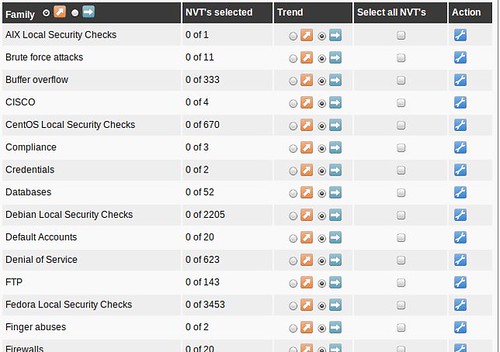
04-NewScanConfig3

Schedules are triggers for one-time or recurring scans. It's not uncommon to schedule a network vulnerability scan to happen after business hours, so this option helps you there. I usually run weekly scans so that I can compare my security stance from one week to the next. Here, I've created a weekly trigger that runs at midnight (central time) every Tuesday. You can create as many schedules as you want, but none of them will actually do anything until you assign the schedule to a task. By the way, OpenVAS uses UTC for its clock. Keep that in mind.
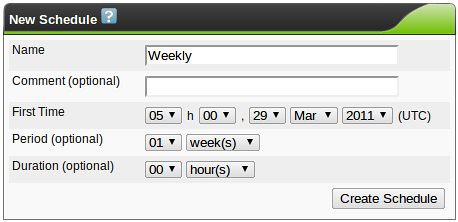
05-NewSchedule

In the introduction, I had mentioned using credentials or agents to run local security checks. OpenVAS is pretty flexible here, so experiment with the credential options. Create credentials in Greenbone Security Assistant, and make sure that they match an account on the target system. I recommend creating a dedicated account with the bare minimum privileges needed to run the local security checks. In a Windows environment, consider using an active directory service account on the domain. Authenticated scans and local checks open up some of the most powerful features of many vulnerability scanners. I may cover the use of Agents later, but for now, they're beyond the "basics" scope of this post.
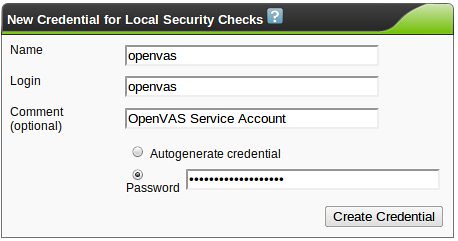
06-NewCredential

Escalator is a funny word for this feature, but this robust option gives you the ability to trigger events based on the completion of a scan. Here, I'm just configuring it to send an email to me when a scan has finished running. Note: you will probably have to install the "mailutils" package or some equivalent on Ubuntu for this to work.
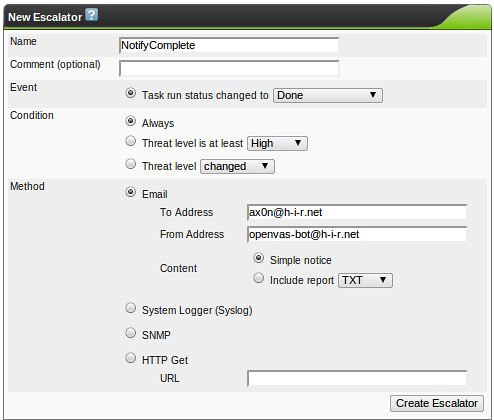
07-NewEscalator

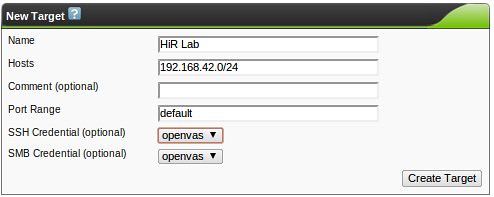
We can finally start picking what hosts or networks we want to scan with the "Targets" option. The target hosts can be single IP addresses, IP address ranges (192.168.0.1-192.168.0.23 or 192.168.0.1-23), CIDR networks like the example below, DNS names, or any combination of them separated by commas. I had mentioned setting up "classes" of scans earlier. Here, you may just insert a comma-separated list of similar servers, for example. The comment is optional, and the port range can also be a comma-separated list of individual port numbers or ranges. "default" uses all of the ports found in /usr/local/share/openvas/openvas-services, which contains over 8,000 ports, a far cry from 65,535. YMMV here. If you wish to use credentials, select them now.

08-NewTarget

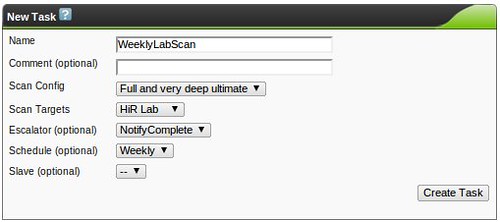
The moment you've probably been waiting for. Create a new task. This is where you'll get to put it all together and start scanning! Here, I assigned a weekly scan schedule. This will run on its own, using the schedule I defined earlier.
09-NewSchedTask

If you don't define a scan schedule, you'll end up with an item on the task list, but it won't run on its own until you hit the "Play" icon (Green triangle). I added a manual scan to the task list as well. You can see both the scheduled and manual scans waiting to run here:
10-Status

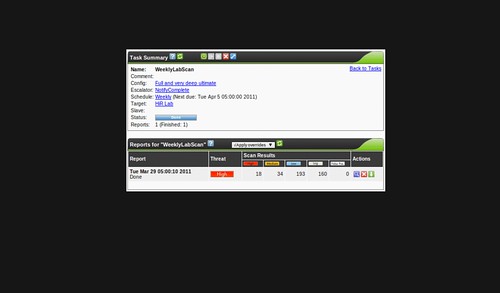
Clicking the spyglass icon on a task will show you a list of summaries from each time you've run the task. This weekly scan has only run one time, though, so you only see one summary here.
11-results1

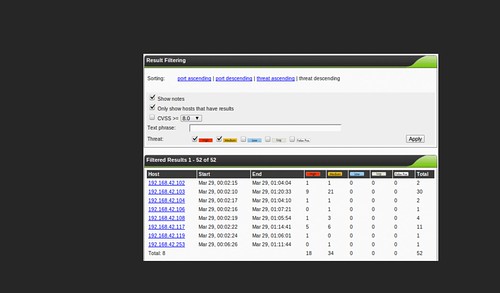
And clicking the spyglass on a scan summary pulls up the detailed results, which you can filter a number of ways. This page goes on and on, containing every item that was noted in the scan. You can also export the results a number of ways.
12-results2

One thing that I like about OpenVAS is the fact that the web UI allows you to make remarks about the scan findings, assign arbitrary severity levels (including "false positive") and tune things so that future scans can take your professional opinion into account, if you so desire. You can perform these overrides or add notes to a single instance of a vulnerability or make sure that it applies to other hosts in the same scan. This can make OpenVAS extremely versatile.

Anyway, that's the basics of the OpenVAS scanner and Greenbone Security Assistant. Should be enough to get you started playing around in your own lab environments, or perhaps in a small office environment.

If you get serious about using OpenVAS, you may consider going with the Greenbone's Professional NVT Feed, which operates on a similar model to Tenable Security's Nessus ProfessionalFeed. Again, it's hard to compare OpenVAS and Nessus side by side, but they both try to fill the same niche. I've used both (and several other competing products) and I still can't say any one is actually better than another. The Greenbone Security Assistant Web UI seems like one of the best vulnerability scanner interfaces I've seen, though.

2011-03-21

OpenVAS on Ubuntu 10.10 Maverick Meerkat Install Notes

When Tenable took Nessus through a code re-write and closed its source, the old code was forked a few times. As far as I can tell, OpenVAS is the strongest surviving variant. There's a really old version in most Linux distributions' package repositories, but it's out of date, the 2.x version.


I wanted to get the new version up and running. It turns out that compiling it for the first time was a gigantic clustercoitus of library dependencies and unnecessary branches in the OpenVAS subversion repository. So, I did what I usually do when I meet a challenge worth dissecting: I set up a VM, take some snapshots, and document it.

There are four components to OpenVAS: The scanner, administrator and managers, and then a client program. There are three clients to choose from:
  • Greenbone Security Desktop, which looks a lot like the older Nessus GUI
  • Greenbone Security Assistant, a clean web UI similar to the new Nessus, except more feature rich
  • OpenVAS-cli, a tool that's good for lightweight scheduled scanning
There are well over 100 dependencies to get OpenVAS installed, but this big pile knocked them all out on both Ubuntu 10.10 server and desktop versions:
sudo apt-get install build-essential libpcap-dev subversion cmake libgpgme11-dev libglib2.0-dev uuid-dev doxygen libgnutls-dev libmicrohttpd-dev bison xmltoman libsqlite3-dev sqlfairy libxslt-dev texlive-latex-extra xsltproc

One last thing: If you really want to use the Greenbone Security Desktop GUI, there's a whole lot more you'll need, but they're all dependencies of libq4-dev. I have grown to really like the Web GUI, so you may want to play with that first before you decide to go with GSD.

sudo apt-get install libqt4-dev

If you pull up the SVN repository, you'll see the following branches. You do not need all of them, and some of them are absolutely massive. It's a big waste of bandwidth, drive space and time to check out everything.

# bindings/
# doc/
# gsa/
# gsd/
# image-packages/
# openvas-administrator/
# openvas-cli/
# openvas-client/
# openvas-compendium/
# openvas-libraries/
# openvas-manager/
# openvas-packaging/
# openvas-plugins/
# openvas-scanner/
# sladinstaller/
# tools/
# winslad/

We only want openvas-libraries, openvas-scanner, openvas-manager, openvas-administrator, openvas-cli, gsa and gsd. When you first run subversion, you'll have to accept the SSL certificate from OpenVAS.

mkdir openvas-source
cd openvas-source
svn checkout https://svn.wald.intevation.org/svn/openvas/trunk/openvas-libraries openvas-libraries
svn checkout https://svn.wald.intevation.org/svn/openvas/trunk/openvas-scanner openvas-scanner
svn checkout https://svn.wald.intevation.org/svn/openvas/trunk/openvas-manager openvas-manager
svn checkout https://svn.wald.intevation.org/svn/openvas/trunk/openvas-administrator openvas-administrator
svn checkout https://svn.wald.intevation.org/svn/openvas/trunk/openvas-cli openvas-cli
svn checkout https://svn.wald.intevation.org/svn/openvas/trunk/gsa gsa
svn checkout https://svn.wald.intevation.org/svn/openvas/trunk/gsd gsd

OpenVAS uses cmake, which is actually pretty slick as long as your dependencies are in order. Simply go into each of the directories above, and run the following commands to compile and install. I'll use openvas-libraries as an example:

cd openvas-libraries
cmake .
make
sudo make install
cd ..

One thing to keep in mind is that several libraries are deployed with the openvas-libraries package, and those are needed for the other packages. Make sure you run ldconfig to update the library cache before compiling the other packages.

sudo ldconfig

Do the same for openvas-scanner, openvas-manager, openvas-administrator, openvas-cli, gsa and (if you want to use the native gui), gsd.

Once everything is installed, you need to do a few quick things to set everything up. First, start the OpenVAS Scanner Daemon:

sudo openvassd

update the plugins. This takes a long time the first time you run it.

sudo openvas-nvt-sync

Create a CA (walk through the prompts):

sudo openvas-mkcert 

Create a client certificate for OpenVAS Manager (om):

sudo openvas-mkcert-client -n om -i

Rebuild the OpenVAS Manager database, then start OpenVAS Manager

sudo openvasmd --rebuild
sudo openvasmd

Start OpenVAS Administrator, then create an administrator account for yourself:

sudo openvasmd
sudo openvasad -c 'add_user' -n Admin (or other desired username) - It will prompt you for details.

Launch a client tool. I noticed that on Ubuntu, libmicrohttpd (a library the web UI uses) had some issues with SSL. I'm generally averse to running over plain HTTP, but if you make sure you run it locally or through a tunnel, you should be fine. I had to start Greenbone Security Assistant in http-only mode:

sudo gsad --http-only

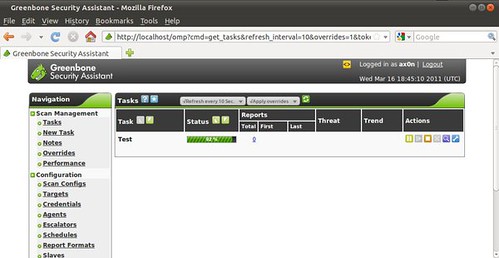
Point your browser at http://localhost/ - It looks like this, if you have everything working properly. Here, I'm in the middle of a test scan.

258832485

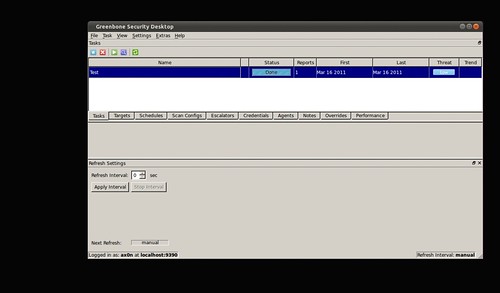
Alternatively, you can run GSD:

gsd

Which looks a bit like this. You use the tabs to navigate it, export reports and all that.

gsd

I had trouble getting either GSD or GSA to export the report in PDF format. There may be a library or CLI tool that I'm missing. The HTML export works like a champ.

Update: Poking through the errors I found in /tmp, I discovered that I needed some files provided by LaTeX. Installing texlive-latex-extra and its dependencies got PDF export working, thus I've included it in the list of packages to install with apt-get at the beginning of this post.

In summary, OpenVAS works, and it's come a long way since the original fork of Nessus. It's difficult (and honestly, pointless) to compare OpenVAS to Nessus in their current states. They're not the same, and they likely have different strengths. I've spent quite a bit of time working with the latest versions of Nessus, so OpenVAS is new territory for me. Now that I have it up and running, I look forward to putting it through the paces.

I'll be talking about OpenVAS more in the coming days (or weeks, if things stay as busy as they have been lately). There are some interesting aspects of OpenVAS' architecture I'm playing with.

2011-01-20

Introduction to encrypted Internet chat

In the middle of a discussion about IRC chat, I mentioned SILC, which apparently, quite a few people haven't heard about yet. It's not terribly surprising. Once quite popular, IRC is now a fringe communications platform in the wake of instant messaging. If IRC users represent the fringe of Internet society, then SILC users are the consummate outliers.

This post was made mostly to go along with a quick presentation I'm doing for Cowtown Computer Congress this evening. This is a quick and dirty rough draft that will likely be edited for speling and grammer err0rz.

SILC is Secure Internet Live Conferencing, and it borrows many things directly from Internet Relay Chat, fixing some of the weaknesses of IRC by using certificates, key exchange algorithms, digital signatures and encrypted connections. The end result is a chat platform capable of being used by groups or one-on-one communication where you can be absolutely sure you are communicating with the person you think you're communicating with. With the appropriate measures, you can also be certain that messages can't be trivially intercepted or forged by outsiders, even if the SILC server or network has been compromised. When talking in public groups (equivalent to IRC channels), only those in the group can see the messages due to a shared session key. People sniffing your local network segment won't know what's being said or with whom you're communicating.

While on the topic of encrypted chat, I'll also discuss Off-The-Record, a cryptographic plug-in that sits on top of certain instant messaging platforms (like AIM) by sending strong-crypto messsages over base64-encoded strings between users. To this end, it's usually easy for someone monitoring the network to tell with whom you're communicating, but nearly impossible to determine the actual contents of said communication.

Of course, some of these things have been recently been addressed, albeit not nearly as thoroughly, by using SSL/TLS. Several modern IM protocols rely on SSL/TLS, and certain IRC implementations also can use SSL now. These are beyond the scope of this article, but worth mentioning in passing.

There are two actively-developed clients that I will cover:

  • A SILC plugin for irssi, a popular IRC client, which works best on Linux
  • Native SILC support in Pidgin IM, which works on Mac OS X, Linux and Windows. Pidgin plugins for Off-The-Record exist for Mac OS X, Linux and Windows as well.
Irssi
Irssi is my favorite IRC client. It's a curses-based program that runs in the terminal. The SILC plugin for irssi can be found in many package repositories. For example, installing it (and all dependencies, including irssi itself) in Ubuntu is as easy as:

$ sudo apt-get install irssi-plugin-silc

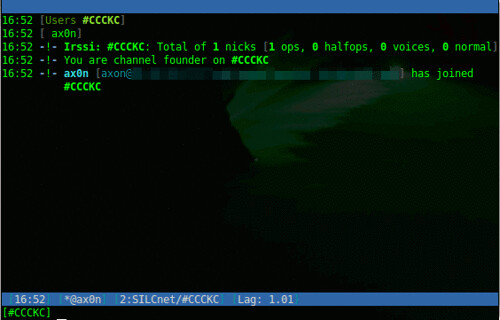
irssi-silc

If you're familiar with IRC, it uses some familiar derivatives of commands:

Load the SILC plugin, prompts for your private key passphrase
/load silc

Connect to a SILC server
/connect -silcnet SILCnet [silc-server]


Join a group (or channel)
/join [group]


Grant operator status to a user in a group you control
/cumode [group] +o [user]

Send a one-on-one message to another user
/msg [user] [message]

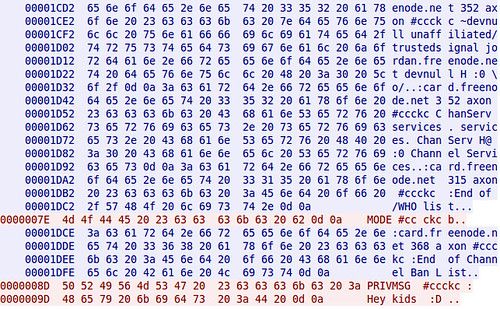
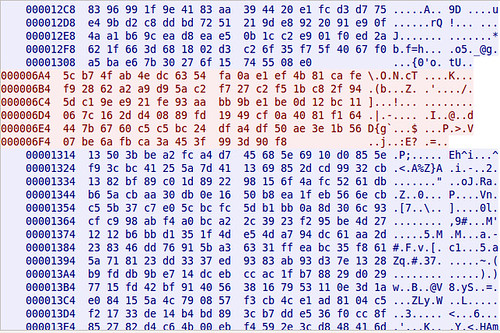
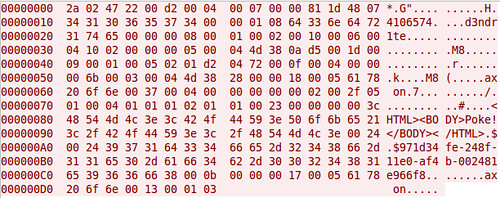
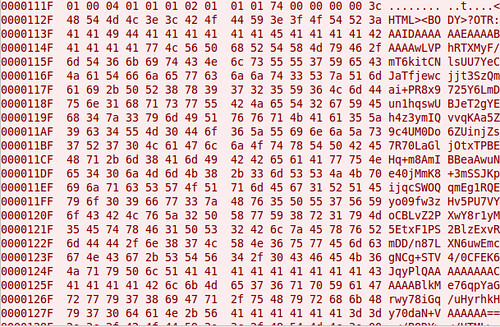
To compare, this is a screen shot of captured traffic from plain-text IRC, followed by one from SILC.
Hexdump showing cleartext IRC Chat

Hexdump showing encrypted SILC Chat

Pidgin

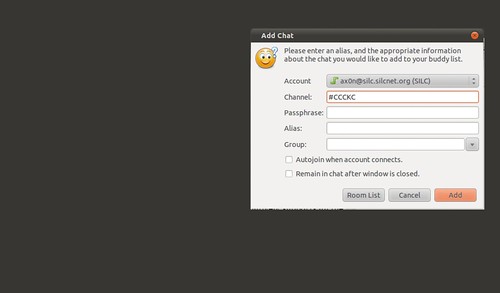
Pidgin is a cross platform open source chat application that natively supports all the major Instant Messaging protocols, including AIM, SILC and IRC. Once you've added a SILC server (via Accounts), you simply go to the Buddy List and select "Add chat" to join a group.
pidgin-silc

Off-The-Record
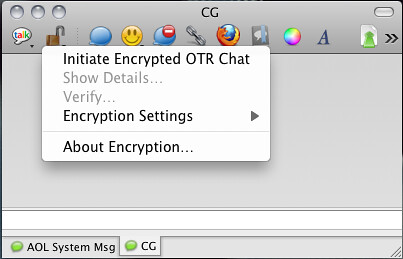
Adium, the Pidgin port for Mac OS X comes with OTR built right in!
Screen shot 2011-01-20 at 5.42.36 PM

Installing on Ubuntu is easy, as this will install Pidgin and the OTR plugin and all dependencies.
$ sudo apt-get install pidgin-otr

To get it up and running on Windows, first install Pidgin, then run the OTR plugin installer.

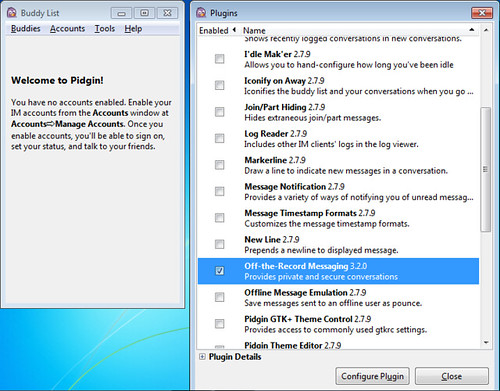
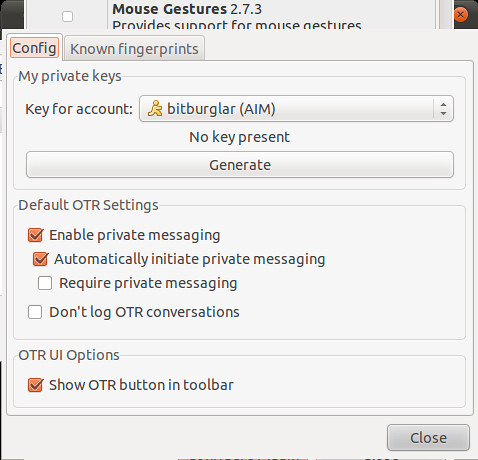
On Linux and Windows, you'll have to enable the plugin and generate a key before you can use it.
Pidgin-OTR-Windows

Generate OTR fingerprint

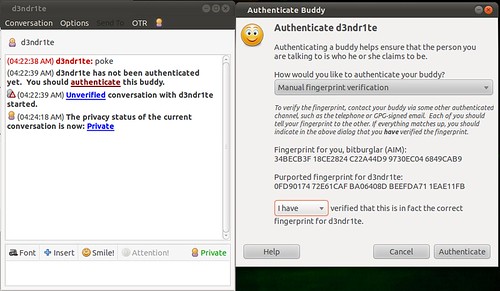
And then, once you initiate a chat with someone who also has OTR, you will need to verify their key. The best way to do this is in person or over a trusted communications platform. If you know their voice well enough, a phone call would probably work just fine.
Pidgin OTR authenticate fingerprint

Although AIM uses SSL by default these days, it's not uncommon to see AIM go across the wire in cleartext. Here's a screen shot comparing packet captures from a cleartext AIM session and one using OTR. You can't see it in the screen shots because of how large the OTR message is, but the OTR session only encrypts the message content itself. You can still see the names of the parties communicating.
Hexdump of cleartext AIM Chat

Hexdump of encrypted AIM+OTR Chat

That's all I've got for now.

2009-12-12

Open Source DJ Mixxxing. Oontz Oontz Oontz Oontz

Mixxx.

I've been playing with Mixxx for a while now. Not quite as fully-featured as some of the cheapware DJ Mix stuff that I was only able to find for Windows. Mixxx shows a lot of promise. It's open-source and cross platform. Get your dance party on!


I like the fact that I can jack an external USB sound device in and it gets recognized, so you can cue up your next track on your headphones while the main track is on the house speakers.

Yes. I have Rockell and Nine Inch Nails showing on that screen at the same time. LOL.

2009-07-09

OpenSSH - The coast is clear. For now.

Remember, this was all rumor to begin with. Analysis of the logs has pretty much proven that they were just doctored to look like something new. This was just a vanilla brute-force attack tool.

The ISC wants everyone to quit spreading FUD. I agree.

I am still uneasy about strange OpenSSH bastardizations with old code being used as "enterprise" SSH implementations, and I still think that creating Google Alerts RSS feeds and pumping them into Google Reader is a great way to track the development of rumors or any kind of breaking news.

2008-12-13

Operating System Junkie

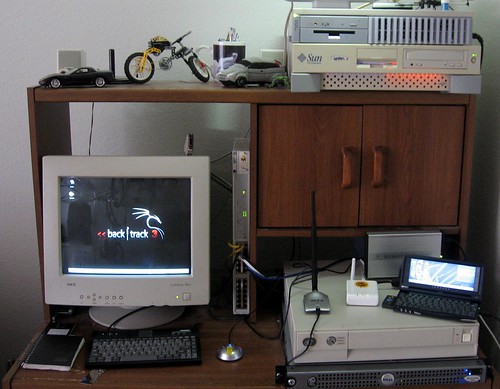
I've talked about the computers in the Lab-O-Ratory before. Today, the laboratory is really, really noisy -- more so than usual. I'm always working on something and I'm coming to realize that I'm pretty much a hopeless operating system junkie.

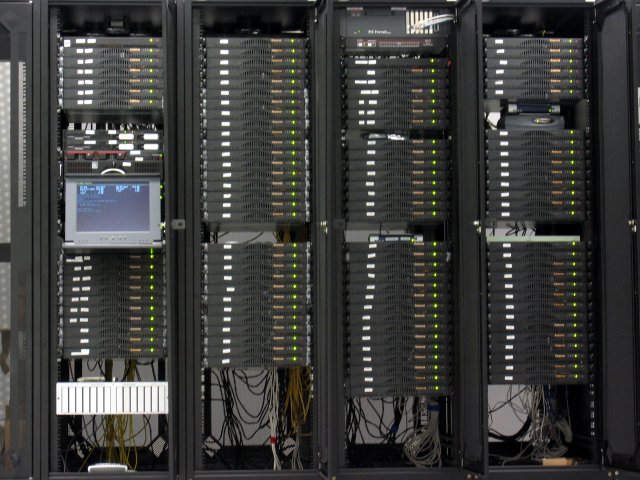
The photo is from a few months ago. The SparcStation 20 on the top of that photo used to be my OpenBSD 4.1 DMZ box until the hard drive died. I shelved it for a while and replaced it with a fresh install of OpenBSD 4.4 on one of the noisy 1U rackmount cluster servers from the startup I worked at in early '06. That 1U now sits in the SS20's old spot on top of the Sun Ultra 5 (which happens to be one of my primary workstations, running Solaris 10)

A few weeks ago, a friend of mine gave me a pile of old SCA-80 hard drives -- 4GB, 9GB stuff that was going to get landfilled. I put some of them in the SS20 again, and decided to try NetBSD. I used this for the SSH Reverse Tunneling article. It's now on the top of the lower stack, below the FON and Jornada and on top of the beige low-profile server.

That's an IBM RS/6000 Model 250 -- 80 MHz (yes, really) with 256MB of RAM and a 36GB SCSI hard drive. Initially made to run IBM's AIX 3.x operating system, it still runs AIX 5.1 quite well as long as you keep the GUI from trying to start. After AIX 5.1, IBM dropped all support for Micro-Channel Architecture. Still, having AIX 5 to tinker with is beneficial to me. I have to deal with AIX (as well as Linux and Solaris) at my real job. Don't forget all the cool freeware that's been ported to AIX and Solaris!

The Dell PowerEdge server below it was going to be an AMP (Apache/MySQL/PHP) server for a client of mine who never ended up needing it. It gets re-purposed whenever I need a reasonably powerful machine or one with a lot of storage to test something on. I just installed FreeBSD 7 on it last night. This one's even more noisy than the 1U cluster server.


My wife bought a 4U rackmount case from Frogman back in the day, and it was originally built up as a telnet MUD server. Now, it's kind of the communal Windows 2000 test box. It's the HiR OpenArena server for the time being.

Then, there's the Dell Optiplex mini-tower out of frame that's still running BackTrack -- although after Mubix wrote about it, I plan on downloading Sumo very soon!

With so many of my own little projects going on and utilizing all these boxes, I'm currently running all of this in my apartment's second-bedroom-turned-laboratory:
  • OpenBSD 4.4 / x86
  • Solaris 10 / ultrasparc
  • jLime Linux (Mongo) / arm
  • Openwrt Linux 7.09 / mips
  • NetBSD 4.0.1 / sparc
  • AIX 5.1 / ppc
  • FreeBSD 7.0 / x86
  • Backtrack Linux 3 / x86
  • Windows 2000 SP4 / x86
That's not even considering that my wife's laptop is running Vista, and I'm running Mac OS Leopard on my own. I'm no stranger to lesser-known OS's either. I've written about OpenSolaris before. I used to run BeOS as my main platform at work. I've used Plan 9 before (in the late 90s) and I even helped a little bit with the now-defunct V2OS project in 2001.

What's next? I think I need to mix it up with ReactOS (Windows clone) or Haiku (BeOS clone) or perhaps try Plan 9 again...

2008-12-11

Open-Source gaming: OpenArena

I'm not a big-time gamer, but on occasion I get the urge to blow stuff up. I'm also not exactly rich. It would be silly for me to spend a lot of money on a console, or even $50 on an FPS that I probably won't play every day. It is for this reason that I really, really like OpenArena.

OpenArena is based on the ioquake3 engine. Ioquake3 is, in turn, based on GPL'd Quake3 code form id Software. While ioquake3 is little more than a framework for games, OpenArena takes it and packages the engine along with other GPL licensed content (level maps, weapons, character models and such) to give you a ready-to-play Quake3 clone, and for free!

Maybe in the near future, I'll set up an OpenArena server so we can duke it out. Otherwise, look for me (ax0n) playing on some of the Capture The Flag servers.

2008-10-02

Open Source... Bicycle Parts?!

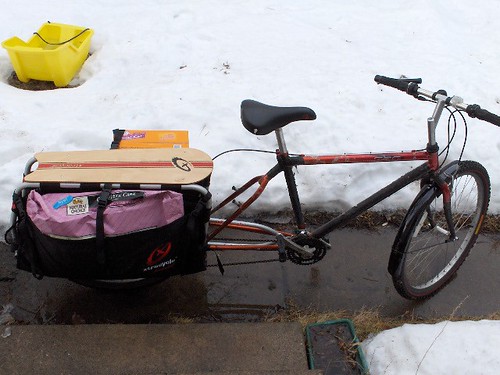
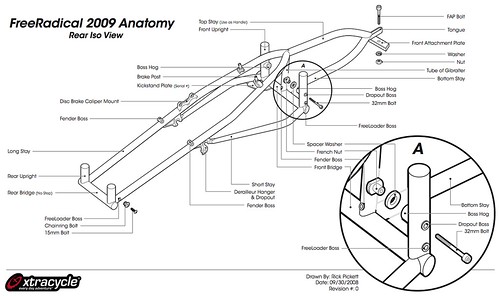
Okay, I'll admit that my inner cyclist is a little giddy about this. While it certainly isn't programming or security related, it squarely falls into "other interesting topics" and the Xtracycle guys undoubtedly operate with a "hacker" and "maker" kind of attitude, all the while embracing sustainability and empowering others to use human powered machines for tasks that would previously require a car. The initial premise, realized almost a decade ago, was to build an extension frame that would bolt up to a plain old bicycle and move the rear wheel back quite a ways while adding structure and attachment points to support weight-bearing bags and platforms.

(Creative Commons photo by arifm)

Now, many manufacturers are running with the idea, and the guys at Xtracycle have decided to open-source their design in order to engage the community in collaboration and to allow anyone with the equipment and skill to make their own and build onto an already tried-and-true design. (Click for higher res)


They're using a Wiki to collaborate right now (and I should note that it's not working all the way yet). I'm not sure I'm ready to sell my car and break out the torch to weld one of these up myself yet, but it's a fascinating project, and it's the first time I've seen this kind of detail in their design.