2008-01-14

UNIX tip of the day: cut columns from a text file

Most people who know their UNIX shells know of "cut", a utility which can grab only certain parts of each line within a text file. I'm kind of a weather geek, so I'll use some raw CSV METAR data from Weather Underground for this demo.

For instance, the following will grab the forth through tenth byte from each line of Data.csv:
$ cut -b 4-10 Data.csv
eCST,Te
53 AM,3
3 AM,37
3 AM,37
3 AM,37
3 AM,37
3 AM,37
3 AM,37
0 AM,37


If Data.csv happens to be a genuine comma-separated file, the following will grab the second and fifth fields (columns) from each line, using a comma as the delimiter between fields:
$ cut -f2,5 -d, Data.csv
TemperatureF,Sea Level PressureIn
37.0,29.79
37.0,29.77
37.0,29.75
37.0,29.69
37.9,29.66
37.9,29.65
37.0,29.65
37.4,29.61

This, as you can see, grabbed the Fahrenheit Temperature as well as the Sea Level Pressure (in Inches of Mercury), not like you cared. You're not here to check the weather. This is just a demo.

Unfortunately, cut always dumps the columns out in the order they're in in the file, regardless of which order you specify. For example switching the field order in the command line still nets you the identical output as before:
$ cut -f5,2 -d, Data.csv
TemperatureF,Sea Level PressureIn
37.0,29.79
37.0,29.77
37.0,29.75
37.0,29.69
37.9,29.66
37.9,29.65
37.0,29.65
37.4,29.61

Also, cut is really stupid about data that's organized in columns. Unless the formatting is very, very clean, it can be hard to get predictable results using cut.

For parsing data that's in columns (say, the output of the ls command, for example), it's better to take a crack at using awk. Awk is a somewhat intimidating beast for the unfamiliar user. For simply pulling data out of columns, though, it can't be beat.

Each column that awk identifies in a line is given an incremental variable, starting with $1. By default, awk uses white space as its field separator. Let's give this a try.


$ ls -la
total 16
drwx------+ 2 axon staff 136 Jan 14 13:50 .
drwxr-xr-x 14 axon staff 646 Jan 4 17:38 ..
-rw-r--r-- 1 axon staff 2970 Jan 14 13:50 DailyHistory.csv
-rw-r--r-- 1 axon staff 672 Jan 14 13:50 Data.csv


Lets try to grab the owner and the file name only. That would be the third and ninth fields in the above listing.

$ ls -la | awk '{print $3 $9}'

axon.
axon..
axonDailyHistory.csv
axonData.csv

As you can see, there's no separation between the two fields now. You must separate your records within the print command. You can use a space, tabs, a comma, or whatever you wish. We'll just separate them with a space in quotes:

$ ls -la | awk '{print $3 " " $9}'

axon .
axon ..
axon DailyHistory.csv
axon Data.csv

Also, unlike cut, you can specify things in any order you wish. This is great for getting only the data you want from large CSV files or other tabular data right from the command line.

$ ls -la | awk '{print $9 "," $3 "," $1}'
,,total
.,axon,drwx------+
..,axon,drwxr-xr-x
DailyHistory.csv,axon,-rw-r--r--
Data.csv,axon,-rw-r--r--

2008-01-13

Sysadmin Sunday: obsd_pkgscripts for OpenBSD

I'll admit it. As much as I adore OpenBSD, its management of binary packages really could use some work. I've been using OpenBSD since 1998 after meeting Theo in person when HiR went to Defcon 6. Heavy daily use of OpenBSD came in 1999 or early 2000. Back in 2004, I finally got fed up. 4 years of daily use without a really great package management system had finally worn me down to my last nerve. With almost every new release, OpenBSD's dev team says they've improved pkg_add functionality, but truth be known, I still find it left wanting to this very day.

This week on Sysadmin Sunday, I'll discuss some tools I wrote to make OpenBSD sysadmins' lives a little easier.

What are my complaints about OpenBSD's package management? Just to name a few:

  1. No good way to search for packages by name
  2. The need to memorize long path names to install a binary package from an FTP mirror
  3. The need to guess at package file names (tricky with version numbers)
Enter: obsd_pkgscripts, the current incarnation of my work from 2004.

The premise was simple: Download a list of all the packages that are easily searchable, then make a script to search and install the packages via FTP, taking away the repetition, memorization, and guess work.

The package is available for download in the file archives of the HiR Google Group, but this download link may work as well:
obsd_pkgscripts-1.00.tar.gz (2.5 kB)

To install it, simply download it, uncompress it, and run the included pkg_update.sh script. I'm cheating and using lynx -source to download it. It comes by default with OpenBSD, shoot me.
$ lynx -source http://h-i-r.googlegroups.com/web/obsd_pkgscripts-1.00.tar.gz \
> obsd_pkgscripts-1.00.tar.gz
$ file obsd_pkgscripts-1.00.tar.gz
obsd_pkgscripts-1.00.tar.gz: gzip compressed data, from Unix
$ tar xzvf obsd_pkgscripts-1.00.tar.gz
pkgscripts
pkgscripts/README
pkgscripts/pkg_get.sh
pkgscripts/pkg_scan.sh
pkgscripts/pkg_update.sh
$ pkgscripts/pkg_update.sh
cat: /home/axon/.tmpkg/mirror: No such file or directory
Package index directory does not exist! Creating Directory...
Package index directory created.
Downloading package index from ftp://ftp.openbsd.org/pub/OpenBSD/4.2/packages/sparc/ ...
Download complete!
As you can see, there's a README (I'd read it if I were you!), and three scripts: pkg_update.sh, pkg_scan.sh and pkg_get.sh. pkg_update, which we ran already, simply finds out what version and architecture of OpenBSD you're running and fetches the package index for that platform. It also creates the mirror configuration file if it doesn't already exist. This allows you to choose which OpenBSD mirror to use, if the default one isn't what you want.

pkg_scan.sh just tells you the names of packages that match your query. It simply uses grep on the package index. For instance, if we were looking for the xmms audio player, we'd find a lot of packages (xmms and all its plugin packages):
$ pkg_scan.sh xmms
faad-xmms-2.0p5.tgz
py-xmms-1.06p0.tgz
xmms-1.2.10p9.tgz
xmms-bonk-0.12p0.tgz
xmms-esd-1.2.10p5.tgz
xmms-flac-1.1.2p1.tgz
... output truncated ...

pkg_get.sh takes this a step further and actually installs the package. If you plan on running pkg_get as a normal user (recommended), you must have sudo access to run pkg_add. Otherwise, run pkg_get as root (not recommended). Optionally, you can add it to your path in the profile for your shell like I did. pkg_get.sh won't install a package until you have a totally unique package name. For example, autoconf is one of those bizarre packages where there are many versions available. If I try installing it with pkg_get.sh autoconf, I will get an error:
$ pkg_get.sh autoconf
autoconf-2.13p0.tgz
autoconf-2.52p1.tgz
autoconf-2.54p1.tgz
autoconf-2.56p0.tgz
autoconf-2.57p0.tgz
autoconf-2.58p1.tgz
autoconf-2.59p1.tgz
autoconf-2.60p1.tgz
autoconf-2.61p1.tgz
Ambiguous package name. Please be more specific.
But if I enter a unique-enough filename, it will install it. You don't need to type the whole filename, just enough of it to not match more than one package.
$ pkg_get.sh autoconf-2.61
Attempting to fetch/install package...
autoconf-2.61p1: complete
OpenBSD's pkg_add has come a long way. It will automatically download any necessary dependencies if it can find them in the same directory as the binary package you're installing. As such, my scripts don't have to do the exrta work as long as the dependencies are out there to be downloaded. This can be witnessed if we try something more complex, such as ImageMagick, a command-line image manipulation tool:
$ pkg_get.sh ImageMagick-
ImageMagick-6.3.4.1-no_x11.tgz
ImageMagick-6.3.4.1.tgz
Ambiguous package name. Please be more specific.

$ pkg_get.sh ImageMagick-6.3.4.1-no_x11
Attempting to fetch/install package...
bzip2-1.0.4: complete
jasper-1.900.1: complete
jbigkit-1.6p1: complete
lcms-1.15: complete
netpbm-10.26.42: complete
ghostscript-8.54p1-no_x11:ghostscript-fonts-8.11p0: complete
ghostscript-8.54p1-no_x11: complete
libxml-2.6.29: complete
ImageMagick-6.3.4.1-no_x11: complete
... post-install message truncated ...
--- ghostscript-fonts-8.11p0 -------------------
... post-install message truncated ...
As you can see, a few tiny scripts can make a world of difference when trying to install packages in OpenBSD.

See Also:
More HiR Information Report Sysadmin Sunday articles

Related OpenBSD Man pages:
pkg_add(1)
pkg_info(1)
pkg_delete(1)

2008-01-11

Adventures of a new mobile phone Pt. 2 - BitPIM

Editor's Note: This is the second part of my adventures of converting to a new phone. The first two parts will cover synchronizing your contacts between my old phone and my new phone. Although I'm using Mac OS X for most of this series, the tool I'm covering in this article works on both Mac OS X and Windows.

So, either your first phone isn't supported by iSync, or both. Or perhaps you're a Windows user that's ready to give BitPIM a whirl. Whatever the case, BitPIM is the focus of this article.

In the last article, I discussed getting your contacts into your Address book from your phone via iSync. To get these contacts into a format usable by BitPIM, you must export the contacts. It's worth mentioning that any contact information manager including MS Outlook, Mozilla Thunderbird and most of the popular web-mail sites can export your contacts to a vCard file that BitPIM can load onto your phone. Again, if the screen shots aren't legible, click on them to get the full sized image.

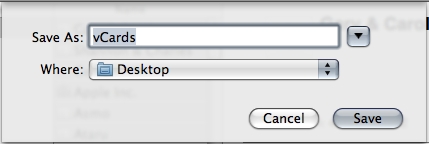
To get your contacts out of OS X's Address Book, highlight all of your contacts (or only the ones you want to load onto your new phone) and then use the File -> Export -> Export vCard menu.


I assume that you've already established a bluetooth or cable connection from your computer to your new phone following the instructions in Part 1. Once that's established, download and install BitPIM. Run it.

BitPIM is a bit of a kludgy beast. The UI isn't terribly intuitive. It won't work with all BlueTooth phones. Case and point, my e815 covered in Part 1 doesn't seem to get along very well with BitPIM, and I can't seem to get it to connect. BitPIM works on more phones than iSync, so between iSync and BitPIM you're likely covered.

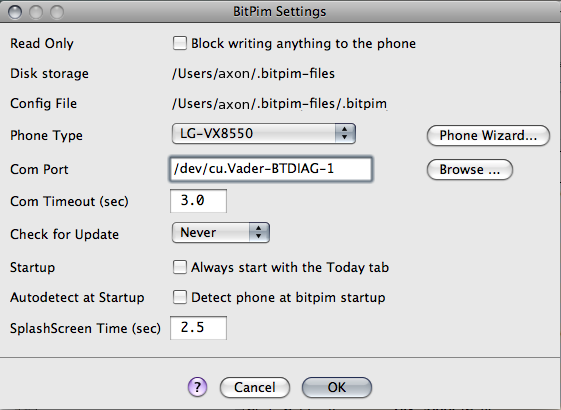
First, get your phone working with BitPIM. Select "Preferences" from the "BitPIM" menu. Try the Phone Wizard, or adjust the settings manually. This isn't too hard.


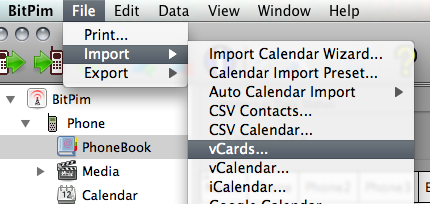
We'll import the exported vCards we got out of Address Book:


You'll be prompted to merge or replace existing data. If this is the first time you've run BitPIM, you shouldn't need to do much else. Just walk through the prompts and get all your contacts into BitPIM.

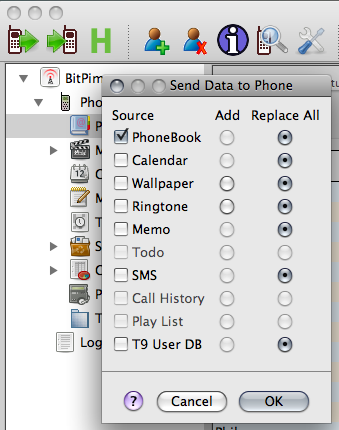
Now, Click the "Write To Phone" button (Second icon on the upper left, between the "Read From Phone" icon and the Big H "Historical Data" Icon).


Select "Contacts" (and Add or Replace as you need) and hit OK. You'll see the progress meter at the bottom scroll a few times, and then when it's done, it will likely restart your phone.


You can also sync the BitPIM calendar to various calendars, for example Google Calendar, iCal, or a calendar on another phone. If your new phone supports it, you may be able to grab your calendar data and beam it to your phone easily with BitPIM. The LG Chocolate VX8550's calendar works well with BitPIM, so if you've got one, feel free to give it a shot. BitPIM has a lot of other functionality as well. Play with the Import and Export options in the file menu.

Beware that BitPIM does, in fact, alter your phone's internal data files. There is a possibility that you could brick your phone. All in all, I've had pretty good luck with it so far.

See Also:
Adventures of a new mobile phone Pt. 1
Other HiR Mobile Articles

Freaky Friday Unix tip of the day: Named Pipes

Named pipes, also called FIFO (First In/First Out) Buffers, are a simple way to get piped data into a command that is expecting to read data from a file, for simulated local client/server communication, or to queue up data for periodic processing such as with cron.


To create a named pipe, use the mkfifo command.  The only options for mkfifo are -m and the filename.  If invoked without a mode for the newly created named pipe, the current umask is used as usual.  For example, an octal umask of 022 will be used to create files with permissions of 755 (rwx,r-x,r-x).

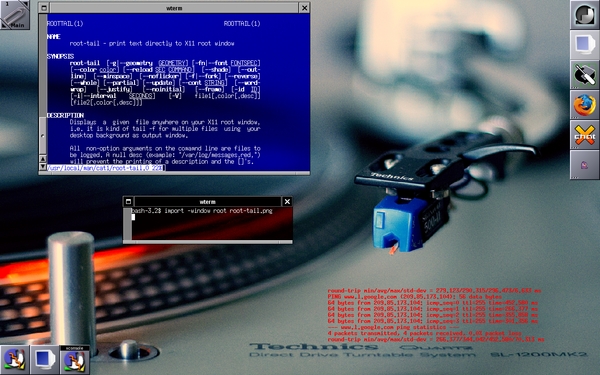
I like to use root-tail to put status messages on my graphical desktop.  Root-tail compiles and runs on pretty much every UNIX flavor that handles X11, but it can't accept input from a pipe, though.  It basically does a tail -f on a file. 

One such status message I like is a periodic ping so I know if I'm still up on the wireless network.  OpenBSD doesn't exactly give you an easy wireless-strength meter, nor do I care enough to see if there are any utilities out there to do it.  So, I made a fifo for my ping output:

$ mkfifo /tmp/pingfifo

Then I started root-tail in the background (see the root-tail manpage for more info on configuration screen positioning):

$ nohup root-tail -i 1 -g 500x120+700+610 /tmp/pingfifo,red&

And finally, I launched my ping script and redirected it to the fifo, also in the background:


ping.sh


#!/bin/sh
while true
do
ping -c4 www.google.com
sleep 38
done


$ nohup ./ping.sh > /tmp/pingfifo&

The end result is a transparent text box on my screen that shows me what I want (under the needle of the turntable, on the far right):


Note:
Root-tail works great on log files as-is if you wish to use it that way. This quick snippit was written to demonstrate how Unix allows pipes to be created to act like files for commands such as root-tail that only deal with files.

See Also:
Sysadmin Sunday
root-tail home page

2008-01-09

KC BSD User Group Kick-off meeting

I attended the kick-off meeting for KCBUG this evening, and had some fun. There were only four of us and we seemed fairly diverse in background and with experience using BSD. I think we all walked away learning at least something.

There wasn't much structure, but things discussed included:

  • Yaifo
  • Subversion
  • TRAC and DCL
  • Source ports and binary packages on OpenBSD
  • Appliance-esque installations
  • Live CD BSD implementations
  • OpenBSD for routing, load balancing, and firewalling
And probably a smattering of other stuff I can't quite recall at this time. It was good to meet some new local faces. I look forward to next month's meeting!

BSD Freaks and addicts, keep your eyes peeled. The next 2 installations of Sysadmin Sunday will feature some OpenBSD-Specific stuff.

2008-01-06

Sysadmin Sunday: Automate remote tasks with SSH

The SSH Suite can be leveraged to perform some pretty amazing tasks. I maintain hundreds upon hundreds of open systems as part of my job, but a good deal of my experience with SSH for batch processing came from a brief stint at a startup company that had employed a few hundred OpenBSD systems in an application-clustered environment. Keeping them in sync wasn't too hard once I came up with a few creative ways to get everything straight.

Currently, the most popular (and arguably most secure) SSH suite is OpenSSH which ships with almost all Open-Source operating systems and some commercial ones. Packages exist for most others, or there's always the source code.

For the un-initiated, SSH itself replaces RSH and Telnet as remote-access protocols for interactive logins. SFTP replaces the insecure FTP protocol with an encrypted, SSH-tunneled file transfer protocol. SCP replaces RCP with a secure remote copy protocol. At its core, SSH can simply authenticate these tools against the host's existing password database. The real power of SSH comes from its ability to use public keys to authenticate accounts. This kind of authentication is fragile if implemented improperly. If one account is compromised and the account has weakly-protected keys distributed to other systems, the impact of that one account can be much further-reaching. It is for this reason that I recommend using un-privileged accounts when using passwordless SSH keys.

Generating SSH Keys
To generate SSH keys for your account, you login to the account on the system that you'll be running automated or batch tasks from, then run ssh-keygen and follow the prompts, entering a blank password for the key.

-bash-3.2$ ssh-keygen
Generating public/private rsa key pair.
Enter file in which to save the key (/home/axon/.ssh/id_rsa):
Enter passphrase (empty for no passphrase):
Enter same passphrase again:
Your identification has been saved in /home/axon/.ssh/id_rsa.
Your public key has been saved in /home/axon/.ssh/id_rsa.pub.
The key fingerprint is:
5c:f4:64:3c:51:a3:a7:80:fd:fa:55:7a:06:f7:4d:84 axon@chimerabsd.labs.h-i-r.net

Distributing SSH keys
From here, you have to push the key out to each remote host by adding the contents of the id_rsa.pub file to the end of "authorized_keys" in the .ssh directory of the account you're going to be connecting to. My usual method goes something like this:
ssh user@remote.host "cat >> .ssh/authorized_keys" < ~/.ssh/id_rsa.pub
If this returns an error such as ".ssh/authorized_keys: No such file or directory", then you need to go to the remote host and create the .ssh directory manually.  This ssh'es to the remote account, and runs "cat >> .ssh/authorized_keys", which takes any input and appends it to the authorized_keys file. At the same time, it's sending the contents of of id_rsa.pub to be appended.  

The above command will prompt you for a password for the remote user, then exit immediately. From that point on "ssh user@remote.host" should no longer ask for a password, and then the account can be used for remote automation. Note: You can also enter a password during key generation, and this password will then be prompted for when ssh'ing to remote hosts. This hinders automation, however.

I chose, instead, to make a script to push the keys out to multiple systems, since I'll be demonstrating batch processing of remote commands.  First, come up with a list of all the remote systems you wish to effect at the same time.  I'm going to choose from a subset of HiR Lab boxes that I've got running right now:


File: labs.h-i-r.net.list

backtrack.labs.h-i-r.net
bouncer.labs.h-i-r.net
chimera.labs.h-i-r.net
chimerabsd.labs.h-i-r.net
lampdev.labs.h-i-r.net


The key push script:

File: key.pu.sh

#!/bin/sh
# mass ssh key push script by ax0n@h-i-r.net 2008-01-06
# Pushes ssh keys out to an entire list of hosts from a file
if [ -z $1 ]
then
echo "Syntax: $0 server-list "
exit 1
fi
boxlist=$1
for box in `cat $boxlist`
do
echo "-=-=-=- $box -=-=-=-"
ssh $box "cat >> .ssh/authorized_keys" < ~/.ssh/id_rsa.pub done

Then run key.pu.sh [server-list-file].  It will ask for passwords for each machine.  That's the breaks, kid.
-bash-3.2$ ./key.pu.sh labs.h-i-r.net.list
-=-=-=- backtrack.labs.h-i-r.net -=-=-=-
axon@backtrack.labs.h-i-r.net's password:
-=-=-=- bouncer.labs.h-i-r.net -=-=-=-
axon@bouncer.labs.h-i-r.net's password:
-=-=-=- chimera.labs.h-i-r.net -=-=-=-
Password:
-=-=-=- chimerabsd.labs.h-i-r.net -=-=-=-
axon@chimerabsd.labs.h-i-r.net's password:
-=-=-=- lampdev.labs.h-i-r.net -=-=-=-
axon@lampdev.labs.h-i-r.net's password:
Testing the SSH keys
Now that the keys are pushed, remote work will be simple.  Try to ssh to any of the systems in the list.  It should just work without a password:
-bash-3.2$ ssh axon@backtrack.labs.h-i-r.net
Last login: Sun Jan 6 22:34:20 2008 from 192.168.0.107
Linux 2.6.21.5.
backtrack ~ $
logout
Connection to backtrack.labs.h-i-r.net closed.

If you wish to run a single command remotely, then exit, you can also add the command to the end of the command line like this:
-bash-3.2$ ssh bouncer.labs.h-i-r.net uname -a
OpenBSD bouncer.labs.h-i-r.net 4.2 GENERIC#851 sparc

Similar to my key push script is one that I wrote to run a command across all of the systems in a list file:


File: mass-ssh.sh

#!/bin/sh
# mass ssh script by ax0n@h-i-r.net 2008-01-06
# Runs the same command across an entire list of hosts from a file

if [ -z $2 ]
then
echo "Syntax: $0 server-list command-string"
exit 1
fi
boxlist=$1
shift
commandstring=$*
for box in `cat $boxlist`
do
echo "-=-=-=- $box -=-=-=-"
ssh $box "$*"
done


Let's see it in action by running the "uptime" command across my lab environment:
-bash-3.2$ ./mass-ssh.sh labs.h-i-r.net.list uptime
-=-=-=- backtrack.labs.h-i-r.net -=-=-=-
22:53:40 up 5 days, 5:21, 2 users, load average: 0.24, 0.05, 0.02
-=-=-=- bouncer.labs.h-i-r.net -=-=-=-
10:07PM up 2:31, 0 users, load averages: 0.28, 0.15, 0.10
-=-=-=- chimera.labs.h-i-r.net -=-=-=-
16:53 up 1 day, 6:02, 3 users, load averages: 1.44 1.32 1.15
-=-=-=- chimerabsd.labs.h-i-r.net -=-=-=-
10:54AM up 2:32, 1 user, load averages: 0.32, 0.14, 0.10
-=-=-=- lampdev.labs.h-i-r.net -=-=-=-
16:53:19 up 2:08, 0 users, load average: 0.08, 0.02, 0.01
Notice how I don't get prompted for any passwords.  It's important to note that my account on these systems is a non-privileged account without access to sudo or membership in any special system groups such as root, wheel, adm, or bin.  You could use this script with a privileged account for adding or removing users, but I'd keep very tight security on any system with passwordless ssh keys.  It's mostly useful for seeing who is logged in, checking for high system loads, and whatnot.

Transferring files
sftp works much like ftp.  The syntax is "sftp user@host.name" and then it either prompts for a password, or if SSH keys are present, uses those.  After that, most of your usual FTP commands work as usual. In the following example, I do not have SSH keys from chimera (my laptop) to itself (localhost):

chimera$ sftp axon@localhost
Connecting to localhost...
Password:
sftp>
ls
Desktop Documents Downloads Library Movies Music Photos
Pictures Public Sites myphotos scp.sh
sftp>
cd Photos
sftp>
ls
06-06-07_1911.jpg 06-25-07_0600.jpg PowerLinkChain.jpg
sftp>
get PowerLinkChain.jpg
Fetching /Users/axon/Photos/PowerLinkChain.jpg to PowerLinkChain.jpg
/Users/axon/Photos/PowerLinkChain.jpg 100% 12KB 12.4KB/s 00:00


Better yet, in my opinion, is scp, the secure replacement for rcp. The syntax is simply the same as "cp" with the exception of it accepting a user and host name and a colon in front of the filename. This allows you to copy files over the network via an encrypted channel from the command-line. I'll do the same thing as before, from chimerabsd (which has ssh keys to chimera) to my home directory locally:
-bash-3.2$ scp axon@chimera.labs.h-i-r.net:Photos/PowerLinkChain.jpg ~
PowerLinkChain.jpg 100% 12KB 12.4KB/s 00:00
And as you guessed, I also have a program for pushing a file to a list of hosts as well.

File: pu.sh

#!/bin/sh
# mass scp push script by ax0n@h-i-r.net 2008-01-06
# uses scp to push one file out to an entire list of hosts from a file
if [ -z $2 ]
then
echo "Syntax: $0 file server-list [remote-path]"
exit 1
fi
boxlist=$2
pushfile=$1
rempath=$3
for box in `cat $boxlist`
do
echo "-=-=-=- $box -=-=-=-"
scp $file $box:$rempath
done


Troubleshooting
If you have trouble getting SSH keys to work, make sure the "PubkeyAuthentication" option in the sshd configuration file (usually /etc/ssh/sshd_config) is set to "yes" and un-commented.

In Closing
My scripts were quick and dirty examples -- use the scripts as a template for more complex tasks, such as uploading and unpacking a tarball nightly, running a database backup via mysqldump, or any other thing you can imagine.  You may wish to add an option for an alternate username, or hard-code a username into your own scripts.  Once SSH keys are in place, you can automate many non-interactive tasks via Cron or At as well.

2008-01-01

Adventures of a new mobile phone Pt. 1

Editor's Note: This is the first part of my adventures of converting to a new phone. The first two parts will cover synchronizing your contacts between my old phone and my new phone. These instructions should work pretty well for most Bluetooth-enabled phones, or for phones that you have a Data Cable and drivers for. I'm using Mac OS X for most of this series with the exception of the final article, which will cover the proprietary Windows-based tool used to manipulate my specific phone for additional functionality that I wanted.


Well, the time has come for a new phone. It's not that my trusty Motorola e815 hasn't been great, because it has been. In fact, I was reluctant to give it up. I got it in 2005 or so. Since then, it's been buried in snow, had the case cracked, and other torturous events. The thing keeps ticking. Truth be known, I'll probably hold onto it just in case I fail to bond with my new gadget. So, why is it time for a new phone? Because it's FREE -- with a 2 year contract, of course! If I don't upgrade, I'm basically giving away an offer for a free phone. I've been with Verizon in one form or another (i.e. Cellular One) for about a decade, though. In general, I've got nothing but great things to say about them. Another 2 years won't hurt anything.

First things first: My current phone has almost 100 phone numbers, and almost 80 unique contacts. Re-entering all of that information into a new phone doesn't sound like my idea of a fun way to waste an entire weekend.

With iSync, I can pull all the data out of the e815. iSync works with quite a few phones, so yours might be on the list. If you're using only Windows, I don't know how to sync your phone to Outlook or whatnot, but I'd imagine it can be done easily enough. Let's get started! If you have trouble making out the screen shots, click to zoom in on them.

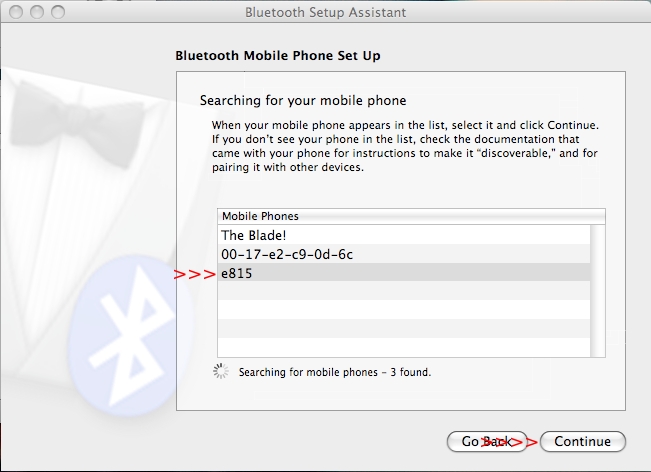
First, get the phone connected via Bluetooth. There's probably a "discoverable" mode on your phone that you'll need to activate. See your documentation for how to do it. Once it's in discoverable mode, it's time to go to work.

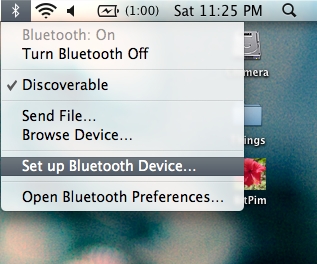
Select "Set up Bluetooth device" from the bluetooth menu:


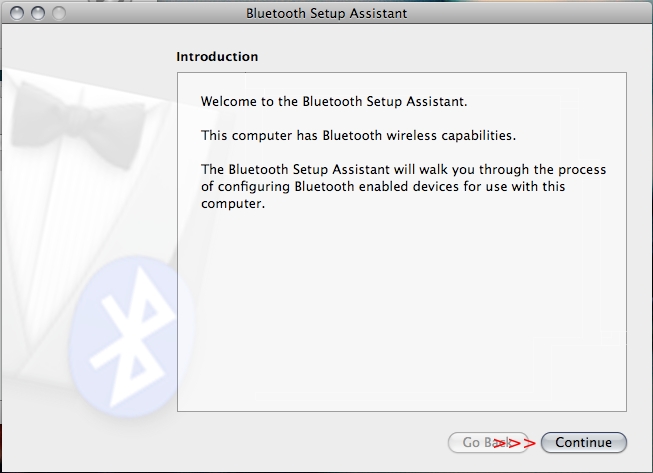
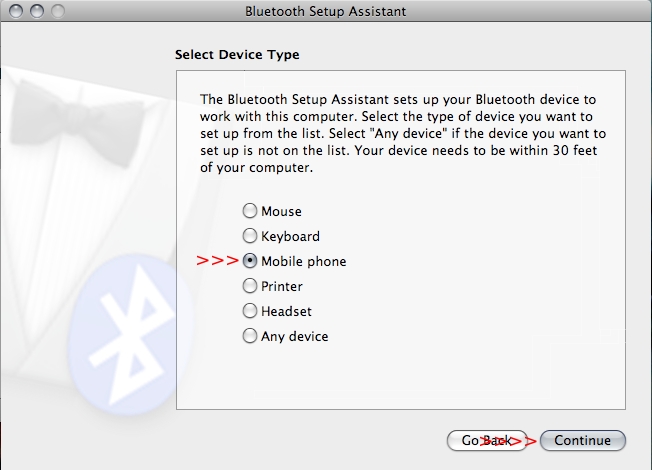
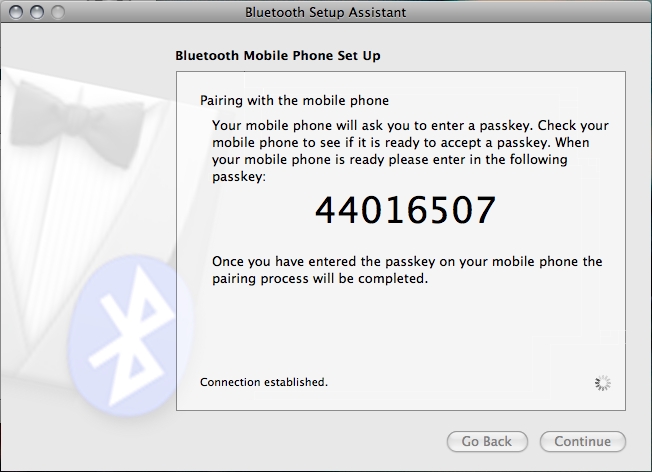
Next, just work through the prompts including the bonding PIN which you'll have to enter on your phone's handset. Note that I'm in a public place and people have other bluetooth enabled devices nearby with clever names such as "The Blade!" (oooo, scary)


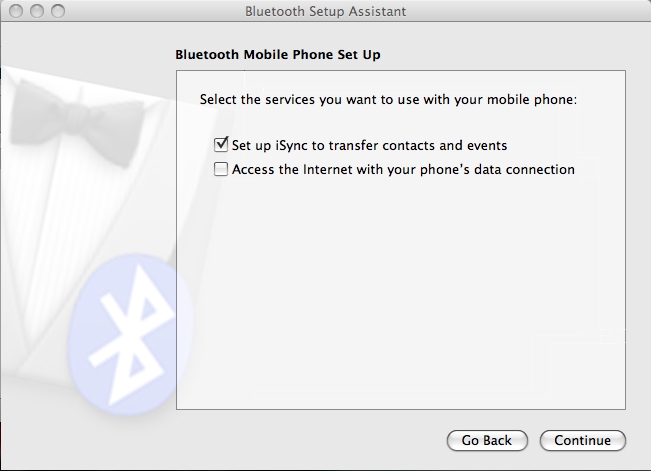
We won't need to enable the Internet connection through the phone, so you can un-check it if you want. When you activate bluetooth on your new phone, you can choose to enable it if you plan on tethering later on. Note that this is potentially against the terms of service for your carrier unless you cough up the cash for a data plan.


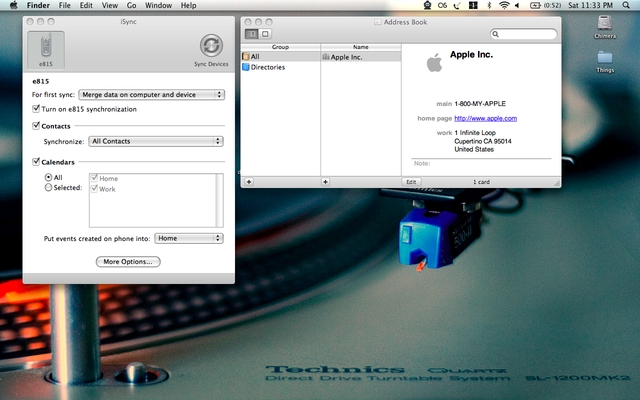
Once complete, iSync should launch on its own. It not, start it manually. With that out of the way, fire up Address Book (in Applications) as well. The default settings for iSync should be fine. Go ahead and Sync:


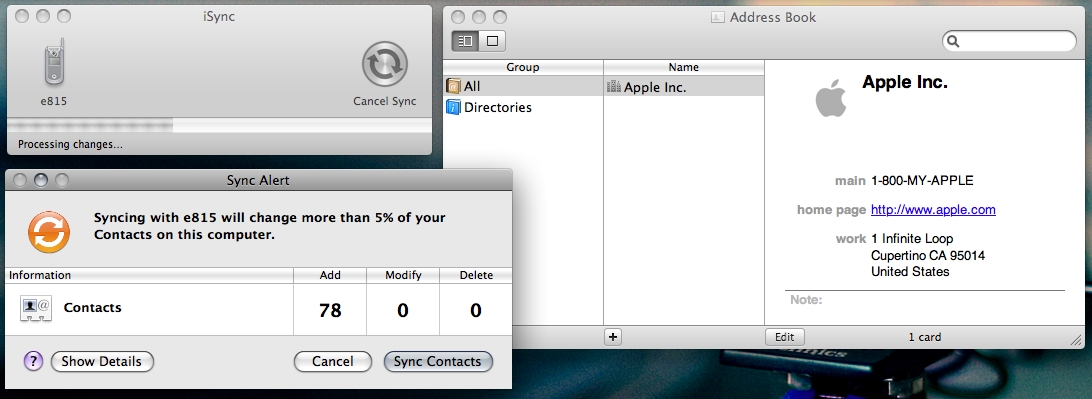
iSync, in true Apple form, will try to protect you from doing something stupid like updating a ton of information in its Address Book without permission from you. Go ahead and sync the contacts.


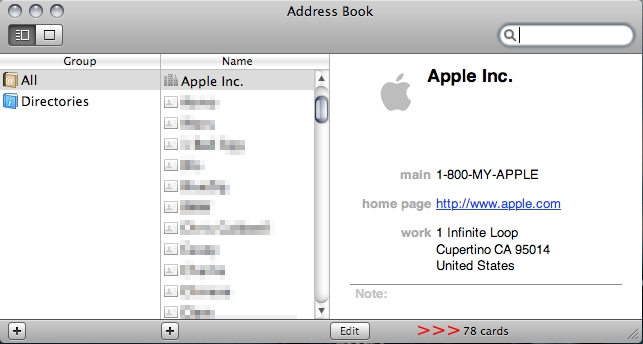
You'll now see all your contacts in the Address Book. You didn't think I'd actually show you all the names of people I talk to, do you?


Now, if you're lucky and your new phone is ALSO supported by iSync, you can shut off your old phone, fire up your new phone, and do the exact same procedure all over again. The Address Book will store all your contacts. Syncing your new phone will move all the contacts and their numbers over seamlessly.

Unfortunately, my new phone, the second-generation LG Chocolate (VX8550) isn't supported. Tune in for Part 2, where I'll discuss using BitPIM to help you out if you're dealing with unsupported phones.