
Editor's Note: This is the second part of my adventures of converting to a new phone. The first two parts will cover synchronizing your contacts between my old phone and my new phone. Although I'm using Mac OS X for most of this series, the tool I'm covering in this article works on both Mac OS X and Windows.
So, either your first phone isn't supported by iSync, or both. Or perhaps you're a Windows user that's ready to give BitPIM a whirl. Whatever the case, BitPIM is the focus of this article.
In the last article, I discussed getting your contacts into your Address book from your phone via iSync. To get these contacts into a format usable by BitPIM, you must export the contacts. It's worth mentioning that any contact information manager including MS Outlook, Mozilla Thunderbird and most of the popular web-mail sites can export your contacts to a vCard file that BitPIM can load onto your phone. Again, if the screen shots aren't legible, click on them to get the full sized image.
To get your contacts out of OS X's Address Book, highlight all of your contacts (or only the ones you want to load onto your new phone) and then use the File -> Export -> Export vCard menu.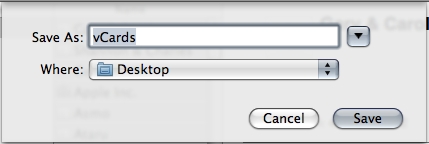
I assume that you've already established a bluetooth or cable connection from your computer to your new phone following the instructions in Part 1. Once that's established, download and install BitPIM. Run it.
BitPIM is a bit of a kludgy beast. The UI isn't terribly intuitive. It won't work with all BlueTooth phones. Case and point, my e815 covered in Part 1 doesn't seem to get along very well with BitPIM, and I can't seem to get it to connect. BitPIM works on more phones than iSync, so between iSync and BitPIM you're likely covered.
First, get your phone working with BitPIM. Select "Preferences" from the "BitPIM" menu. Try the Phone Wizard, or adjust the settings manually. This isn't too hard.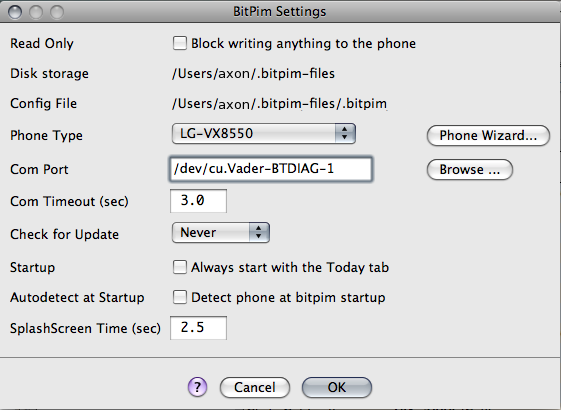
We'll import the exported vCards we got out of Address Book: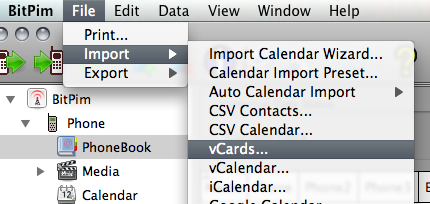
You'll be prompted to merge or replace existing data. If this is the first time you've run BitPIM, you shouldn't need to do much else. Just walk through the prompts and get all your contacts into BitPIM.
Now, Click the "Write To Phone" button (Second icon on the upper left, between the "Read From Phone" icon and the Big H "Historical Data" Icon).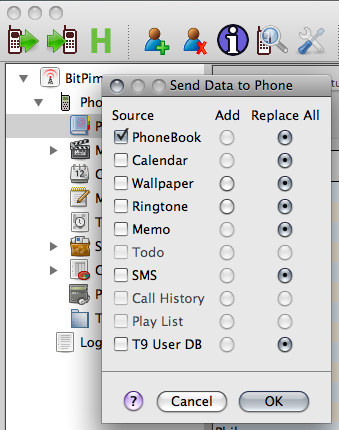
Select "Contacts" (and Add or Replace as you need) and hit OK. You'll see the progress meter at the bottom scroll a few times, and then when it's done, it will likely restart your phone.
You can also sync the BitPIM calendar to various calendars, for example Google Calendar, iCal, or a calendar on another phone. If your new phone supports it, you may be able to grab your calendar data and beam it to your phone easily with BitPIM. The LG Chocolate VX8550's calendar works well with BitPIM, so if you've got one, feel free to give it a shot. BitPIM has a lot of other functionality as well. Play with the Import and Export options in the file menu.
Beware that BitPIM does, in fact, alter your phone's internal data files. There is a possibility that you could brick your phone. All in all, I've had pretty good luck with it so far.
See Also:
Adventures of a new mobile phone Pt. 1
Other HiR Mobile Articles
2008-01-11
Adventures of a new mobile phone Pt. 2 - BitPIM

2008-01-01
Adventures of a new mobile phone Pt. 1
Editor's Note: This is the first part of my adventures of converting to a new phone. The first two parts will cover synchronizing your contacts between my old phone and my new phone. These instructions should work pretty well for most Bluetooth-enabled phones, or for phones that you have a Data Cable and drivers for. I'm using Mac OS X for most of this series with the exception of the final article, which will cover the proprietary Windows-based tool used to manipulate my specific phone for additional functionality that I wanted.
Well, the time has come for a new phone. It's not that my trusty Motorola e815 hasn't been great, because it has been. In fact, I was reluctant to give it up. I got it in 2005 or so. Since then, it's been buried in snow, had the case cracked, and other torturous events. The thing keeps ticking. Truth be known, I'll probably hold onto it just in case I fail to bond with my new gadget. So, why is it time for a new phone? Because it's FREE -- with a 2 year contract, of course! If I don't upgrade, I'm basically giving away an offer for a free phone. I've been with Verizon in one form or another (i.e. Cellular One) for about a decade, though. In general, I've got nothing but great things to say about them. Another 2 years won't hurt anything.
First things first: My current phone has almost 100 phone numbers, and almost 80 unique contacts. Re-entering all of that information into a new phone doesn't sound like my idea of a fun way to waste an entire weekend.
With iSync, I can pull all the data out of the e815. iSync works with quite a few phones, so yours might be on the list. If you're using only Windows, I don't know how to sync your phone to Outlook or whatnot, but I'd imagine it can be done easily enough. Let's get started! If you have trouble making out the screen shots, click to zoom in on them.
First, get the phone connected via Bluetooth. There's probably a "discoverable" mode on your phone that you'll need to activate. See your documentation for how to do it. Once it's in discoverable mode, it's time to go to work.
Select "Set up Bluetooth device" from the bluetooth menu: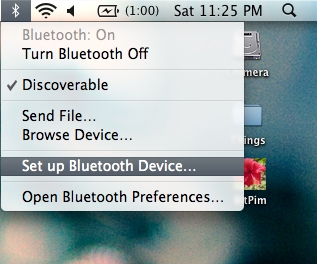
Next, just work through the prompts including the bonding PIN which you'll have to enter on your phone's handset. Note that I'm in a public place and people have other bluetooth enabled devices nearby with clever names such as "The Blade!" (oooo, scary)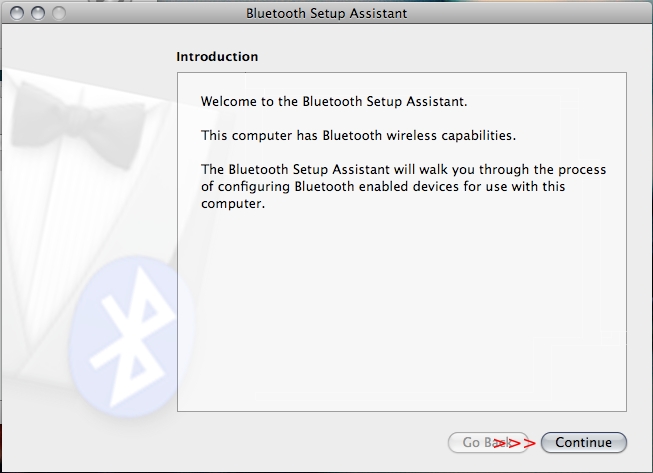
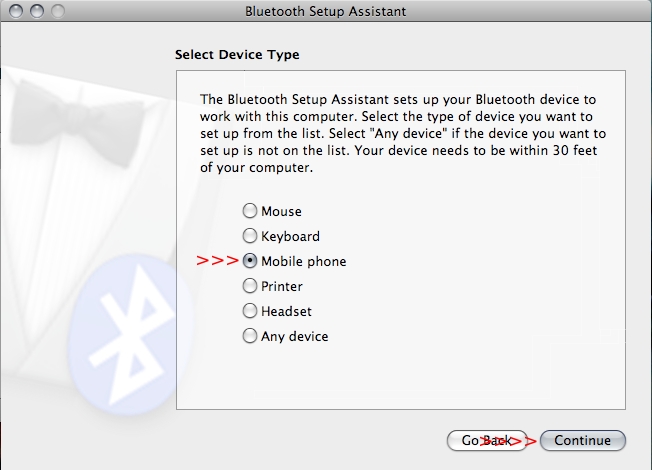
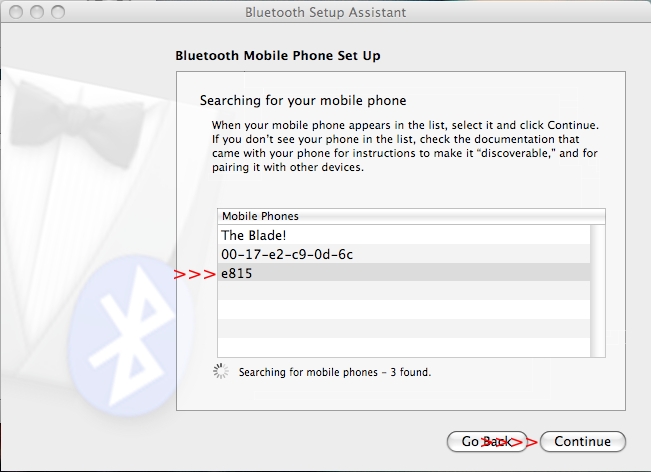
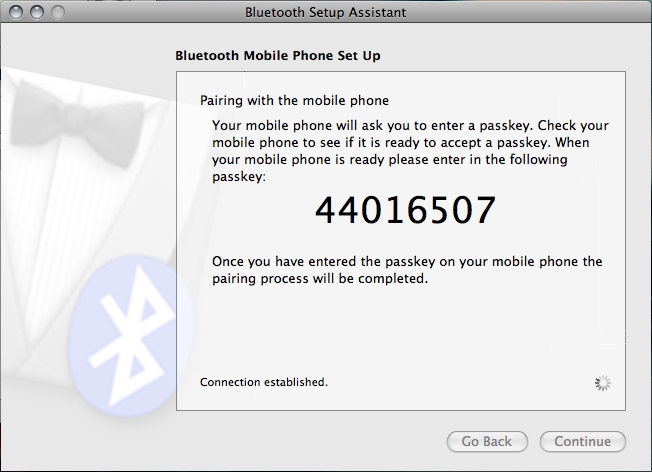
We won't need to enable the Internet connection through the phone, so you can un-check it if you want. When you activate bluetooth on your new phone, you can choose to enable it if you plan on tethering later on. Note that this is potentially against the terms of service for your carrier unless you cough up the cash for a data plan.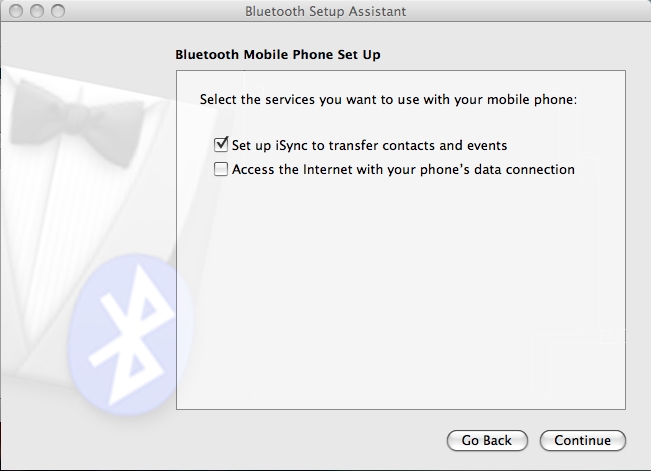
Once complete, iSync should launch on its own. It not, start it manually. With that out of the way, fire up Address Book (in Applications) as well. The default settings for iSync should be fine. Go ahead and Sync: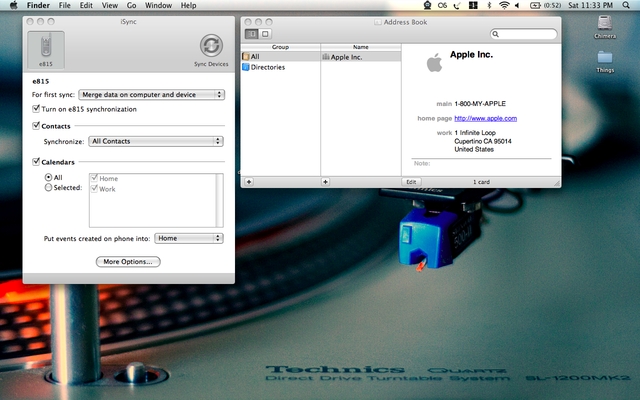
iSync, in true Apple form, will try to protect you from doing something stupid like updating a ton of information in its Address Book without permission from you. Go ahead and sync the contacts.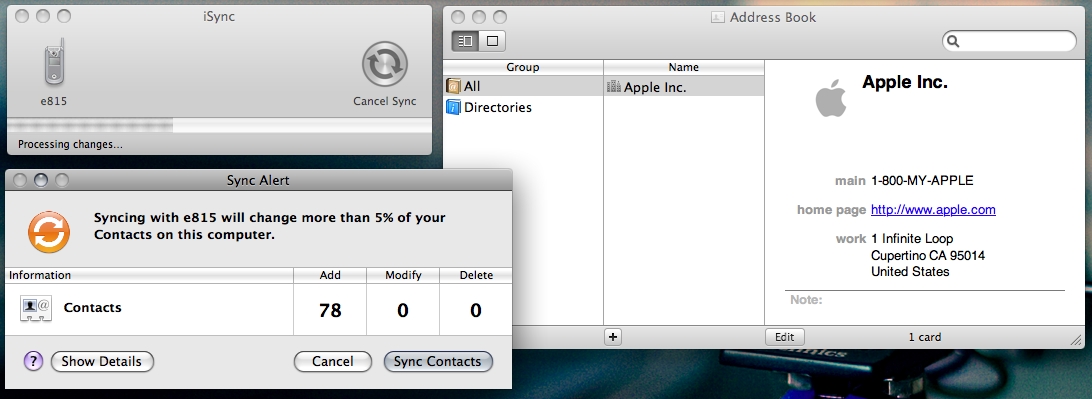
You'll now see all your contacts in the Address Book. You didn't think I'd actually show you all the names of people I talk to, do you?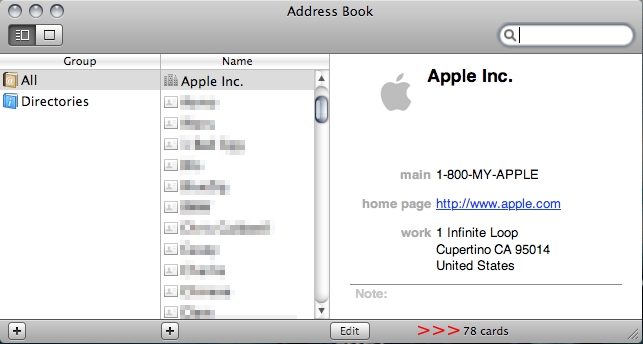
Now, if you're lucky and your new phone is ALSO supported by iSync, you can shut off your old phone, fire up your new phone, and do the exact same procedure all over again. The Address Book will store all your contacts. Syncing your new phone will move all the contacts and their numbers over seamlessly.
Unfortunately, my new phone, the second-generation LG Chocolate (VX8550) isn't supported. Tune in for Part 2, where I'll discuss using BitPIM to help you out if you're dealing with unsupported phones.

 Posts


