
Showing posts with label evasion. Show all posts

2008-12-02

Web filter evasion part 5: SSH Tunneled proxies

View entire series: Web Filter Evasion

This was supposed to be posted quite a while ago to wrap up the Web Filter Evasion series, but I never got around to it.

Combining SSH Tunneling with web proxies is one of the more advanced ways to get past a web filter. You can increase your odds of being able to contact your SSH Server by running it on ports that are more likely to be allowed outbound access: 53 (DNS) and 443 (https) are good examples. If you're using a router or firewall at home, you might be able to do this with Port Address Translation or Port Forwarding.

If you can set up a system to SSH to (as described in the Reverse Tunneling and Quick & Dirty SSH Tunneling articles), you can forward the proxy port to any external proxy server (assuming it works) but the most reliable way is to run Squid Cache (which we've also discussed before) on your SSH server.

I also recently ran across a site that keeps a good up-to-date list of public proxies you could try. The problem with public proxies is that it's one more place your private information goes. Keep that in mind when using any old proxy. It might not be bad for checking 4chan or craigslist, but you might not want to pull up sensitive, personal information while using someone else's proxy.

Here is a bare-bones squid.conf file that works on the binary package for OpenBSD. It only listens on the localhost interface, so it's not likely to be abused by outsiders. It should work on any other Squid install, just make sure the access_log and cache directories exist with the right permissions (or change them in this config example to match what your squid install was using by default. Make sure to run "squid -z" to create the cache if you haven't already.

acl apache rep_header Server ^Apache
acl all src all
http_access allow all
http_port localhost:3128
access_log /var/squid/logs/access.log squid
broken_vary_encoding allow apache
coredump_dir /var/squid/cache
Once you do this, simply start a tunnel from your port 3128 to port 3128 on the proxy server. Configure your browser to use http://localhost:3128 as the proxy server (as shown in Part 4)

If you're running squid on your SSH server with the above configuration file, this will work. Notice I'm running my local proxy tunnel on port 3129, not 3128. Using "~#" over the SSH session, you can see the tunneled TCP connections.

$ ssh axon@labs.h-i-r.net -L3129:localhost:3128

-bash-3.2$ ~#
The following connections are open:
#4 client-session (t4 r0 i0/0 o0/0 fd 8/9 cfd -1)
#5 direct-tcpip: listening port 3129 for localhost port 3128, connect from ::1 port 55373 (t4 r1 i0/0 o0/0 fd 11/11 cfd -1)
#6 direct-tcpip: listening port 3129 for localhost port 3128, connect from ::1 port 55351 (t4 r2 i0/0 o0/0 fd 12/12 cfd -1)
#7 direct-tcpip: listening port 3129 for localhost port 3128, connect from ::1 port 55374 (t4 r3 i0/0 o0/0 fd 13/13 cfd -1)
#8 direct-tcpip: listening port 3129 for localhost port 3128, connect from ::1 port 55375 (t4 r4 i0/0 o0/0 fd 14/14 cfd -1)
From here on out, all the web traffic will go over the tunnel to the proxy.

Note: some browsers will try to resolve DNS OUTSIDE the proxy. This can cause things to not work properly, and might allow the owner of the network to see DNS requests for sites that are blocked. This could raise red flags. If you can, block outgoing DNS traffic from your workstation when tunneling your proxy traffic. This should force the browser to offload DNS resolution to the proxy server on the other end of the tunnel.

There are other ways to tunnel out as well, but I won't be covering them. OpenVPN, Free S/WAN and Hamachi are some other VPN/Tunneling solutions worth looking at.

View entire series: Web Filter Evasion

2008-04-21

Web filter evasion part 4: Public HTTP Proxies

View entire series: Web Filter Evasion
A lot of times, you kind of want access to your favorite content, even if it's just to read it, while at work or school. Some places with more draconian Internet access policies block pretty much everything "cool" and paint their restrictions with a very wide brush. In this series, we'll uncover a few ways around these restrictions.

With each article, I will delve into techniques that are progressively more advanced and difficult to implement. Keep in mind that this is a thought exercise in evasion. Implementing this stuff could get you expelled from school, fired from your job, or banned from public-access computers in a library or coffee shop. With a little bit of wisdom, you can often get around the restrictions set in place without getting yourself into hot water.

Today, we will cover using "wide open" proxies to bounce our connections through. Since proxies are transient and often configured poorly, they pass the ire of most web filters. The rub? You usually have to find one that operates on a well-known port such as 80 (http) or 443 (https/ssl). Finding a working proxy can be a pain, and using it involves tweaking your browser settings and/or installing special software. Group policies could leave you in the cold on this one. The increased difficulty of this particular evasion technique brings this trick in at #4 in our series.

Public Proxies
Public proxies are (often SOCKS v5) proxy servers that have either been intentionally or accidentally configured to allow anyone on the Internet to access proxied content without proper access controls. I could go on and on about the various security implications of these proxies but that's not what this series is about. Simply put, HTTP proxies differ from Web Proxies in that the browser directly handles communication with the proxy behind the scenes. Regardless of what protocols the proxies are capable of handling, we're only concerned about Web traffic (http/https) for the time being.

Browser Configuration:
Yesterday, I linked to various proxy configuration instructions for different browsers. Today, you can use the same instructions to add the proxies you discover on your own. If you find that there is already a proxy server configured, you might be out of luck for this trick (and maybe for the fifth and final one, as well). If your employer is already forcing your web traffic through their own proxy, there's a good chance that they're blocking all outgoing traffic from your workstation to the Internet, making HTTP Proxies AND Tunneling difficult, if not impossible.

Security Risks:
The same risks apply here as apply to web proxies. Your data is going through a third party and you're subject to data manipulation, sniffing, or other bad things. Essentially, you're trusting a potentially unknown and untrusted third party with your traffic. By now, it should be obvious that these more aggressive evasion techniques can't be easily justified. You have been warned.

Finding public HTTP Proxies:
Public proxies play a huge role in the so-called underground. I'm talking mostly about illegal or frowned-upon activities such as phishing, spamming, and illegal file sharing. As such, there are groups that go out of their way to sniff out and enumerate poorly-configured proxy servers that are easily hijacked for whatever purpose others desire. I don't advocate using services without permission. In a moment, I'll discuss how to set up your own public HTTP Proxy.

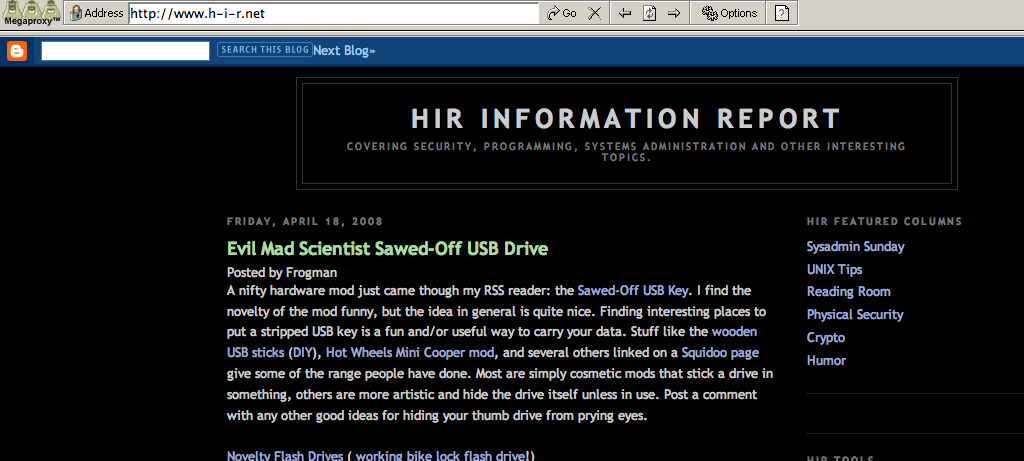
One source that provides a list of proxies that can be sorted on several criteria: http://www.xroxy.com/proxy-port.htm

Assuming your employer or school has you locked down to using only port 80 or 443, use the above tool to find proxies that operate on those ports. Then, update your proxy settings to match one of the servers in the list. If it's too slow or fails to work, try again. Soon enough, you should be able to access all of the content your heart desires.

Squid at home (or on another server outside of work/school)
You can also configure Squid to act as your own proxy. Making it a public proxy is a bad idea, so lock it down to your remote computer's IP Address. First, find your public-facing IP address from the computer you normally use, and write it down. The easiest way is to visit WhatIsMyIP.com. Then, using the Squid configuration guide from yesterday, add the following lines:

At the top of the block of "acl" lines (replace with your actual ip address in place of 65.43.2.1):
acl myremote src 65.43.2.1 255.255.255.255

Above the other http_access lines:
http_access allow myremote all

Finally, you will need Squid to listen on a port you can use. For this example, we will use Port 80. Keep in mind this will interfere with any web server running on this host. Below the existing http_port line(s), add:
http_port 80

Restart Squid, then point your browser's proxy to the IP address of your squid server, port 80.

The IP Address restriction of "myremote" will keep others from hijacking your proxy. Add as many rules as you need to for other remote IP addresses.

View entire series: Web Filter Evasion
2008-04-19

Web filter evasion part 3: Anonymous Web Proxy

View entire series: Web Filter Evasion
A lot of times, you kind of want access to your favorite content, even if it's just to read it, while at work or school. Some places with more draconian Internet access policies block pretty much everything "cool" and paint their restrictions with a very wide brush. In this series, we'll uncover a few ways around these restrictions.

With each article, I will delve into techniques that are progressively more advanced and difficult to implement. Keep in mind that this is a thought exercise in evasion. Implementing this stuff could get you expelled from school, fired from your job, or banned from public-access computers in a library or coffee shop. With a little bit of wisdom, you can often get around the restrictions set in place without getting yourself into hot water.

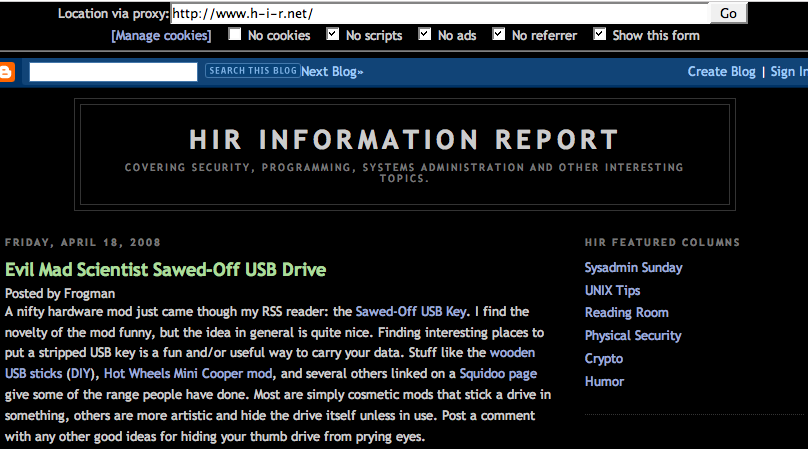
In Part 3, I am going to discuss using web "privacy" or "anonymizer" proxies. It's number three on the list because it is simple to use and often free -- risks be damned. These often free (but occasionally subscription-based) web sites provide you with a special URL that you visit, whereupon you enter the URL you wish to visit. These sites often claim to keep rogue websites from storing cookies or executing scripts on your computer, while others focus on evading web filters or blocking ads.

Risk of getting punished if caught
Regardless, you will have a difficult time weaseling your way out of this stunt if you're caught. The only reason you'd want to use proxies such as these one while in a web-restricted environment is to evade the restrictions. There's no innocent sweet-talking that will save you here. Also, many web filtering companies specifically play cat-and-mouse with these kinds of services, often blocking them shortly after they appear. Users who trigger this rule on a web filter are almost certainly going to get a visit from a higher-up.

Security risk of using proxies
Any time you use a proxy, you are routing traffic through someone else's network. While it's true that all Internet traffic hits various networks, the operators of proxies KNOW that people are using their services either for privacy or filter evasion. As such, not all proxy providers are guaranteed to be trustworthy, including those listed below.

Managed Web Proxies
Megaproxy offers a free trial. It was one of the first web-based anonymous proxies, with the intended purpose of keeping cookies and ads at bay, making it more difficult for site owners to gather data about you. The (perhaps unintentional) side effect was that people who could access the it from behind a web filter service could often use it to access blocked content. The paid version has a much more obscure and innocuous URL that isn't likely to make netadmins question it, but its URLs are most likely blocked on commercial filtering software because they go to great lengths to find most of the high-profile ways to evade. I actually did subscribe to this service many years ago, but I've since let it lapse. I was generally happy with it while I used it.

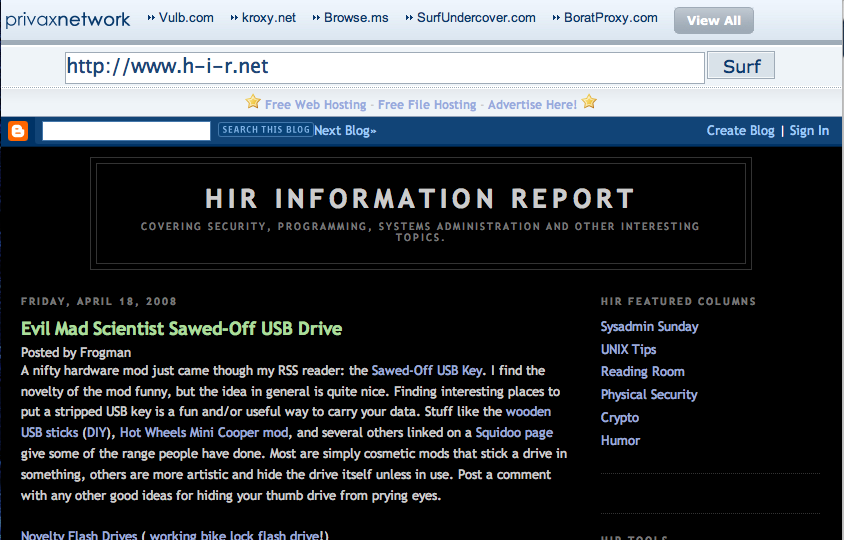
Privax offers an extensive list of (what appear to be free) Anonymous Web Proxies. The catch being here that there are many different URLs you can visit, with the hopes one or more won't be filtered. Some addresses blatantly announce that it's a proxy service while others are less obvious. Like other web proxies, Privax places a secondary navigation bar at the top of every page, making it easy to tell if the stuff you're looking at is, in fact, being proxied. I haven't extensively used Privax before, but it looks like a decent solution as I sit here now and try some sites through it.


Set up your own
For a while, I ran my own CGI Proxy on a hosted server that I could access from anywhere. If you have web space, this is a way to set up your own proxy under the radar, especially if you access it via SSL. The down-side is that many web-based anonymizers that you can host yourself (there are others, written in PHP, Perl, etc) lack some of the more advanced functionality of the commercial "anonymizer" providers. If setting one up yourself, be sure to use a method of password protecting your proxy so that it can't be abused by others who stumble across it.

Tomorrow on Sysadmin Sunday, I'll discuss setting up Squid, a caching HTTP proxy. This is different than a Web or CGI proxy, but it can be used to evade web filters as well. On Monday, I'll pick up the series again and discuss how to bypass web filters with your new Squid server.

Read the whole series: Web Filter Evasion

2008-04-17

Web filter evasion part 2: Out of band

View entire series: Web Filter Evasion

A lot of times, you kind of want access to your favorite content, even if it's just to read it, while at work or school. Some places with more draconian Internet access policies block pretty much everything "cool" and paint their restrictions with a very wide brush. In this series, we'll uncover a few ways around these restrictions.

With each article, I will delve into techniques that are progressively more advanced and difficult to implement. Keep in mind that this is a thought exercise in evasion. Implementing this stuff could get you expelled from school, fired from your job, or banned from public-access computers in a library or coffee shop. With a little bit of wisdom, you can often get around the restrictions set in place without getting yourself into hot water.

In Part 2, I'll cover out-of-band communication. Why spend time trying to trick the web filter when you can simply not go through it at all? Creeping into our list at number two, this trick is somewhat obvious and well-documented. Most computer users can manage to connect to a wireless network or follow the instructions that come with a mobile data service plan.

Personally, this is what I do most of the time. I'm using my own laptop and my own internet connection. Where I work, I'm not breaking any rules at all, so long as the content I'm browsing doesn't offend my peers. If I'm not disturbing anyone and I'm getting my work done, my boss doesn't mind.

Problems

  • Cost. To properly implement something like this, you'll likely need a laptop computer, Wi-Fi enabled PDA, a smartphone of some sort, or other expensive equipment.
  • Totally uncontrolled access. Neither IT Departments nor managers are often comfortable when you have 100% unfettered access to whatever you want. This could get you in trouble.
Advantages that will work in your favor
  • The fact that you'll be avoiding connecting through the work or school network means that anything on your computer is NOT on the work or school network. This is sometimes a sigh of relief for netadmins.
  • What you do out-of-band can't be monitored by the network, either.

Wi-Fi
The cheapest and easiest way. If there are networks in range, fire up your Wireless Ethernet (IEEE 802.11, Wi-Fi, etc.) and join an open network that you can surf freely from. Most operating systems will display a list of open networks you can try connecting to. Obviously, you should try to access ones that are blatantly set up for public use. Maybe there's a cafe across the street. Failing that, you can TRY to access networks that are left unsecured by accident. This can get you into legal trouble, though. HiR doesn't advocate that.

If you feel like getting a little bit more advanced in your search for a public network to piggyback, install wireless scanning software (KisMAC, BSD Airtools, Kismet or Netstumbler), pick up some high-gain antennae and a high-power wireless ethernet card. The widespread deployment of privately-operated, free Wi-Fi makes this a viable option in dense urban and business districts.

Mobile Data plans (Wireless broadband)
Sprint and Verizon (among others, probably) offer data plans with mobile data cards that you can plug into your laptop via PCMCIA, USB or Express Card connectors. These plans can be costly, but will work anywhere you can get a signal on your phone. Using these services is as simple as paying for it and following the instructions. If you have trouble getting it working, you can even call your provider for free technical support.

Also in the same vein are smartphones. Gadgets such as the iPhone offer feature-packed browsing via the phone's data plan. You can also get on AIM/MSN/Yahoo or check many websites and mail providers through the built-in WAP Browser on less advanced mobile phones.

Mobile Phone Tethering
This is a little more shady, and could get your account terminated with your wireless carrier. By plugging in a cable between your laptop and mobile phone (or using bluetooth to make the connection) you can "tether" and use your phone's built-in data connection to access the Internet. HowardForums is a good place to learn about this stuff in more detail.

Next in this series, we'll dive head-first into web-based anonymous proxies -- a sure-fire way to get your IT guys angry at you, should you be caught in the act.

View entire series: Web Filter Evasion

2008-04-15

Web filter evasion part 1: RSS and You

View entire series: Web Filter Evasion

A lot of times, you kind of want access to your favorite content, even if it's just to read it, while at work or school. Some places with more draconian Internet access policies block pretty much everything "cool" and paint their restrictions with a very wide brush. In this series, we'll uncover a few ways around these restrictions.

In Part 1, I am going to cover one way of evading these restrictions that is not only one of the most straightforward and easy methods, but also the least likely to get you in trouble with your boss or your IT department: Online RSS readers.

About RSS
RSS was invented around the turn of the century, but started to gain widespread popularity in the wake of so-called "Web 2.0", when syndication, mash-ups, cross-platform publication and content management all coalesced together. While not every web site has an RSS feed, almost every blog, news site and social network has some kind of RSS integration going on. In this article, I'll focus on gaining access to content via RSS despite web filtering software's strangle-hold.

Local RSS Clients
Local RSS clients such as FeedReader or Mozilla Firefox Live Bookmarks usually contact the site directly, pulling a data feed down (RSS, Atom, XML, etc) to display the information in a lightweight, easy-to-read format. The problem with this is that the RSS feed usually has the blocked URL in it. For example, Digg's rss feeds are all on digg.com. If access to Digg is blocked, you can't get to the feeds, either.

Online Readers
Online RSS readers pull the feed from a central server, then just display the information to you directly over the web. For this example, I'll use Google Reader. That said, My Yahoo and MSN Live (among dozens of others) also offer the ability to integrate feeds on your page but it's not quite as robust as Google Reader. Using the example above, if you add Digg's RSS feeds to Google Reader, your web filter only sees you trying to access http://www.google.com/reader/ which is passing the contents of the RSS feeds to you - and most web filters let you get to Google. Again, if that doesn't work, there are dozens of ways to access RSS feeds with online readers.

Things to note
One flaw here is that embedded content from banned sites won't load and may be logged in your web filtering software. If your employer blocks Flickr, you can load someone's Flickr RSS feed into your reader and see their feed, but all of their images will fail to load. Same goes for blog posts with embedded YouTube videos if YouTube is blocked. You get the idea. Basically, this works best for RSS feeds where most of the content is text-based. News sites like CNN or Engadget. Social bookmarking sites like Digg, delicious and reddit. Blogspot, wordpress or livejournal blogs. Even twitter.

Justification
If you get busted (which is not likely if you play your cards right), you can always say that you use something like Google Reader to track updates to your favorite websites at home. If you can get to it from work, it must be okay, right? Make sure you're managing your time wisely, and keep the content you view at work "work safe" and non-offensive. Chances are that your boss won't mind. In fact, he might just think you're checking your personal email really quick, as RSS readers often look somewhat similar to web mail clients. Plausible deniability only works once, though. If you're asked to stop it, you should stop. If your written policy specifically bans all personal Internet browsing, you may also get the book thrown at you. HiR won't be held responsible for legal or employment problems.

How to do it:
First, sign up for a free Google account if you don't have one already.

Next, go to Google Reader and log in.

Add a subscription RSS feed. I'll add HiR Information Report to my Google Reader:


In part 2, I'll cover using out-of-band communication.

View entire series: Web Filter Evasion