Showing posts with label QPST. Show all posts

2010-01-26

Getting the Lock Code on an LG Mobile Phone


A few weeks ago, my trusty LG Env3 met its untimely demise in a washing machine. I immediately yanked the battery out first. None of the usual tricks worked. I tried many of them, but here are a few that HAVE worked for me in the past with other peoples' phones:

  • Take it apart and blow-dry the electronics
  • Seal it in a container of uncooked rice or other desiccant overnight


This isn't about drying a phone out, though. I surfed eBay and was taken aback by the prices for used but working Env3's. So I decided to buy a broken one. Preferably one with a mechanical problem where the non-damaged mechanical parts from my electronically-fried phone could be put to good repair use. Like this one:
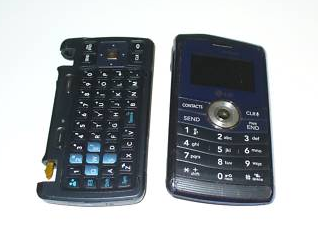

Lo and behold, the case was pretty well damaged and the ribbon cables joining the two halves had been severed. Otherwise, the phone seemed to be in okay shape. Commence repair. We are Env3 of Borg. Parts everywhere, mix and match a frankenphone. What a mess!
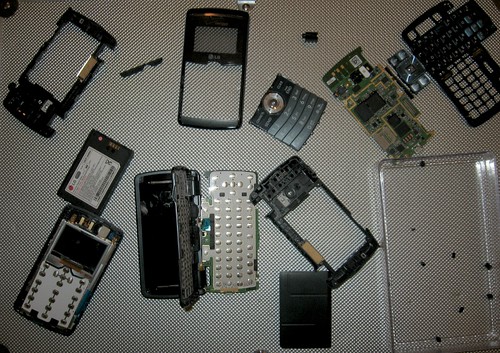

There's not much I can teach you about this. If you have the know-how to disassemble the pieces of two nearly-identical non-working objects and you know which parts are bad, you can probably assemble one good working unit. That's not what this is about, either.

This is about what happened to me once I powered on the resulting piecemeal ware -- something that happens probably more often than you'd think, whenever you buy a used phone from someone you don't know: The Lock Code... OF DOOM.

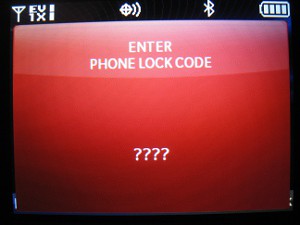


By default, the lock code is the last-four digits of the phone's programmed phone number during initial programming. This is different than the SERVICE CODE which is usually six zeroes. In the case of the eBay phone, though, we don't know the phone number. The easiest way to find out is to access the service menu. On newer LG phones, you enter "##PROGRAM" followed by the VX- model number, and hit send. The model number can usually be found inside the phone behind the battery compartment.


If it's a QWERTY clamshell like mine, the phone must be opened and the code must be entered on the QWERTY keyboard. Example: The Env3 is a VX-9200 and the service menu is accessed by hammering in [Sym]3[Sym]3PROGRAM9200[SEND] which shows on the screen as "##77647269200"
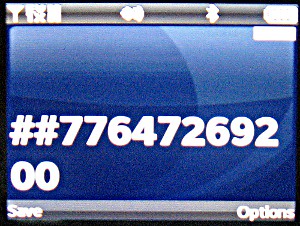

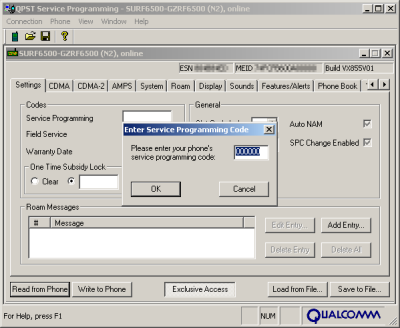
A prompt will show up for the service code. Again, this is 000000 by default.


Access the "Service Programming" menu, usually the first option. And don't change anything.


You'll see the Mobile Equipment ID and ESN on the first screen...


...and the Phone Number on the second screen. Write the phone number down. Exit the service programming menu. This will usually cause the phone to turn off or reboot.


Try the last four digits of the phone number as the unlock code. Usually, this works. When you call your provider to activate your phone, this unlock code should be changed to the last four digits of your phone number, and you're in the clear. Consult your user manual if you wish to de-activate locking.

In my case, however, the user was savvy or paranoid enough to know that friends who know the mobile number could probably guess the lock code. That is to say, the lock code on this phone was NOT the last four digits, and I was still locked out of the phone I paid for. At this point, I'm thinking that it'd have been nice for the seller to remember there was a lock code and to provide it. Oh well. Who am I to let a little 4-digit code get in my way? Not bloody likely.

Most phone service techs will charge $30 to $50 to remove the lock code. Highway robbery is somewhat expected with these guys, though. Enter my good old friend: QPST. Officially for service technician use only, QPST is a suite of programs for troubleshooting and programming phones using Qualcomm's lineup of mobile baseband processors. I used QPST in an article just over 2 years ago when discussing tethering.

The same thing applies. You can't buy QPST, but it's "out there" and you can easily download it or get it from a friend who works in the industry. You also have to run it on Windows, or at least in a virtual machine. If you do try to get it "in the wild" you should probably have a good anti-virus solution installed. You'll also need a data cable for your phone. LG's newer phones ship with a data cable and a USB Wall-Wart, so you probably already have a data cable.

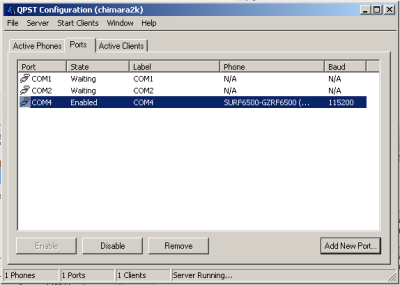
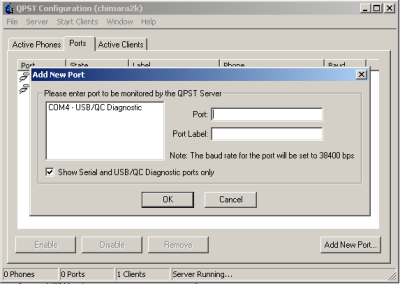
Once you have the phone hooked up and the drivers installed, you should be able to see the phone in the QPST Configuration tool. If not, click "Add Port" and add one of the USB Serial ports. Select the phone from the list and launch the "Service Programming" tool from the "Start Clients" menu.

Flip over to the "1X/HDR Security" Tab and click the "Read From Phone" button. Voila. You've found the lock code! Below, you can see it was set to 4776. You should also be able to change it from this menu, but I didn't bother trying.


While there are some pretty cool things you can do with QPST aside from the things I have covered on HiR, you can also brick or damage your phone when you mess with it at this level, so think before you act.

2008-01-15

Unofficial DUN Tethering guide: LG Chocolate (vx8550) Hack

-- OR --
Adventures of a new mobile phone Pt. 3...


Editor's note: this particular article involves downloading and installing software from un-trusted web site. That's dangerous. It also involves running Windows. That's also dangerous. To top it all off, it also involves software that interacts with your mobile phone at a very low level. That, too, is dangerous. In short, HiR isn't responsible if you get in trouble with the law or your service provider, get a virus from a russian s3ri4lz site, get somehow addicted to running Windows, or brick your shiny new gadget.


Now for the fun stuff. One of the things I kind of relied on my Motorola e815 for was dial-up networking (DUN) via bluetooth. I didn't necessarily use it a lot, but as a sysadmin that's always been a bit of a road warrior, I often find myself places where there simply is no Internet. Inevitably, the pager-of-doom goes off and I'm out at the lake camping or at a location where there's no obvious Internet connection available. Other times, I'll be on a commuter bus and have the burning desire to check the news, or do some research on something really quick.

Whatever the reason, I enjoyed this functionality. On the e815, this was simple to enable. A quick punch-of-numbers on the keypad and voila. My MacBook could see it as a bluetooth modem with surprisingly quick download speed nonetheless -- at times upwards of 1mbit/sec.

The LG Chocolate? Different story. My MacBook saw it, but I wasn't getting anywhere. The connection would be refused with an invalid login and password, even though my login and password were fine when using my e815. This had me concerned.

I did a quick bit of research, and found that the phone has some internal IDs that differ when used for DUN. There's no quick handset-hack for this. Two things were required: A Data Cable, and the proprietary software from Qualcomm (called QPST) for changing the phone's settings. Even BitPIM wouldn't help me here.

All of the Windows operations were done within Parallels Desktop on a small Windows 2000 partition with all the latest patches. This isn't saying much, I don't know when the last patch was released for Windows 2000 but it's a lightweight operating system that can run the few Windows apps that I am ever tempted to launch.

The first order of business was to find the software. Unfortunately, the location where I got it seems to be offline, but you'll have to search for it. The specific file I found was a compressed installer for QPST 2.7 Build 231. Other builds might work fine. I'll caution you that a lot of sites that I found contained massive amounts of shady stuff, so do this at your own risk. I scanned the downloaded file for viruses before transferring it to my Win2K virtual machine. This is only available for Windows. Once downloaded, install it. It's a pretty straight-forward next-next-next installation.

Next, of course, was finding the data cable. I went ahead and purchased the Verizon Chocolate music accessory kit. It was a relative bargain at only $45. Along with the USB Data cable, I also got a special stereo 1/16" headset, a 2GB TransFlash card and adapters. The package also came with drivers for the USB connection as well as software for managing music on the phone. I obviously had no intention of using their Windows software just to copy files to my phone, but the driver was also Windows-only. I installed the USB driver, inserted the 2GB card into my phone, and went on my way with the rest of this hack.

Once the drivers are installed, the phone shows up on a high COM Port. Make sure the phone is plugged in and if running Parallels (versus doing this on a dedicated Windows machine) make sure that the USB Device is enabled for Parallels (Devices > USB menu) then open QPST Configuration and hit "Add Port". If all's well, you should see your phone in the dialog. Select and add it accordingly.


Once the port has been added, close QPST Configuration.

Next, open QPST's Service Programming tool. It should immediately prompt you to select your phone. Select it and continue. BEFORE YOU DO ANYTHING AT ALL, hit "Read from Phone", enter the SP code (usually 000000) and then save the data to a file. This will back-up your phone's configuration.


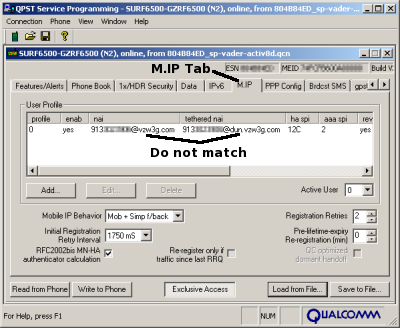
Now that that's out of the way, on the row of tabs across the top, scroll over until you find the M.IP tab. Expand the "NAI" and "Tethered NAI" columns so you can read them both clearly. You can see that Tethered NAI is not the same as NAI.


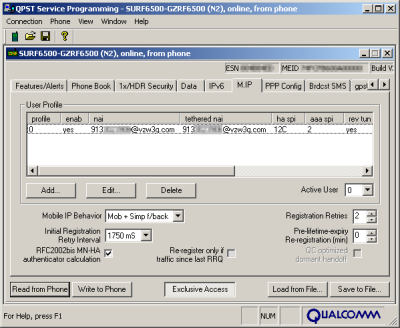
Edit Tethered NAI so that it matches.


Then, save this configuration to a different backup file. Don't over-write your pristine backup, please. Finally, get your phreak on and click the "Write to Phone" button and cross your fingers.

Quit the QPST Service Programming tool. Your phone should reboot and be completely intact.


From there, you set up your dial-up networking as usual. This is straight-forward in both Windows and Mac OS X.

Phone Number: #777
User Name: the tethered NAI you used above, ex: 1234567890@vzw3g.com
Password: vzw (but anything should work)

Now that you have the cable with a driver for Windows, you can do USB Serial or bluetooth on Windows.

Without a USB Driver on OS X you can still do Bluetooth DUN. If you configured your phone's Bluetooth connection with the "Access the internet with this phone's data connection" option checked, it should simply ask for a username and password.