Showing posts sorted by relevance for query vmm. Sort by date Show all posts

2018-12-02

OpenBSD VMM Hypervisor Part 4: Running Ubuntu (and possibly other distros)

TL;DR: you cheat.

I've been trying for almost a year to figure out how to get the cloud-init meta-data service to work with the Ubuntu Cloud image. I've asked on misc@ and other OpenBSD groups, and no one has an answer. The documentation is vague. If anyone ever figures out how to configure meta-data, let me know. I'd still like to give it a shot.

Last week, I rescued a server from a pile of computers destined to be scrapped and recycled. For me, it's the perfect setup for getting serious with OpenBSD VMM in my home lab. Two older Xeon E5-2620 CPUs and 128 GB of RAM. No hard drives, but it came with enough empty drive trays for getting started. I threw a pair of old SAS drives into it.


No surprise, OpenBSD just worked. This renewed my fervor for replicating a bunch of my cloud instances at home, and there's a lot of Ubuntu in use.

I decided to bite the bullet and just use qemu to do the installation and configuration of Ubuntu. Install qemu from packages:

doas pkg_add qemu

Download Ubuntu Server. I've actually used both 18.04 LTS and 16.04 LTS. I'm focusing on 16.04 for this because that's what I'm running on most of my EC2 instances.


Create a disk image.

vmctl create qcow2:ubuntu16lts.qcow2 -s 20G

Boot the ubuntu ISO and attach the new ubuntu disk image to qemu:

qemu-system-x86_64 -boot d -cdrom ~/Downloads/ubuntu-16.04.5-server-amd64.iso -drive file=ubuntu16lts.qcow2,media=disk -m 640

Install Ubuntu as usual. I didn't bother adding anything other than the SSH server during installation. qemu is really slow on OpenBSD, but it works... eventually. When the install is done, shut down and then restart qemu without the installation ISO attached.

qemu-system-x86_64 -drive file=ubuntu16lts.qcow2,media=disk -m 640

Log in with the user-level account you created. There are only two things to tweak before it's ready to run in vmm: Configuring the serial console, and the network interface.

Under qemu, Ubuntu sees "ens3" as the network interface. Under vmm, the network interface is "enp0s3". Change "ens3" to "enp0s3" in /etc/network/interfaces if you're using 16.04. On Ubuntu 18.04, you must instead change the "netplan" config file in /etc/netplan/50-cloud-init.yaml with the same kind of change, ens3 to enp0s3.

To configure the serial console, edit /etc/default/grub and change this line:

GRUB_CMDLINE_LINUX=""

to

GRUB_CMDLINE_LINUX="console=tty0 console=ttyS0,115200n8"

then run

sudo update-grub

Shut down qemu again. Your disk image is basically ready to go under vmm.

To save the trouble of having to mess with qemu again, I recommend creating derivative images of the one you just created, and using those for vmm.

vmctl create qcow2:ubuntu16lts-1.qcow2 -b ubuntu16lts.qcow2

Add the new disk image to a configuration clause in /etc/vm.conf on your OpenBSD host system. Mine looks like this:

vm "Ubuntu16.04" {
        disable
        owner axon
        memory 4096M
        disk "/home/axon/vmm/ubuntu16lts-1.qcow2"
        interface {
                switch "local"
                lladdr fe:e1:ba:f0:eb:b0
        }
}


For more information about setting up switches and networks in vmm, see Part 2 of my VMM series.

Voila! Ubuntu in VMM!


Although the configuration files you must edit to make it work might vary, you can do the same thing and it may very well work for text-mode-only distributions.

I actually didn't need to use qemu to get arch linux installed in vmm, but it was somewhat tedious to do entirely in vmm, and it took me a few tries to get it right. Qemu might have been easier.

2018-11-01

OpenBSD vmm Hypervisor Part 3: qcow2 and derived disk images

With OpenBSD 6.4, the VMM hypervisor got support for qcow2 disk images. This format is used by QEMU, but it has several features that make it a better choice than raw image files. The images are dynamically-allocated, so the disk image file grows as you use more space instead of taking up the entire filesystem size when the image is created. It won't ever shrink, though. "Derived images" are also supported. While VMM doesn't officially support snapshots yet, you can kind of get away with using derived images to do something similar. I'll cover that toward the end of this article.

You will probably want to have the networking set up on your OpenBSD VM host before you continue. That information is covered in Part 2 of my VMM series.

To create a qcow2 image, prefix the image file name with qcow2:

vmctl create qcow2:obsd64-base.qcow2 -s 10G

--OR--

You can also use the qemu-img utility (from qemu in the package repository) to convert an existing raw image to qcow2 format, if you've already been using VMM before OpenBSD 6.4 was released. This image file will not be dynamically sized, but it can serve as a base image for derivatives:

qemu-img convert obsd64.img obsd64-base.qcow2

Start the VM using your bsd.rd as the boot image, then follow the installer prompts. 

doas vmctl start obsd64-base -n local -m 512m -d obsd64-base.qcow2 -b /bsd.rd -c

When the install is done, rebooting will just bring the installer back. Exit to shell instead, type "halt -p" and use the ~. command sequence to exit the VM. Anything else you press will probably reboot the system (back into the installer). Now you have a pristine, freshly-installed OpenBSD image to start from.

To create a derived image, select your base image with the -b option to vmctl create:

vmctl create qcow2:obsd64-test1.qcow2 -b obsd64-base.qcow2

WARNING: If you make any changes to the base image, all derived image files it was based on will become corrupt and unusable. You can remove write access to the base image if you want. The VMs relying on derived images will run fine. 

chmod 400 obsd64-base.qcow2

Now, create a VM in /etc/vm.conf with the new obsd64-test1.qcow2 image file. All changes will be stored in this new image file. The original filesystem image will remain unchanged, and you can make as many derived images as you want from it.

# bridge0 for VMs, NAT and dhcpd (required for networking in this example)
switch "local" {
interface bridge0
}

# OpenBSD Stable
vm "test.vm" {
disable
owner axon
memory 512M
disk "/home/axon/vmm/obsd64-test1.qcow2"
interface {
switch "local"
lladdr fe:e1:ba:d0:eb:ab
}
}

Reload vmm's configuration:
doas vmctl reload

Then go ahead and boot it up with the console attached:
vmctl start test.vm -c

For snapshot-like functionality, you can make a copy of your derived image and save it with another file name in the same directory. You should shut down the VM before you do this, though. To restore, just copy it back over the derived image, or create a new vm clause in /etc/vm.conf pointing to your saved derived image file.

cp obsd64-test1.qcow2 snapshot-2018-11-01_obsd64-test1.qcow2

You can run multiple VMs at the same time, with different derived images from the base image as well. If I create a new derived image file and add a vm clause for it, both VMs can run at the same time.

vmctl create qcow2:obsd64-test2.qcow2 -b obsd64-base.qcow2

I added this to /etc/vm.conf:
# OpenBSD test2
vm "test2.vm" {
disable
owner axon
memory 512M
disk "/home/axon/vmm/obsd64-test2.qcow2"
interface {
switch "local"
lladdr fe:e1:ba:d0:eb:ac
}
}

Reload vmm, and start up your VMs!
doas vmctl reload
vmctl start test.vm
vmctl start test2.vm

You can attach to the consoles of each to see that they're running. Remember that you can use the [RETURN]~. key sequence to exit the console.

vmctl console test.vm
vmctl console test2.vm

2016-10-19

Laptop CPU upgrade -OR- The quest for OpenBSD vmm(4)

I have been itching to play with vmm. I tried to get it working on an old Acer laptop and an IBM System X server, without any luck. I asked what was up, and heard from jbg@ that vmm requires a CPU with Nehalem microarchitecture or newer, and that the Intel P6200 in this machine lacks some of the instructions needed for vmm. Well, that would have been nice to put in the documentation. Perhaps I'll submit a diff.

I decided it'd be fun to try to upgrade the CPU in the Acer so I can finally play around with vmm in -CURRENT. Believe it or not, I've never attempted a laptop CPU upgrade. I've only replaced CPUs with the same spec before, replaced thermal interface compound, and upgraded RAM and hard drives. I went on the hunt for  PGA988 (Socket G1) Arrandale-based processors with 35w TDP (so the existing heat sink and fan, designed with the P6200 in mind, can keep up).  Sure enough, some of the first-generation i5 and i7 mobile processors fit the bill nicely.

On a really tight budget, I scored an i5 540M for $12 shipped. At the high-end, I could have splurged on an i7 640M to really wring everything out of it -- as far as I can tell. The only difference between the CPU I bought and the best i7 I could shoehorn into this laptop are an additional 1MB of SmartCache and 250MHz. Since my goal was simply to get vmm working, $12 was a bargain.

Many laptops make it a breeze to change hard drives. Some even have easy access to swap RAM, WiFi adapters, and optical drives. This Acer is easily serviceable for these parts. The CPU is a bit more difficult to get to. It's on the bottom of the motherboard, and it requires one to remove the keyboard, the top of the base, remove a handful of ribbon cables and connectors, and completely remove the motherboard, heat sink and cooling fan as a single assembly. Once the board is exposed, it's pretty simple to remove the heat sink, open the socket and swap processors.

P6200 (left) and i5 540m (right) immediately after swapping processors
The most crucial part of upgrading the CPU is making sure you have a good thermal interface between the processor dies (shiny metallic parts) and the body of the heat sink. I used a thermal paste that I've had good luck with in the past. For a 35w CPU, you don't need to splurge, but you should follow the instructions closely if you are unfamiliar with the process.

I slapped most of the parts back together without re-assembling the entire laptop case to see if it would even boot. Remember, this was uncharted territory for me. Looks like success!

Core i5!
Of course, there's still a matter of whether the BIOS will pass the virtualization options to OpenBSD. This is basically the worst BIOS setup I've ever seen, and it doesn't give me any options for virtualization.

I had already compiled a fresh OpenBSD kernel with vmm(4) enabled, so I went ahead and put the laptop back together, and booted the vmm capable kernel,started vmd and fired up the virtual machine.  No errors! I attached to the virtual serial console, and a few seconds later, saw the kernel booting.

Sweet success!

This coming weekend, I'll probably try to figure out how to get networking configured. This definitely isn't Parallels Desktop, but it's not any more daunting to set up than QEMU was.

2017-04-29

OpenBSD vmm Hypervisor Part 2: Installation and Networking

* Updated November 1, 2018, Thanks to some commenters below! 
This is going to be a (likely long-running, infrequently-appended) series of posts as I poke around in vmm.  A few months ago, I demonstrated some basic use of the vmm hypervisor as it existed in OpenBSD 6.0-CURRENT around late October, 2016. We'll call that video Part 1.

As good as the OpenBSD documentation is (and vmm/vmd/vmctl are no exception) I had to do a lot of fumbling around, and asking on the misc@ mailing list to really get to the point where I understand this stuff as well as I do. These are my notes so far.

Quite a bit of development was done on vmm before 6.1-RELEASE, and it's worth noting that some new features made their way in. Work continues, of course, and I can only imagine the hypervisor technology will mature plenty for the next release. As it stands, this is the first release of OpenBSD with a native hypervisor shipped in the base install, and that's exciting news in and of itself. In this article, we assume a few things:

  1. You are using OpenBSD 6.4-RELEASE or -STABLE  (or newer)
  2. You're running the amd64 architecture version of OpenBSD
  3. The system has an Intel CPU with a microarchitecture from the Nehalem family, or newer. (e.g. Westmere, Sandy Bridge, Ivy Bridge). Basically, if you've got an i5 or i7, you should be good to go.
  4. Your user-level account can perform actions as root via doas. See the man page for doas.conf(5) for details.
 Notes on formatting:
  1. Lines in blue are text inside configuration files.
  2. Lines in green are shell commands to be executed on the command line.

Basic network setup

To get our virtual machines onto the network, we have to spend some time setting up a virtual ethernet interface. We'll run a DHCP server on that, and it'll be the default route for our virtual machines. We'll keep all the VMs on a private network segment (via a bridge interface), and use NAT to allow them to get to the network. There is a way to directly bridge VMs to the network in some situations, but I won't be covering that today. (Hint: If you bridge to an interface with dhclient running in the host OS, no DHCP packets will reach the VMs, so it's best to static-assign your VM host's LAN port. or use a different interface entirely.)

Enable IP forwarding in sysctl. Add the following to /etc/sysctl.conf:

net.inet.ip.forwarding=1
net.inet6.ip6.forwarding=1

You can reboot to enable these, or run these commands manually:

doas sysctl net.inet.ip.forwarding=1
doas sysctl net.inet6.ip6.forwarding=1


We're going to be using "vether0" as the VM interface, and in my current configuration, "athn0" as the external interface. The below block of pf configuration was taken partially from /etc/example/pf.conf and some of the PF NAT example from the OpenBSD FAQ. Change your ext_if as needed, and save this as /etc/pf.conf:

ext_if="athn0"
vmd_if="vether0"

set skip on lo

block return
pass           
 

match out on $ext_if inet from $vmd_if:network to any nat-to ($ext_if)

Next, you'll need to specify an IP and subnet for vether0. I am going with 10.13.37.1 (and a 255.255.255.0 netmask for a /24 network) in my example. Place something like this in /etc/hostname.vether0:

inet 10.13.37.1 255.255.255.0

We need to create a bridge interface for the guest VMs to attach to, and bridge vether0 to it. Place the following in /etc/hostname.bridge0:

add vether0

Bring vether0 and bridge0 online by running the following commands:

doas sh /etc/netstart vether0
doas sh /etc/netstart bridge0

Reload the pf configuration (h/t to voutilad for the heads up in the comments about moving this step down a few spots):

doas pfctl -f /etc/pf.conf

Create a basic DHCP server configuration file that matches the vether0 configuration. I've specified 10.13.37.32-127 as the default DHCP pool range, and set 10.13.37.1 as the default route. Save this in /etc/dhcpd.conf:

option  domain-name "vmm.openbsd.local";
option  domain-name-servers 8.8.8.8, 8.8.4.4;

subnet 10.13.37.0 netmask 255.255.255.0 {
        option routers 10.13.37.1;

        range 10.13.37.32 10.13.37.127;

}

Configure a switch for vmm, so the VMs have connectivity. Put the following in /etc/vm.conf:

switch "local" {
        interface bridge0
}


Enable and start the DHCP server. We also need to set the flags on dhcpd so that it only listens on vether0. Otherwise, you'll end up with a rogue DHCP server on your primary network. Your network administrators and other users on your network will not appreciate this because it could potentially keep others from getting on the network properly.

doas rcctl enable dhcpd
doas rcctl set dhcpd flags vether0
doas rcctl start dhcpd

Enable vmd, then start it as well. For good measure, re-run fw_update to make sure you have the proper vmm-bios package.

doas rcctl enable vmd
doas rcctl start vmd
doas fw_update

You should notice a new interface, likely named "bridge0" in ifconfig now.

VM Creation and installation

Create an empty disk image for your new VM. I'd recommend 1.5GB to play with at first. You can do this without doas or root if you want your user account to be able to start the VM later. I made a "vmm" directory inside my home directory to store VM disk images in. You might have a different partition you wish to store these large files in. Adjust as needed.

mkdir ~/vmm
vmctl create ~/vmm/test.img -s 1500M

Boot up a brand new vm instance. You'll have to do this as root or with doas. You can download a -CURRENT install kernel/ramdisk (bsd.rd) from an OpenBSD mirror, or you can simply use the one that's on your existing system (/bsd.rd) like I'll do here.

The below command will start a VM named "test.vm", display the console at startup, use /bsd.rd (from our host environment) as the boot image, allocate 256MB of memory, attach the first network interface to the switch called "local" we defined earlier in /etc/vm.conf, and use the test image we just created as the first disk drive. 

doas vmctl start "test.vm" -c -b /bsd.rd -m 512M -n "local" -d ~/vmm/test.img

You should see the boot message log followed by the OpenBSD installer. Enter "I" at the prompt to install OpenBSD. I won't walk through how to install OpenBSD. If you've gotten this far, you've done this at least once before. I can say that the vm console works by emulating a serial port, so you should leave these values at their defaults (just press enter):
Change the default console to com0? [yes]
Available speeds are: 9600 19200 38400 57600 115200.
Which speed should com0 use? (or 'done') [9600]
You will also likely need to install packages without a prefetch area. Answer yes to this.
Cannot determine prefetch area. Continue without verification? [no] yes
After installation and before rebooting, I'd recommend taking note of the vio0 interface's generated MAC address (lladdr) so you can specify a static lease in dhcpd later. If you don't specify one, it seems to randomize the last few bytes of the address.
CONGRATULATIONS! Your OpenBSD install has been successfully completed!
To boot the new system, enter 'reboot' at the command prompt.
When you login to your new system the first time, please read your mail
using the 'mail' command.

# ifconfig vio0                                                               
vio0: flags=8b43 mtu 1500
        lladdr fe:e1:bb:d1:23:c4
        llprio 3
        groups: dhcp egress
        media: Ethernet autoselect
        status: active
        inet 10.13.37.39 netmask 0xffffff00 broadcast 10.13.37.255
Shut down the vm with "halt -p" and then press enter a few extra times. Enter the characters "~." (tilde period) to exit the VM console. Show the VM status, and stop the VM. I've been starting and stopping VMs all morning, so your VM ID will probably be 1 instead of 13.
# halt -p

(I hit ~. here...)
[EOT]
$ vmctl status
   ID   PID VCPUS  MAXMEM  CURMEM     TTY        OWNER NAME
   13 96542     1    256M   52.6M   ttyp3         root test.vm
$ doas vmctl stop 13
vmctl: terminated vm 13 successfully

VM Configuration

Now that the VM disk image file has a full installation of OpenBSD on it, build a VM configuration around it by adding the below block of configuration (with modifications as needed for owner, path and lladdr) to /etc/vm.conf.

# H-i-R.net Test VM
vm "test.vm" {
        disable
        owner axon
        memory 512M
        disk "/home/axon/vmm/test.img"
        interface {
                switch "local"
                lladdr fe:e1:bb:d1:23:c4
        }
}


I've noticed that VMs with much less than 256MB of RAM allocated tend to be a little unstable for me. You'll also note that in the "interface" clause, I hard-coded the lladdr that was generated for it earlier. By specifying "disable" in vm.conf, the VM will show up in a stopped state that the owner of the VM (that's you!) can manually start without root access.

Go ahead and reload the VM configuration with "doas vmctl reload", then look at the status again.
$ doas vmctl reload
$ vmctl status
   ID   PID VCPUS  MAXMEM  CURMEM     TTY        OWNER NAME

    -     -     1    512M       -       -         axon test.vm

DHCP Reservation (Optional)

I opted to set up a DHCP reservation for my VM so that I had a single IP address I knew I could SSH to from my VM host. This, to me, seems easier than using the VM console for everything.

Add this clause (again, modified to match the MAC address you noted earlier) to /etc/dhcpd.conf. You have to place this above the last curly-brace.

        host static-client {
                hardware ethernet fe:e1:bb:d1:23:c4;
                fixed-address 10.13.37.203;
        }

Restart dhcpd.

doas rcctl restart dhcpd

Go ahead and fire up the VM, and attach to the console.

vmctl start test.vm -c

You'll see the seabios messages, the boot> prompt, and eventually, all the kernel messages and the login console. Log in and have a look around. You're in a VM! Make sure the interface got the IP address you expected. Ping some stuff and make sure NAT works.
$ ifconfig vio0
vio0: flags=8b43 mtu 1500
        lladdr fe:e1:bb:d1:23:c4
        index 1 priority 0 llprio 3
        groups: egress
        media: Ethernet autoselect
        status: active
        inet 10.13.37.203 netmask 0xffffff00 broadcast 10.13.37.255
$ ping -c4 8.8.8.8
PING 8.8.8.8 (8.8.8.8): 56 data bytes
64 bytes from 8.8.8.8: icmp_seq=0 ttl=54 time=9.166 ms
64 bytes from 8.8.8.8: icmp_seq=1 ttl=54 time=7.295 ms
64 bytes from 8.8.8.8: icmp_seq=2 ttl=54 time=9.178 ms
64 bytes from 8.8.8.8: icmp_seq=3 ttl=54 time=25.935 ms

--- 8.8.8.8 ping statistics ---
4 packets transmitted, 4 packets received, 0.0% packet loss
round-trip min/avg/max/std-dev = 7.295/12.893/25.935/7.568 ms

Again, you can use <enter>~. to exit the VM console. You probably want to log off before you do that.  Go ahead and SSH in as well.

$ ssh axon@10.13.37.203
The authenticity of host '10.13.37.203 (10.13.37.203)' can't be established.
ECDSA key fingerprint is SHA256:f39GrAZouHQ3L+3/Qy3FHBma5K+eOe84B9QoFwqNpXo.
Are you sure you want to continue connecting (yes/no)? yes
Warning: Permanently added '10.13.37.203' (ECDSA) to the list of known hosts.
axon@10.13.37.203's password:
Last login: Sat Apr 29 14:21:54 2017
OpenBSD 6.1 (GENERIC) #19: Sat Apr  1 13:42:46 MDT 2017

Welcome to OpenBSD: The proactively secure Unix-like operating system.

Please use the sendbug(1) utility to report bugs in the system.
Before reporting a bug, please try to reproduce it with the latest
version of the code.  With bug reports, please try to ensure that
enough information to reproduce the problem is enclosed, and if a
known fix for it exists, include that as well.

$

Forward ports through the NAT (optional)

One last thing I did was to port-forward SSH and HTTP (on high ports) to my VM so that I could get to the VM from anywhere on my home network.

Add these lines to /etc/pf.conf directly under the vmd NAT rule we added earlier.

pass in on $ext_if proto tcp from any to any port 2200 rdr-to 10.13.37.203 port 22
pass in on $ext_if proto tcp from any to any port 8000 rdr-to 10.13.37.203 port 80

Reload the pf configuration

doas pfctl -f /etc/pf.conf

You should now be able to ssh to port 2200 on your host VM's IP. Obviously, browsing to port 8000 won't work until you've set up a web server on your VM, but this was how I started out when working on the PHP/MySQL guides.

2023-02-25

Running a Kubernetes Cluster with OpenBSD VMM

Kubernetes relies on Linux containers and cgroups, so you can't run Kubernetes or even docker containers directly on OpenBSD, but Alpine Linux runs great under OpenBSD's VMM hypervisor. Alpine shares a lot of the same ideologies as OpenBSD, and it has become a favorite in the Linux container ecosystem. 


What's the point? 

Kubernetes is a system for deploying containerized applications at scale, in a clustered environment. This lets developers create microservices that run in a mesh configuration, or large, monolithic apps that run in Docker. These docker containers can then be deployed to a kubernetes cluster for testing and production use. In the modern enterprise world, it's becoming far less common to build and provision web servers and run apps on them. More often than not, the infrastructure is virtual, software-defined, and deployed in containers.


It would be far faster and efficient to follow my OpenBSD HTTPD guide and then install Wordpress directly, so this is less about getting wordpress running on OpenBSD than it is about getting one's feet wet in clustered workloads and applying modern DevOps principles in an OpenBSD-centric home lab. Once this is up and running, you can use kubectl, kustomize, or helm to deploy all kinds of things to the cluster with relative ease. I'm gonna try OWASP Juice Shop next.

Caveat Emptor

This is not a good project for someone who’s never used OpenBSD before. I make some assumptions that you’re generally familiar with OpenBSD and performing routine system administration and housekeeping tasks.

This is not a supported configuration. I’ve been running kubernetes on OpenBSD’s VMM hypervisor in my home lab for about 7 months as of the time of writing. I wanted to play with Kubernetes at home, and at the time, my Dell PowerEdge R410 running OpenBSD was the only thing I had available, so I decided to try this out. Occasionally, the network or nodes lag a little, but it’s been pretty stable for the most part.

There are a few limitations to this setup. VMM currently has no way to allocate more than one CPU core to a VM. This causes two problems for Kubernetes:

First is that Kubernetes’ master node minimum requirement is for 2 cores. We can override it, and it seems to run with just one core, but it’s not optimal.

Second is that some workloads may request more than 1 CPU worth of computing resources for a pod. The master node will be unable to find a node that can support that pod, because these worker nodes will only have one core, or 1000 milli-cores, of CPU capacity each. If you see errors like “Unschedulable” and “Insufficient cpu,” this is one potential reason.

VMM Vs. The World

I’ve been running production websites on OpenBSD VMM guests for years without any problems, but I won’t pretend that VMM’s relative immaturity isn’t a deal-breaker for clustered workloads like this. This project was my way of better understanding how kubernetes works under the hood, and an excuse to play UNIX nerd.

Since late last year, I have also been running a similar K8S cluster based on Alpine Linux VMs, but hosting it on slightly better hardware running the ProxMox VE hypervisor. I’m still using the NFS server on my R410, though. ProxMox allows me to allocate 4 cores to each node, so I can run heavier applications. This setup is production-ready and I could justify operating a business on a ProxMox-based cluster like this if I were on a tight budget.

There are commercial solutions that take a lot of the work out of on-premise kubernetes, and affordable options for managed cluster workloads (in the clouds or whatever). Do what makes sense.

Conventions 

Commands you should run are in green

File contents are in blue

OpenBSD Host Considerations

Minimum System Requirements

  • 8GB RAM

  • 4-core CPU that has VMM/EPT support (most i5 or i7 CPU should work)

  • 50GB of storage


For this example, we’ll run 3 Alpine Linux VMs – one master node and two worker nodes. Each node will get 2GB of RAM and be set up for 10GB of storage, but qcow2 images only allocate storage when it’s used.

Installing OpenBSD

I make some assumptions about your OpenBSD environment:

  • A default OpenBSD install with all installsets

  • /etc/doas.conf is configured so you can use it from a user account you created during the installation. The below is a minimalist doas.conf:

    • permit persist :wheel

  • Enough storage for 3 Alpine Linux virtual machines. 

    • I use a 100GB filesystem mounted at /vmm for this

    • The QCOW2 files in my example lab as of the time of writing are only using about 7GB of storage

  • Enough storage for the NFS server to support persistent storage for some applications. 

    • I use a 100GB filesystem mounted at /k8s

    • A full WordPress/MySQL install in k8s is using less than 1GB

  • You can change these example directories around as you need to, but you’ll see these paths in the documentation. 

Networking the OpenBSD host and the VMM Guests

We are going to bridge our guest VMs to the LAN. This is easier if you have multiple ethernet interfaces on your OpenBSD host, but we can work around it if you only have one.

Two ethernet interfaces

On a system with more than one ethernet interface, use a secondary interface to bridge the VMs to the network. In this example, I allowed the installer to configure the ethernet interface bnx0 with dhcp but I also connected the second ethernet interface bnx1 to the network. Set the second interface to come up with no IP address needed.

/etc/hostname.bnx1

up

doas sh /etc/netstart bnx1

 –or – Single ethernet interface

If we use a DHCP client on the OpenBSD host, it will intercept all DHCP traffic on the interface and keep the guest VMs from obtaining DHCP leases. 

Set up a DHCP reservation for the MAC address of your OpenBSD host. This is only so your router doesn’t issue your IP address to some other system. Configure the OpenBSD host to use the reserved IP address in a static configuration.

An example where my ethernet interface is em0. Static address of this interface is 192.168.1.2. I have marked this IP address as reserved on my home router.

/etc/hostname.em0

inet 192.168.1.2 255.255.255.0

! route add default 192.168.1.254

Your static IP details will likely differ from the above. Set appropriately. You may also need to manually configure /etc/resolv.conf

VM Bridge

Add the interface that you’ll be using to bridge0 as in the example below. For my lab machine, I have two interfaces and I’m using bnx1 to bridge my VMs.

/etc/hostname.bridge0

add bnx1

Make sure you bring up the bridge interface

doas sh /etc/netstart bridge0

Set up NFS

Kubernetes requires some kind of network-attached storage that all of the containers can access regardless of which worker node they get allocated to. NFS is a popular option, and we’ll eventually install an automated NFS Client storage provisioner on the cluster. We might as well run this on the VMM server itself, since OpenBSD comes with an NFS server in the base install. 

Export the /k8s filesystem (with enough storage, as mentioned above) via /etc/exports. You must ensure the network and netmask are appropriate for your LAN.


/etc/exports

/k8s -alldirs -network=192.168.1 -mask=255.255.255.0 -mapall=root


Each Persistent Volume will invoke a new NFS thread, so we’ll max it out with 20 server threads for NFS and enable both TCP and UDP modes. mountd, portmap, statd and lockd are all part of the RPC and NFS system. Let’s enable them and start the services.

doas rcctl enable mountd

doas rcctl enable statd

doas rcctl enable lockd

doas rcctl enable portmap

doas rcctl enable nfsd

doas rcctl set nfsd flags -t -u -n 20

doas rcctl start mountd statd lockd portmap nfsd

Create Template VM

Directory setup

As mentioned above, this should have plenty of space, at least 30GB. We make it group writable so our user level account (which should be in the wheel group) can use it easily. 


doas mkdir /vmm

doas chmod 770 /vmm

cd /vmm

Configure VMD’s virtual switch

Create A very bare-bones vm.conf to set up our bridge network. We’ll add to this later.

/etc/vm.conf

switch "bridged" {

     interface bridge0

}

Enable and start vmd

doas rcctl enable vmd

doas rcctl start vmd

Download alpine-virt ISO image

ftp https://dl-cdn.alpinelinux.org/alpine/v3.17/releases/x86_64/alpine-virt-3.17.2-x86_64.iso

Create template VM disk image

vmctl create -s 10G alpine-template.qcow2

Boot the template vm

This will start the VM, boot from the iso, and attach your template VM disk image.

doas vmctl start -c -d alpine-virt-3.17.2-x86_64.iso \

     -d alpine-template.qcow2 -m 2G -n bridged alpine-template

Install Alpine Linux

Kubernetes works best when there’s no swap, so we’ll disable it with a variable we pass to setup-alpine. Mostly, just follow the prompts.

  • Log in as root and run the below command 

  • SWAP_SIZE=0 setup-alpine

  • Specify a hostname (I usually use ‘kube’ but we’ll change it later)

  • Configure network (DHCP is fine)

  • Busybox for cron

  • Create a user-level account

  • Use Openssh server

  • Use the vdb disk as “sys” volume

  • halt


After a while, hit enter. vmctl will exit back to the OpenBSD shell with an [EOT].

Reboot into the template VM

Same command as above but without the installer ISO attached

doas vmctl start -c \

      -d alpine-template.qcow2 -m 2G -n bridged alpine-template


Set up the basic software

Log in and immediately elevate to root


su -


Edit /etc/apk/repositories. The default Alpine Linux install only includes vi. If you must, you can use “apk add nano” first. 


We only want these 3 repos enabled. You can leave the # in front of the others in the file.


/etc/apk/repositories

http://dl-cdn.alpinelinux.org/alpine/v3.17/main

http://dl-cdn.alpinelinux.org/alpine/v3.17/community

http://dl-cdn.alpinelinux.org/alpine/edge/testing


Update the package index and install some software we need:


apk update


apk add doas kubernetes kubeadm docker cni-plugins kubelet kubectl nfs-utils cni-plugin-flannel flannel flannel-contrib-cni docker uuidgen git


We’ll use doas from this point forward. The default configuration of doas should be fine for our purposes (allows wheel-group users to do anything, caches the password for the session). Exit your root shell.


exit


Test doas – this will also cache the password so the rest of the commands run all at once if you just paste them in. 


doas id


Paste the below into your terminal if you want. Or type it. I’m not the boss of you. 


doas rm /etc/ssh/*key*

printf "#!/bin/sh\nmount --make-rshared /\n" |\

doas tee /etc/local.d/sharemetrics

doas chmod +x /etc/local.d/sharemetrics

doas rc-update add local

doas rc-update add docker default

doas rc-update add containerd default

doas rc-update add kubelet default

doas rc-update add rpc.statd default

doas rc-update add ntpd default

echo "net.bridge.bridge-nf-call-iptables=1" | doas tee -a /etc/sysctl.conf

doas apk add 'kubelet=~1.26'

doas apk add 'kubeadm=~1.26'

doas apk add 'kubectl=~1.26'


The last 3 commands ensure we don’t let Kubernetes components get upgraded past the minor version we specify. Replace 1.26 with the current minor version (1.22.3-r1 would be 1.22). As of writing, 1.26 is the latest. This keeps the cluster nodes from inadvertently updating to a higher version with incompatibilities.


Shut down the system. This has most of what we need for all the kubernetes nodes.


doas halt


Once vmctl exits and you are back at the OpenBSD shell, make this template disk image read-only. This will be our base image for the 3 Alpine Linux VMs, and if something changes in this file, it’ll break the derivative images.


doas chmod 400 alpine-template.qcow2

Clone Template VM

Create the derivative images for the master node and two workers.


doas vmctl create -b alpine-template.qcow2 kube-master.qcow2

doas vmctl create -b alpine-template.qcow2 kube-w1.qcow2

doas vmctl create -b alpine-template.qcow2 kube-w2.qcow2


Add them to /etc/vm.conf. We specify MAC addresses inside the interface clause because if we don’t, they will get a different random MAC address (and probably IP address) at runtime.  My /etc/vm.conf now looks like this:

/etc/vm.conf

switch "bridged" {

  interface bridge0

}


vm "kube-master" {

  disable

  memory 2048M

  disk "/vmm/kube-master.qcow2"

  interface {

switch "bridged"

lladdr fe:e1:ba:d9:fb:c0

  }

}


vm "kube-w1" {

  disable

  memory 2048M

  disk "/vmm/kube-w1.qcow2"

  interface {

switch "bridged"

lladdr fe:e1:ba:d9:fb:c1

  }

}


vm "kube-w2" {

  disable

  memory 2048M

  disk "/vmm/kube-w2.qcow2"

  interface {

switch "bridged"

lladdr fe:e1:ba:d9:fb:c2

  }

} 


Before we continue, it’s a good idea to set up a DHCP reservation for the MAC address you use for the master node. If the master node IP changes, the workers can’t find it, and fixing the cluster is not a very straightforward task. This isn’t too important if you’re just playing around with kubernetes for fun, though.


If you have more than 8GB of RAM, I’d allocate about 25% of your RAM to each VM. 16GB of RAM? 4096M per node. 32GB of RAM? Give each node 8192M. 


If you have a system with more than 4 cores, and more than 32GB of RAM, consider adding more worker nodes and tuning the RAM on them. 2GB per node is an absolute minimum and will lag a lot.


Reload the configuration and start up the master node with a console


doas vmctl reload

doas vmctl start -c kube-master

Bootstrap the master node

Login to the console or SSH into the master node.

Set the host name and machine-id

These are important for the k8s networking components. 

echo "master" | doas tee /etc/hostname

doas hostname -F /etc/hostname

uuidgen | doas tee /etc/machine-id

Install k8s management tools

doas apk add k9s helm curl

Initialize Kubernetes

Here, we have to work-around the requirement for two CPU cores.


doas kubeadm init --ignore-preflight-errors=NumCPU \

     --pod-network-cidr=10.244.0.0/16 --node-name=master


This could take some time to pull images and generate crypto keys. It will eventually spit out a bunch of stuff including the below (slightly modded). 

Execute these with your user-level account on master. 


    mkdir -p $HOME/.kube

    doas cp -i /etc/kubernetes/admin.conf $HOME/.kube/config

    doas chown $(id -u):$(id -g) $HOME/.kube/config


The initialization will also show the command to join nodes to the cluster...


    kubeadm join 192.168.1.xxx:6443 --token foobar.foobarfoobarfoob \

    --discovery-token-ca-cert-hash sha256: \

    d34db3efd34db3efd34db3efd34db3efd34db3efd34db3efd34db3efd34db3ef


Save this kubeadm join command. You'll need it for all your workers. I create a file on master and save it just so it’s easy to find.

Install Flannel CNI plugin.

This is technically the first package you manually deploy to your cluster. It creates a daemonset of containers (pods) that will self-replicate across all nodes as they join the cluster.


kubectl apply -f https://raw.githubusercontent.com/flannel-io/flannel/master/Documentation/kube-flannel.yml

Worker Nodes

Boot up the first worker node. On your OpenBSD VMM host, run:


doas vmctl start -c kube-w1


Login to the console or SSH into this worker node.

Set the host name and machine-id

Similar to how we set up the master node, we need each worker to have a unique name and machine-id

echo "kube-w1" | doas tee /etc/hostname

doas hostname -F /etc/hostname

uuidgen | doas tee /etc/machine-id


Run the command to join the cluster as provided when initializing the master node. Don’t forget to use doas.


doas kubeadm join 192.168.1.xxx:6443 --token foobar.foobarfoobarfoob \

     --discovery-token-ca-cert-hash sha256: \

     d34db3efd34db3efd34db3efd34db3efd34db3efd34db3efd34db3efd34db3ef


Kubernetes tokens are only valid for 24 hours. If you want to join a new worker to the cluster, you can generate and print a new join token at any time. You must execute this on the MASTER node, then run the output of this command on your new worker node.


kubeadm token create --print-join-command


That’s it. Log off. You're done with this worker node.


You can hit enter and then use the “tilde period” escape sequence ~. to break out of the vmctl console while the VM remains running. If connected to your VM server over SSH, note that ~. is also the sequence to terminate your SSH session, so use ~~. instead.

Rinse, Repeat

Repeat the above process for kube-w2 (make sure you change the hostname in the commands above) before you continue. You can repeat this process to make as many worker nodes as you have the resources for. You’ll need to make new drive images and VMs in /etc/vm.conf to support them.

Behold, your Kubernetes cluster

Login to the master node again. 

Basic kubectl commands

kubectl get nodes

kubectl get pods --all-namespaces


You should see stuff running. 

K9S Navigation

K9S is a curses-based Kubernetes UI. Just run “k9s”


If k9s exits with an error message, it may be due to your termcap being unsupported. Try the below command, then run k9s again. If that works, consider adding this to the .profile file so it runs every time you log in.


export TERM=xterm-256color


":" will let you jump to the various pages. Some pages worth knowing:

  • node   - all connected nodes

  • deploy   - deployments, which configure pods and replicaSets

  • daemonset    - daemonsets - groups of pods that should run on many nodes

  • statefulset     - Stateful applications

  • pods   - Individual containers

  • namespace   - namespaces in the cluster


On each page, note the hotkey menu at the top. You can also use "/" to search the current content of the given page. You can on-the-fly edit a manifest of a deployment, for example, or delete a pod to evict it (usually results in a restart which may or may not be on the same node) - Also pay attention to the number hotkeys which let you filter by namespace. Often, you'll want 0 for ALL namespaces

Troubleshooting with K9S

Cursor over an asset (like a pod, daemonset, deployment) and use “d” to describe the asset. You can usually see information about what’s going on. This is useful for figuring out why a pod is in a CrashLoopBackoff state.  


Use “l” (lowercase L) to fetch logs. You may need to use the hotkeys to view head or tail the logs, adjust line wrapping, etc.


Use “e” to edit a manifest on-the-fly. You can often “hack” quick fixes in if something is typoed or you want to scale up a deployment manually.


Use “s” on a pod to try to get a shell on the container. Some containers do not support shells. Containers that are crashing will not remain up long enough to do anything meaningful in a shell.

Provision NFS Storage

SSH back into your MASTER node. 

When an application requires storage, it makes a “Persistent Volume Claim.” These will lurk around forever and stop the application from deploying until a persistent volume is created that meets the criteria for the claim. In a managed cluster, this happens automatically, so we’re going to deploy our own magic process to create these volumes on the fly, using storage we provide via NFS.


For this, we will use nfs-subdir-external-provisioner, and set up Kustomize to tweak it for our environment. Kustomize can modify and patch stock manifests so you don’t have to edit them directly – and as you’ll see here, sometimes you don’t even need to download them, you can just reference the repository. 

Make a directory

Generally speaking, we work in a directory for a given task. We’ll make a new directory for our storage provisioning.

mkdir storage; cd storage

Create configuration files

Create the below files inside the storage directory with the contents as shown. YAML is extremely picky and your browser might not copy/paste these correctly. You can snag all of the YAML files I use in this example from my github: n0xa/k8s-playground

namespace.yaml

apiVersion: v1

kind: Namespace

metadata:

  name: nfs-provisioner


Be sure to modify the highlighted values in the patch file to match your NFS server’s details.

patch_nfs_details.yaml

apiVersion: apps/v1
kind: Deployment
metadata:
  labels:
    app: nfs-client-provisioner
  name: nfs-client-provisioner
spec:
  template:
    spec:
      containers:
        - name: nfs-client-provisioner
          env:
            - name: NFS_SERVER
              value:
192.168.1.122
            - name: NFS_PATH
              value:
/k8s
      volumes:
        - name: nfs-client-root
          nfs:
            server:
192.168.1.122
            path:
/k8s

kustomization.yaml

namespace: nfs-provisioner

bases:

  - github.com/kubernetes-sigs/nfs-subdir-external-provisioner//deploy

resources:

  - namespace.yaml

patchesStrategicMerge:

  - patch_nfs_details.yaml

Deploy with Kubectl

This will use the kustomization.yaml to patch the manifest files, and apply the resulting assets to your cluster. 

kubectl apply -k ./

Deploy MetalLB Load Balancer

Now we need to build a load balancer to expose the service to an external set of IP addresses. We will use MetalLB for this. We are going to arbitrarily use some LAN IP addresses here. In my home lab, the range 192.168.1.1 through 192.168.1.63 is out of the normal DHCP scope. You may wish to set aside a range of addresses that aren’t managed by DHCP at all. 

Make a directory

mkdir ~/metallb; cd ~/metallb

Install MetalLB with kubectl

kubectl apply -f  https://raw.githubusercontent.com/metallb/metallb/v0.13.7/config/manifests/metallb-native.yaml

Configure Load Balancer IP Addresses

Create a configuration yaml for the IP addresses you’re reserving for the load balancer. You can specify IP address ranges, CIDR blocks or single IPs if you want. You can add as many lines as you wish. You can see I defined two IP address ranges, one named “production” and the other (which is technically one IP address) named “wordpress”


address.yaml

apiVersion: metallb.io/v1beta1

kind: IPAddressPool

metadata:

  name: production

  namespace: metallb-system

spec:

  addresses:

  - 192.168.1.16-192.168.1.24

---

apiVersion: metallb.io/v1beta1

kind: IPAddressPool

metadata:

  name: wordpress

  namespace: metallb-system

spec:

  addresses:

  - 192.168.1.14/32

---

apiVersion: metallb.io/v1beta1

kind: L2Advertisement

metadata:

  name: l2-advert

  namespace: metallb-system


Apply the configuration

Note that the API extensions this manifest references won’t be available until after the MetalLB resources are all up and running.


kubectl apply -f address.yaml


By default, any new service that gets deployed will get an IP address from the “production” pool. If we add the proper annotations to any new service that gets deployed, we can force it to use the wordpress IP address we specified. 

Deploy WordPress

Let’s deploy a simple Wordpress blog using helm. 

Add the Bitnami Helm Repository

helm repo add bitnami https://charts.bitnami.com/bitnami

Configure Wordpress

Here, I’ve put together a YAML file with just enough details to get it up and running. We’ll give it a title, a username, and details about our storage and load balancer service annotations. You should change any of these details as you need.


wp-values.yaml

wordpressUsername: myuser

wordpressEmail: ax0n@example.com

wordpressFirstName: Noah

wordpressLastName: Axon

wordpressBlogName: "Ax0n's Blog"


global:

  storageClass: "nfs-client"


service:

  annotations:

    metallb.universe.tf/address-pool: wordpress


Install Wordpress with Helm

We’ll make a new “wordpress” namespace in k8s for this installation.


helm install wordpress -f wp-values.yaml --create-namespace wordpress \

    --namespace wordpress bitnami/wordpress  


This will spit out a whole bunch of text explaining how to find the randomly-generated password, the service IP address and more. Of course, we know it should pick up the IP address we defined for Wordpress in the MetalLB configuration. Grab the password via the commands provided.


Helm will create a whole bunch of resources, including a statefulset for MariaDB, a deployment for the Wordpress webserver, volumes for the database and wordpress web application itself, a secret to hold the generated password, and a number of other resources. This can take several minutes to complete. Feel free to open k9s again and watch the logs as MariaDB initializes, Wordpress waits to connect, and the entire provisioning process unfolds.


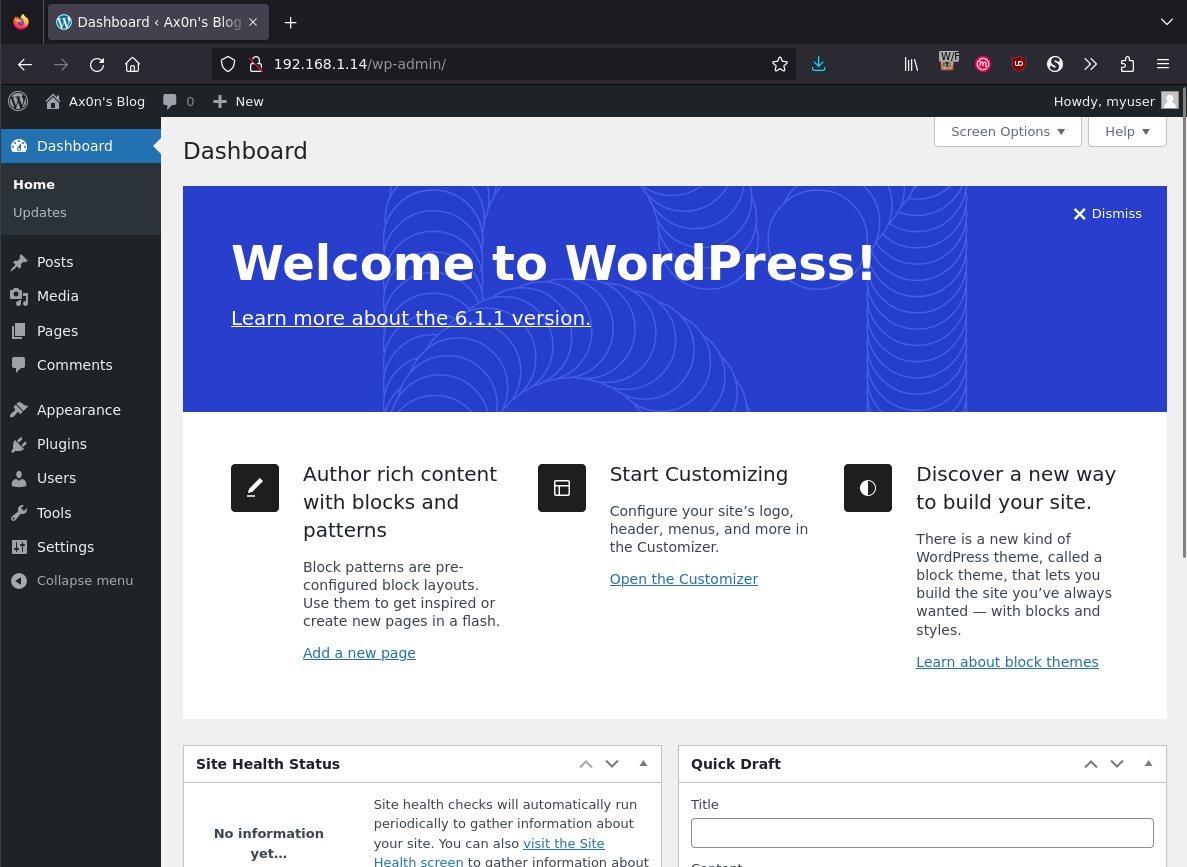
Once it’s complete, browse to the IP address you set up for Wordpress.


Use the admin URL and log in.


I did run into a well-documented issue with the installation, in that the health checks (readiness and liveness probes) caused the Wordpress container to restart before it was finished setting everything up. I had to manually create a “themes” directory inside my NFS server under the directory provisioned for wordpress and then manually download and set a theme inside the admin page.  This seems to happen on lower-performance clusters. sometimes.