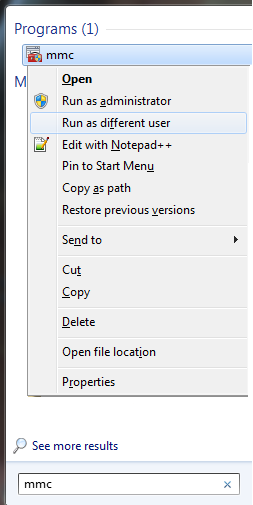
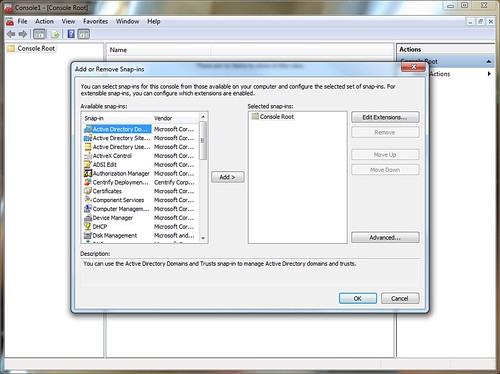
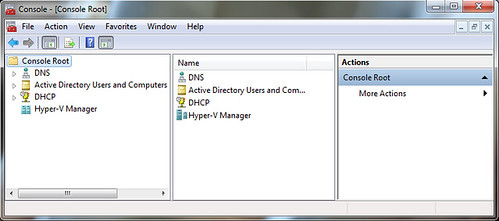
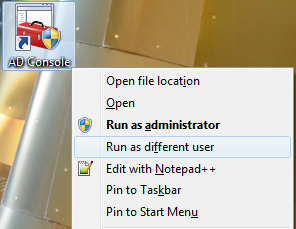
At work, I frequently deal with both UNIX and Windows servers. My UNIX background has taught me to avoid logging in to systems -- even workstations -- with an administrative account unless you really need to use the power, even if you're a sysadmin. This works really well until it's time to start managing enterprise-wide settings like AD, DNS and DHCP. There are a variety of ways to solve the problem. Most places provide sysadmins with a user-level account and then an administrative-level account. You can log off from your workstation and log in with a domain administrator account to manage things. That's a genuine pain. You can remote desktop to a domain controller and log in with your admin account. You can even set up a terminal server with RSAT and other useful tools, and have your admins log in to that for routine enterprise maintenance.
Alternatively, you can install Remote Server Administration Tools onto Windows 7 Enterprise, and using a few quick tricks, you can have all of the MMC Snap-Ins you like at your fingertips, while still using an unprivileged domain account on your workstation. Once you get RSAT installed, you may need to also use "Programs and Features" to enable the Remote Server Administration Tools roles or its sub-roles as desired.2012-07-19
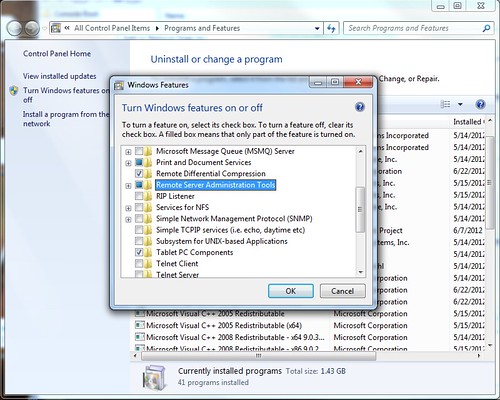
Windows SysAdmin trick: All your MMC snap-ins in one spot
2012-07-16
OpenBSD and Windows 7: Multi-boot
A little more than a year ago, I switched my netbook over to OpenBSD 4.9. From the start, the netbook had been set up to dual-boot with Ubuntu or XUbuntu, so those 6 months running only OpenBSD really exposed how much I've come to rely on Windows, even if it's only occasionally. That's fine. I'm not an anti-Windows zealot and I use it every single day at work.
I decided to start from scratch one more time when OpenBSD 5.0 came out, and to attempt to dual-boot Windows 7 and OpenBSD. As it turns out, setting up Windows 7 and OpenBSD to coexist was covered in surprisingly fine detail in the OpenBSD FAQ. I've been running Windows 7 and OpenBSD side by side now for more than half a year. This setup has proven to be more stable than Ubuntu and Windows 7 dual booting, and I'm very pleased with this setup. I urge anyone interested in this to read the FAQ, but this post should give you a taste of what you're in for.
Before I nuked the whole system, I rsynced all of my data to a file server at home, then re-installed Windows from the recovery media. From Windows, I set aside a FAT32 partition for sharing files between the two operating systems, since OpenBSD can only read NTFS, and I left 10GB blank for OpenBSD. From there, the rest of the instructions worked great. Once you have Windows installed and your partitions set up, the short version goes something like this:
Install OpenBSD. DO NOT tell it to use the whole disk. I opted to use only one root partition and a swap partition. For a netbook, this makes quite a bit of sense. You'd rarely want to set up a server that way.
After the installer finishes and before you reboot, copy the partition boot record (first block of the openbsd partition) to a file called openbsd.pbr using dd as in the example below. Be certain to use the raw device and get the partition right. The example command below was taken from the FAQ and is probably going to differ for you.
# dd if=/dev/rsd0a of=openbsd.pbr bs=512 count=1
Copy openbsd.pbr to somewhere useful. I copied it to the Fat32 partition I created earlier on. You could copy it to a usb stick or upload it to another location. You'll need this on the Windows machine. When you reboot into Windows, move this file to the root of c:
Start a cmd.exe window as administrator (Start -> use text box to search for cmd.exe -> right-click it -> Run as Administrator), then set up the boot loader. Ripped directly from the OpenBSD FAQ again:
C:\Windows\system32> bcdedit /create /d "OpenBSD/i386" /application bootsector
The entry {0154a872-3d41-11de-bd67-a7060316bbb1} was successfully created.
C:\Windows\system32>
As admonished before, the {0154a872-3d41-11de-bd67-a7060316bbb1}
GUID is system-dependent. Note the value you receive when executing,
and copy it into the following commands:
C:\Windows\system32> bcdedit /set {0154a872-3d41-11de-bd67-a7060316bbb1} device boot
The operation completed successfully.
C:\Windows\system32> bcdedit /set {0154a872-3d41-11de-bd67-a7060316bbb1} path \openbsd.pbr
The operation completed successfully.
C:\Windows\system32> bcdedit /set {0154a872-3d41-11de-bd67-a7060316bbb1} device partition=c:
The operation completed successfully.
C:\Windows\system32> bcdedit /displayorder {0154a872-3d41-11de-bd67-7060316bbb1} /addlast
The operation completed successfully.
C:\Windows\system32>
Additionally, since OpenBSD is going to be my primary OS, I used the bcdedit command line options to further modify the Windows Boot Loader so that OpenBSD is displayed first and loaded by default after a brief prompt.
Upgrading OpenBSD is usually pretty easy. There's only one pitfall when you're upgrading OpenBSD in a multi-boot environment: Make sure you copy the PBR to C:\openbsd.pbr as you did in the initial multi-boot setup before you reboot after the upgrade installer exits. Failure to do this might render your openbsd install difficult to boot. You should still be able to boot your system from the install media if all else fails.
If you've installed packages, you'll need to upgrade them separately. Set the pkg_path variable to a repository for the version of OpenBSD you're installing (5.1 as of this writing) or if you're using my preferred method of using /etc/pkg.conf, edit that file since it'll still be pointing to the older package repository from before the upgrade. Then simply run "pkg_add -ui" through sudo or as root. This will find the new packages and upgrade all that are available. the "i" in the above command tells pkg_add to prompt the user for any questions (resolving dependencies, etc).
Edited to embed a highly relevant xkcd:
Labels: openbsd
2012-06-07
Guts of the password hash checker
sed -i "" 's/.$//' combo_not.txtThen, I figured I should cram it all into MySQL to make queries against the data less of a pain in the ass. I created a database and user named lihash, then created the DB with only an auto-incrementing ID and a hash column:
create table lihash (id int primary key auto_increment, hash varchar(40));And then I used some more sed stuff to turn each hash into an "insert" line for MySQL. Here's what the output looks like (limited to the first 10 lines with head):
With that looking all fine and proper, I piped all that straight into MySQL.$ sed 's/^/insert into lihash values (NULL,"/;s/$/");/' combo_not.txt | head insert into lihash values (NULL,"000000a94d47b9ca82c58a3b092a50263b40f66e"); insert into lihash values (NULL,"000000a9876203148923f97c6f1a0635472e1e38"); insert into lihash values (NULL,"000000a9bf60e7f17fcac444a54791af780743a3"); insert into lihash values (NULL,"000000a97e734e7ed9766d1ce08ebc68d3e93ab2"); insert into lihash values (NULL,"000000a9b4b1b3497aac51e212ac9efdb00e7f4e"); insert into lihash values (NULL,"000000a9affc26ed1b0ef2956825e85f9a2567ff"); insert into lihash values (NULL,"000000a93c829bab8c40f805bd3adec3302edf06"); insert into lihash values (NULL,"000000a9e3686034e4f7a1f5b8d6de92679dba5c"); insert into lihash values (NULL,"000000a966dd229cbdd0c4ccc524f0aff6c0fc31"); insert into lihash values (NULL,"000000a9317a995cb16dec71edf0d3aa4b918de6");
$ sed 's/^/insert into lihash values (NULL,"/;s/$/");/' combo_not.txt | mysql lihashIt took several minutes to munch through the data and created many megabytes of MySQL binary logs. While that was processing, I scoured the web looking for a decent javascript SHA-1 hashing method so that I didn't have to worry about handling peoples' passwords via my site. You can simply view the source of this page to see how that works. It was mostly copypasta. Finally, there's the PHP that drives it on the back-end. You can see the PHP Source HERE. When I was testing, I had it displaying the hash that was passed. I got rid of that part to keep XSS shenanigans at bay. I'm probably doing all sorts of things wrong with the SQL queries, but I copied some of that database code from another project on that server (I was using a phone for this, remember?)
2012-06-06
LinkedIn: Was your password leaked?
By now, you may have heard that a list of 6.5 million hashes have been posted to the Internet, and that they appear to be password hashes from LinkedIn. CNet has some of the deets, but there's a great thread on YCombinator Hacker News where some observations are made. Namely, SHA1 hashes for easily-guessed passwords (such as "linkedin" or "password") do not show up in the list, but if you replace the first five characters of the hash with "00000", then hashes do match for simple passwords. This leads to speculation that the attackers have already cracked some of the easy ones and truncated them in the list.
I've made a really quick and dirty web page that will help you check if your password is on the list. It features a nifty javascript SHA-1 digest hash generator so that the password you check never gets sent over cleartext. It will check hash and truncated hash against the dump. If it detects the entire hash, then your LinkedIn password hash is now in the wild, and it's likely only a matter of time until it's cracked. If the truncated version is in the password dump, it's almost certain your password is compromised.
2012-05-07
OpenBSD 5.1 Released: OAMP Updated
OpenBSD 5.1 was released last week, so the update is a bit overdue. HiR's Secure OpenBSD + AMP guide has been updated. OpenBSD 4.x is officially unsupported now, so we've dropped the 4.x parts from the guide and refined the rest. Since we've started covering the setup of an AMP stack on OpenBSD, the process has gotten considerably easier. OpenBSD is a completely viable and stable environment for running almost any PHP/MySQL web app, with a little extra consideration given to the chroot environment and Suhosin hardening patches while you're setting up your applications or programming new ones.
2012-03-03
Links: Root, Patch and Tether a Droid 2 Global
My wife and I have identical phones. She actually got hers before I got mine. Occasionally, I have to tether for troubleshooting, and I set hers up tonight to do the same.
I encountered a number of stumbling blocks the first time around. Fortunately, other people did all the hard work. Here are links I found helpful.
Download the latest SuperOneClick package. You'll have to root your phone. There's no easier way than this: SuperOneClick - Shortfuse
Get the Android WiFi Tether APK from Google Code.
At this point, if you try to tether, you'll run into a similar issue as I've described in previous tethering posts: the authentication string will cause tethered traffic to bounce up against Verizon's wrath warning page.
You'll need to download RadioComm, and the best way to find that is Google. You'll probably find fresh links to recent versions on XDA Devs or MotorolaFans. Caveat Emptor and all that. Shady download links galore, so be on your guard with good backups and malware protection. Here are the instructions to patch your phone's baseband configuration for tethery goodness.
After that, all should work well.
Labels: droid2global, links, mobile, motorola, tether
2012-02-07
Alinco DJ-C1 Hack: Internal Speaker
The Alinco DJ-C1 was made in the 1990s and was a groundbreaking ham radio micro-transceiver about the thickness of an iPhone 4 and with a smaller footprint nearly identical to that of a credit card. It was designed to work on the 2m FM Voice band at 300mW. It featured an integrated microphone, but had no internal speaker from the factory; One had to rely on an earphone or an external speaker/microphone unit such as the one shown above.
Over time, these micro radios evolved. The DJ-C4 came out at the same time as the C1, and was made for 440 MHz (70cm FM Voice). The DJ-C5 was a bit thicker and was the first to have an integrated speaker and work on both of the above bands. The latest one, the DJ-C7, lacks resemblance to these tiny relics of the late 90s aside from being smallish.
You can still find these micro-handheld transcievers at hamfests, swap meets and online auctions. I got mine from a friend that's happened upon two C1s and a C4 in the past year. I was immediately somewhat frustrated by the lack of a built-in speaker. I opened it up and found plenty of room in the back for a piezoelectric element, similar to what you find as the alarm speaker in digital wrist watches.
I couldn't find anything to salvage a piezo speaker out of, so I coughed up a couple of bucks at Radio Shack for one. I used a tiny screwdriver to pry the back cover off and to pry the element out of the case.
Disassembly of the DJ-C1 initially looks pretty straight-forward. There are three small philips screws on the back which give you access to the battery and the back of the circuit board. You'll have to open the back up and you'll want to disconnect the battery before proceeding. Unfortunately, most of the stuff we need access to is on the other side of the circuit board. You can't get the board out from the back, so leave the screws through the circuitboard attached. To remove the front plate, carefully peel the sticker and membrane buttons off, then remove the three screws found underneath.
There aren't many places to pass wires from the back of the radio where the speaker will be to the front of the radio where they can attach to the solder pads for the audio jack, so I ran them between the legs of the transmit LED. With the front and back removed, you can slide the circuit board out of the rectangular plastic frame enough to get access to the solder pads with almost any kind of soldering iron. You can see the red and black wires here:
I taped the piezo element to the back case toward the bottom. The copper shield in the middle of the circuit board seen below will sit flush against the back case, so keep the speaker and wires clear of it. The piezo speaker is actually louder when it's taped to the back case than it is when it's hooked up to the audio jack by itself.
Gently re-assemble everything, making sure everything fits neatly inside. Re-position the speaker and wires as needed. I ended up placing a bit of tape inside to keep the speaker wires from getting in the way. Re-connect the battery, screw the front plate back on, re-attach the membrane buttons to the front, and test it before you button the thing back up.
The resulting speaker works, but isn't terribly loud. It's loud enough to get your attention from the office desk, and if you hold it up next to your ear, you can make out what's being said. This is all I expected from this hack. You'll want to hold on to that earphone or external speaker, though.
Here's some crappy cell phone video of it in action.
Labels: Electronics, ham, hardware