Showing posts with label computing. Show all posts

2010-01-30

Memories of a Timex Sinclair 1000

Someone brought this wonderful pile of memorabilia to CCCKC last week.


This is a Sinclair ZX81. It was introduced to England in 1981. It was a Zilog Z80-powered entry-level computer that used a cassette tape (remember those?) for storage of data, and hooked up to a TV for a monitor. The ZX81 used the european PAL standard, so this machine won't work on normal analog TVs here in the US.

The ZX81 features a whopping 1kB of built-in RAM, and a CPU clock speed of 3.25 MHz, or for you kids out there that don't know what a kB or a MHz is: It had about 0.0000001 GB of RAM or about 1,024 characters, and ran at 0.00325 GHz. It could be purchased pre-assembled, or in kit form, which required soldering.

The version that made it stateside -- the Timex Sinclair 1000 -- was my very first computer. It was a slightly modified version of the ZX81. Mostly, it featured twice the RAM (still not enough to hold the typed text from a single page of a paperback book) and an NTSC modulator that was compatible with our television sets. Graphics were mostly block characters on the screen, and if you wanted a program with much power behind it, you had to use Z80 assembly language, if for no better reason than more efficient use of the RAM.

My Sinclair died sometime in the early 90s. It still powers on (if I can find it) but the membrane keyboard's ribbon cable became brittle and broke, mostly due to the heat sink inside that sits very close to... well... everything, since the machine itself is so tiny. I'm wondering if I could get away with using my small portable "watchman" style pocket TV as the monitor and a voice greeting card to store a program or two. I have a few ideas about fixing the keyboard's ribbon cable. If I can unearth my old Sinclair, I'll see if I can get it fixed up. Until then, I'll just gawk at these pictures and remember with fondness the days that kick-started my interest in computers.

What was your first computer? Do you still have it?

2009-03-07

Retro-Computing Presentation and notes

Frogman and I talked about Retro Computing for the CCCKC Grand Opening. Ours was more of a demonstration, but we did hit quite a few points worth noting. We didn't have slides for the demonstration, but we threw these together today.


Operating Systems:
Puppy Linux
Damn Small Linux
TinyCore Linux
NetBSD
OpenBSD

Install Tools:
Smart Boot Manager
UNetbootin

Thin Client Software:
RDesktop (RDP Client for Linux/BSD)
TightVNC

Text-Mode Applications:
Links Web Browser
Finch (Part of Pidgin IM Client)
Midnight Commander File Manager
StarTTY Text-mode information service

2009-02-02

Embedded Linux appliance project

I put together an article on making embedded network appliances a while back ago. It was a little bit on the abstract side.

Now, I find myself helping out on a collaborative project with Cowtown Computer Congress and the KC Robotics Society. The Wii Labyrinth was a big hit, and now they've got a chance to build a giant 10' x 12' version for Science City. You can read more on Vince's blog.

One of the concerns is getting a reliable computer "brain" that can pull the parts of this project together. Some requirements:

  • Runs Linux
  • Can run the dependencies for the project (easy to compile for)
  • Has USB (for the bluetooth and Arduino)
  • Can be powered on and off by Science City staff without a shutdown procedure i.e. flipping a wall switch.
Some options came up, specifically the nifty WL-500G. While the option of using an inexpensive system-on-chip based appliance has some appeal, it can be difficult to port software to them, and their limed RAM, storage, and processing power can be a deal-breaker.

I opted to help the project out by building a Linux Appliance out of old x86 hardware. This means I can run a more feature-rich environment, but build it like an appliance. I proposed the following to meet the requirements of easy power-up and power-down:
  • Logical partitions are mounted read-only or unpacked to ramdisk and dismounted
  • Dynamic data is loaded to ramdisk if needed (i.e. /tmp)
  • BIOS settings are tuned to skip as many POST checks as possible (don't halt on keyboard/video errors, skip RAM check, don't scan for new IDE devices, etc)
These are all things that are used by well-designed system-on-chip devices, and it's similar to how many "Live CD" Linux distros are built. I'll I'm probably going to begin my journey with Puppy Linux on a virtual machine, though. I'll post final details (system specs, how to build the system, etc) when I've got more to go on.

2008-12-04

The dangers of proliferation of shared FTP accounts

In a medium sized education organization which shall remain anonymous; FTP and windows file sharing is the file transport of choice for distributing small reports and data chunks. For a long time when a ftp account was needed the person would simply call up the first person who maintained a server that came to mind and had one created. The new ftp account was then fed into a script on the database server (mainframe or AS/400) which then once a day/month/year it spit out a report and uploaded it to the server where (someone/something/every one) picked it up and either loaded it into a different script, or dumped it into a spread sheet, did their business then deleted it and went to lunch.

This has gone on for decades with out some one pointing out that there is something wrong with this process.

Let me count the ways this is wrong:
1. It's not encrypted.
Packet sniffers are very easy to implement even on a switched LAN.
2. There is no way to prove that the remote host is what it says it is.
Server spoofing via DNS or Denial of Service.
3. Access control (in this case) isn't managed.
Static user names and passwords being passed in the clear.
4. Proliferation of potentially sensitive data
Just about every industry is required by law to protect certain kinds of data.
5. Use of old and un-maintainable server for warehousing information.
No warranty, use of old 3rd party software which is unmaintained, End-of-life OS.
It's potential for being 0wned is pretty high.
6. Total disregard of Intranet and Internet facing status of server.

Why? You ask has this issue been allowed to even occur?

Reason #1 Impending retirement. Why would some one who is retiring in 5 or so years would want to learn something new? Ftp and windows file sharing is well known. Ftp has been used on open systems since their inception so everybody supports it. (I mean the standard supports 7 bit file transfers, from the time when bits were expensive, really when is the last time you NEEDED to transfer something using 7 bits as opposed to 8bits?).

Reason #2 Bypassing the chain of command. Why follow protocol and make an official request when you can call the person maintaining the server and have them do it for you.

Reason #3 Maintainers versus dedicated IT staff. In most small and medium organizations, they cant afford dedicated IT staff so they give the position to some one who already does something else. The problem is that the person just puts out fires and performs maintenance. They don't keep up on industry issues and so long as the server limps along everything is fine.

Conclusion:
Because the chain of command is bypassed the Network Administrator isn't aware of it. And the only way he or she will find out about it is either an audit, if it fails or if the server is totally Pwned and now is now selling generic Viagra. Should the latter be the case, a pile of finger pointing ensues and you can guess the rest.

Alternatives:

The solution is finding a suitable replacement technology which is secure and possesses controls on access and availability yet is similar to an existing process so you take advantage of the users existing habits instead of putting them into an uncomfortable situation of learning some "NEW" computer process.

  1. Pre configuring the email client to use encryption. Email is one of those skills that every one knows or should know.
  2. Implement Ftp over SSL on a managed file server .(Windows, Linux, Novell ...etc) Most of them have some form of secure drive mapping or mounting which is done transparently to the user. This really is the best choice because most modern server platforms possess some form of auditing features which allow you to track access to resources and or files.
  3. Secure web application for reports and data. Automate the process and load it into a database then generate the reports on a web page or make it available as a download. A well designed web system can contain all of the controls to keep data safe. Surfing the web is a national pastime, provided you make a usable web interface.
Perhaps in conjunction with...
  1. Controlling movement of data. Prevention of use of external storage devices.
  2. Encrypting file contents using authentication. Smart cards, public/private keys, hardware keys...etc
Information security is not about being perfectly secure, it's about maintaining a good balance of security vs. usability.

2008-04-05

UNIX variants on HP Jornada Palmtops

We covered this a bit at the 2600 meeting last night. I don't have a lot of time to go into detail, but here's a quick breakdown.

Asmodian X got me hooked on Windows CE Palmtops back in late 1997. I picked up a floor model HP 300LX for cheap, and actually used it as my main computer (including Dialup BBS, Telnet, Mail, and web browsing) for quite a while. It was more than sufficient for typing my papers for class and interfacing with the UNIX servers. Asmo also had a Casio Cassiopeia running CE, so we tinkered with this stuff a LOT back in the day.

Later, at DefCon 6, we'd run into a guy with an HP 620LX. That thing had a full color screen and a significant boost in memory, not to mention sound recording ability. This all sounds cheesy now, but it blew away the devices we had with their four or 16-color greyscale screens.

As time has progressed, I've also acquired an HP 320LX (same as 300LX but with a backlit screen and more RAM), a Jornada 680e (Refurbished Dutch Railways model) and a Jornada 720.

The HP300's are currently packed away somewhere, but the Jornadas are alive and well.

I was considering NetBSD and Linux for this project, but I found out that the NetBSD project for these pretty much died once they could say "it boots!" You have to use a serial cable for the console. In other words, it's useless until someone ports wscons and some device drivers. So, I chose JLime Linux, which is still in active development -- the kernel build on my 720 (Mongo branch) is less than two weeks old!

To install JLime, you need a CF card that's at least 128MB. You create 3 partitions:

  1. FAT partition usable from within Windows CE
  2. ext2 partition for Linux to run from
  3. Swap partition for virtual memory
You copy the bootloader, boot configuration file and zImage (kernel, etc) to the FAT partition, and then uncompress the jLime userland onto the ext2 partition. Since the files were compressed with bzip2 and BSD's tar utility doesn't know what to do with that, I had to uncompress it before using tar. Make sure you run tar as root (or with sudo) and with "xpf" or "xvpf" to retain the file permissions and ownership of the userland image.

Once you insert the card into the PDA and run the boot loader, all of the PDA's memory will be completely wiped, so all files and data on it will be lost. Windows CE stays in ROM so when you reboot, Windows CE will be back in initial setup mode.

I actually put the boot loaders and zimages for both the J680e and the J720 on the FAT partition, created two different ext2 partitions, and left one shared swap partition on my 2GB CF card. Had I been thinking, I would have made a third ext2 for a shared home directory between the two PDAs.

Right now, here's the status of them:
Jornada 680 running jLime (Donkey):
  • Boots Linux, loads fine.
  • The keymap is completely trashed (dutch keyboard layout) so I can't login.
  • Apparently, the J680 can "suspend" while running jLime.
Jornada 720 running jLime (Mongo)
  • Boots Linux
  • Runs X with IceWM
  • Various X Apps work fine (MiniMO Browser, aterm, etc)
  • Recognizes PCMCIA Ethernet and 802.11b/g wireless cards
  • Can't seem to use the network, even when configured properly (dhcp doesn't get an address, wireless cards can't associate to open, unencrypted networks, etc)
  • Cannot go into suspend mode properly. The backlight stays on, limiting battery life.
  • After halting, the PDA can't reboot without a hard reset (removal of main and backup battery at the same time)
So, it looks like jLime has a little ways to go yet, but it's a functional UNIX environment, at least on my Jornada 720. I just wish I could get the networking piece to work properly. I could almost live without a suspend mode, since many of my other laptops don't particularly like to suspend, either.

2008-03-29

Testing an ATX Power Supply

Things you'll need:

  • Tools to open your computer case
  • A voltmeter or multi-tester, preferably a digital multimeter (DMM)
  • A paper clip or a small piece of wire to use as a jumper.
A friend of mine was having trouble with one of his computers. At first, it sounded like a power supply problem, so I gave him some advice on testing the power supply.

A power supply can make or break your computer. It's often one of the first components to fail because of the high temperatures and abundance of electrolytic capacitors. Heat and capacitors aren't usually a good combo, and running the computer with a clogged fan can raise temperatures in the PS high enough to damage the caps. A power supply may also take the brunt of the damage in a power surge, as well -- especially if the computer is turned off.

There are a few things to understand about the ATX Power Supply. First off, ATX power supplies are soft-triggered, meaning that they're always pulling a little bit of electricity from the wall. They're powered on not with a hard physical switch, but with an electronic relay activated by the motherboard. Therefore, a little bit of electricity has to be going to the motherboard even when the computer is off, so that it can tell when you have hit the power switch.

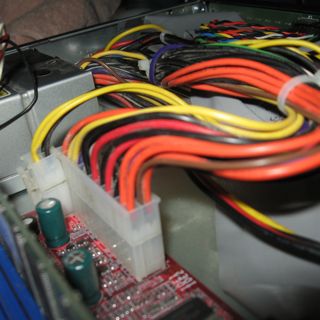
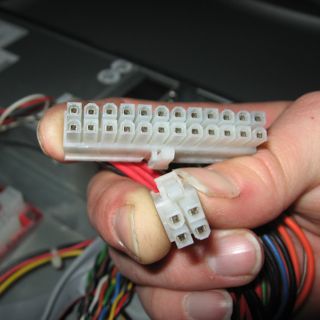
Another thing is that most newer computers require extra power for the motherboard, this comes in the form of two additional 12VDC wires and two additional grounds molded into a four-prong plug (called a P4 plug) that supplements the traditional ATX plug:


Before we begin testing, unplug the computer from the wall outlet, open the case, and unplug all the Power Supply cords from the motherboard, drives and all accessories. Notice that there are many black wires on the main ATX plug. If you have a DMM with an ohm-meter or continuity tester, you should check to make sure all of the black wires have continuity. These are all chassis ground wires, and you can use any one of them to test the for the power supply. Hook one test lead up to any black wire, then make sure that there is little to no resistance between that black wire and all the other black ones. Be sure to check the grounds on the P4 plug and Molex (hard drive) plugs.

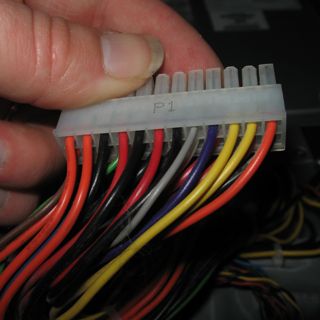
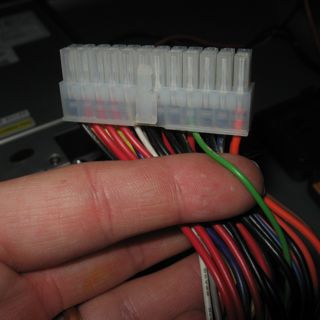
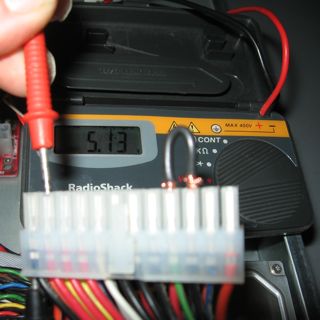
Now, you may plug the power supply into the wall outlet again. The only wire we need to test right now is the purple wire. Take note of it, as it may look a lot like the black wires or a blue wire if you don't have plenty of light. It will be the fourth wire in, next to the two adjacent yellow wires on the main plug as shown below:


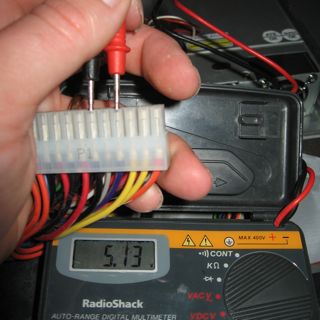
Test the voltage between this purple wire and ground. This is the "standby" power, and should be near 5VDC.

If this doesn't register any voltage, there may be a fuse blown internally to the power supply, or it could be something more catastrophic. If the voltage is wildly out of spec (like 2.3VDC or 8VDC), something is very wrong. Trash it and replace your power supply.

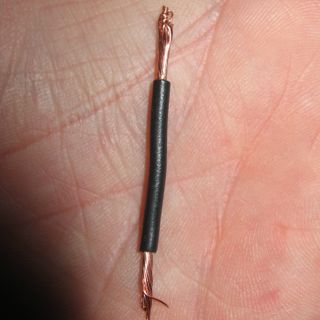
Now, you'll need your paper clip or a jumper wire. I chose a jumper wire because it's insulated and I didn't want to run the risk of hitting the jumper with my DMM's test probes. I'm just careful.


Find the green wire. This is the power-on wire.


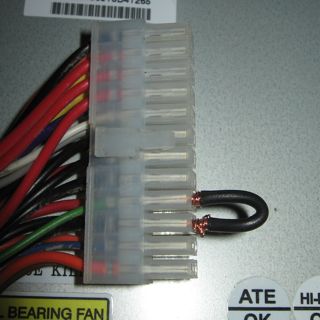
When the green wire is jumpered to ground, the power supply fan should spin up. If this doesn't happen, something is wrong, but it could just be a clogged fan so you should at least check the voltages before you go shopping for a new power supply. Make SURE you jumper the green wire to a black wire, not the purple one. I don't know if it would hurt anything, but the PowerON wire is not designed to be hooked to anything other than ground.


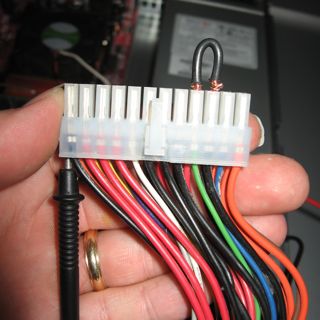
I attached the ground probe to one of the ground wires by jamming it into the back of the ATX plug, so that I only have to fiddle with the positive test probe from here on out. That makes taking these pictures a little easier. ;)


First, I tested the voltage of all of the red leads. These should be +5VDC. Not surprisingly, they are the same voltage as I saw on the Standby Power rail which should also be +5VDC. To be sure the power supply is intact, check ALL of the red, yellow, blue and orange wires on ALL plugs, even for the P4 and Molex hard drive power plugs. A single broken or damaged connection can be the difference between a healthy computer and one that's unstable or may not even boot.


Test all of the leads except for the brown, green, and gray ones. The green is obviously in use and working at this point. Brown and gray are both voltage sense connections that you don't need to bother with. Your power supply may or may not have a white wire. It's optional in the ATX specification but most new power supplies have them present. Use the table below to determine the voltage specifications for each color. Note that these are voltages as related to chassis ground (black wires). Again, if any of these voltages are wildly out of spec or you notice an open circuit (0 volts), you should probably replace the Power Supply or have it looked at by a competent computer repair professional. Opening up a Power Supply voids its warranty and exposes components that could probably hurt you even if it's unplugged.


ColorVoltage
Purple (standby)+5VDC
Red+5VDC
Yellow+12VDC
Orange+3.3VDC
Blue-12VDC
White (optional)-5VDC

2008-03-24

Sun Microsystems: Breakin' the law, Breakin' the law?

... Moore's Law, that is. Sun currently has laser technology in its crosshairs with the intent to boost speeds of communication between chips on computers. While this has been a theoretical way to vastly improve processing power, no one's actually pulled it off and put it into production yet. A quote I found amusing from the article:

“It’s like the difference between having someone next door and having to get on an airplane to fly across the country,” said Alan Huang, an optical networking designer at the Terabit Corporation in Menlo Park, Calif. “This would be a way of breaking Moore’s Law.

While Moore's Law actually involves an exponential increase in the number of transistors that can be effectively crammed onto a silicon wafer, I don't see how this technology will actually break Moore's Law, per se. It might just render Moore's Law obsolete by allowing multiple-CPU computers to scale much more efficiently.

Full story: [nytimes] via [engadget]