
No, I'm not asking you to unleash a batch of cheek-flapping flatulence upon Vista. Although I wouldn't mind if you did.
FART is an open-source Find And Replace Tool for the Windows command-line. It's much like a mash-up of grep and sed, and capable of easily converting text files from UNIX to Windows/DOS style newlines among other things.
Via HacksZine. Thanks, [Eric]
2008-02-08
FART on Windows

Surveillance with old CCTV Cameras

The Broken Ones
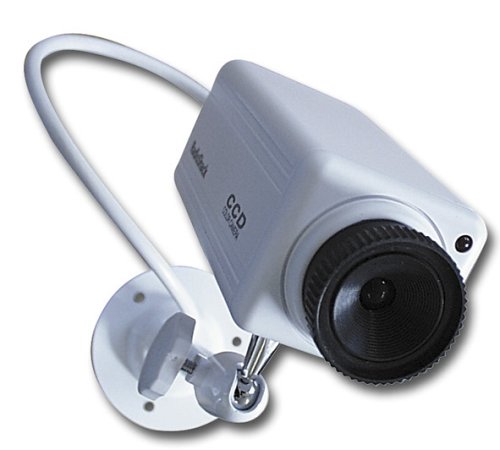
There are always broken ones. You can get them for cheap or free as mentioned above. Surf eBay for "Parts only" when looking at CCTV cameras and you'll find a suitable one. The easiest thing to do is to make it look like a real CCTV to give would-be bad-guys the impression that they're being recorded. While this is much akin to security through obscurity, making a fake camera out of one that used to work is a lot more convincing than this:
Compare that piece of crap to my finished product at the end of this section.
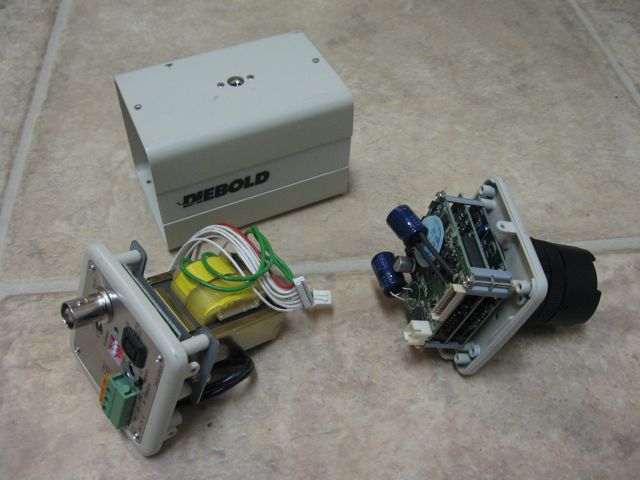
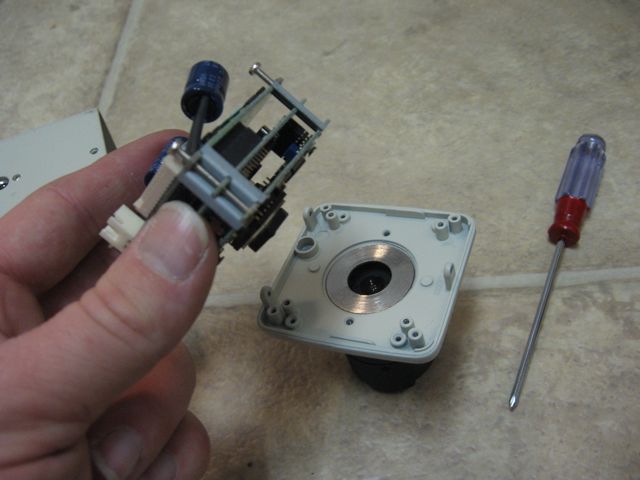
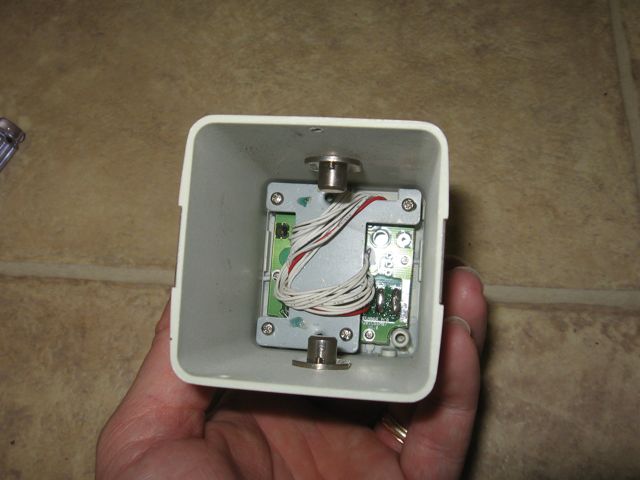
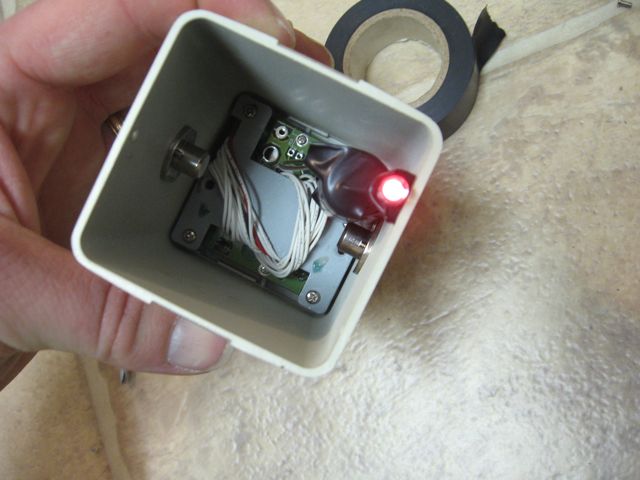
First, take the old, broken CCTV apart and gut it to make room for a battery and LED. See the following photos.
Then, drill a hole in the front plate for the LED.
For the next part, I taped a low-brightness 1.7v red LED to a AA battery. Let's face it, this whole fake camera idea is pretty shifty. There's no point in putting a whole lot of finesse into it. LEDs like this one usually drain between 10 and 20 mA, so a plain old AA battery without a resistor should keep this LED lit up for more than a week.
Then, tape the battery/LED down inside the chasm left in the camera and re-assemble it so that the LED sticks out.
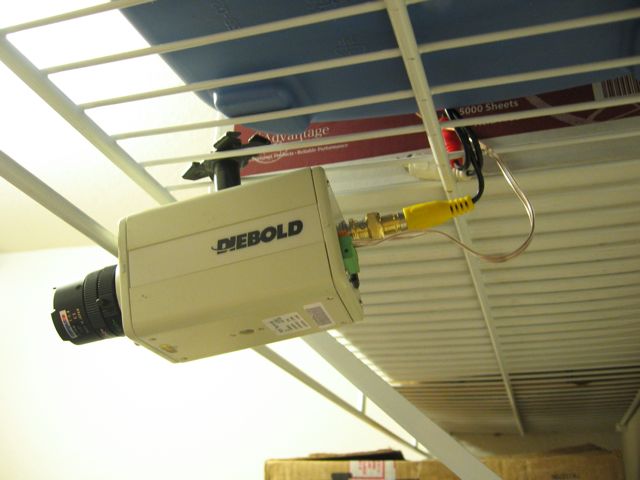
It looks real because it IS REAL (well, it used to be!)
Hang it up somewhere and hook all the cables up. They don't have to be actually hooked up to anything on the other end, just tuck them into the ceiling or run them to a wall plate. No one could tell this isn't real by just looking.
The working ones
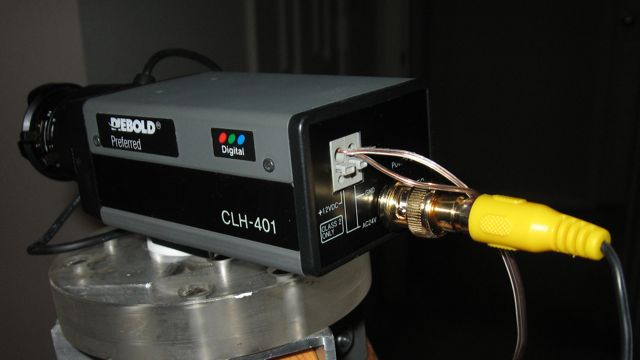
First, hook up the RCA adapter, RCA cable, and power cables to the camera and mount it somewhere.
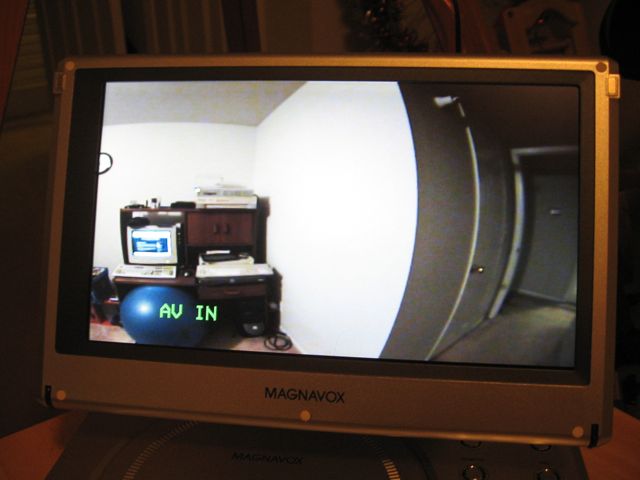
Then, hook the other end of the RCA cable up, and enjoy your working CCTV system!




2008-02-07
Exploiting Online Games
Kansas City native game hacker, tinkerer and developer Josh Kriegshauser discussed Greg Hoglund and Gary McGraw's book, Exploiting Online Games. Josh is an old friend, former co-worker, and former classmate to various HiR writers. He went from tinkering with Ultima Online while he was in school, to being a big name in the MMO industry in the last decade.
I found Josh's discussion about the book interesting, and thought I'd share it here. I'm definitely not a gamer in any sense of the word, but things like this interest me enough that I'm seriously considering picking up a copy.
UNIX tip of the day: More awk recipes
Awk, as we have mentioned before, is a ridiculously handy utility that often goes under-appreciated by systems administrators and UNIX geeks alike.
A few days ago, a colleague of mine told me about some complex awk magic that he'd implemented in order to acquire not only the matching line of an input stream (in this case, a log file), but the two lines prior to that matching line which contained some useful information as to what was going on. It was an elaborate solution that worked well, but I swooped in with a much simpler recipe to do the same thing. This prints the two lines prior to the matching expression as well as the line containing the expression. Certain incarnations of grep can do the same thing, but this way you can also format the lines if you know your awk-fu.
$ awk '/some-regex/{print two "\n" one "\n" $0};{two=one};{one=$0}' /some/file.log
I actually keep a bunch of handy commands and UNIX tips written down. These are things that I know I won't need to use very frequently, but know I'll eventually need again.
I'll share some more awk magic with you from within its pages.
Get only the last field of a line that matches a regex:
$ awk '/some-regex/{print $NF}' /some/file
This works because NF contains the number of fields found in the line. $NF, then, contains the value of that last field. Just like $1 would contain the value of the first, if NF is 5, $NF would have the value of the 5th (and last) field. I love this one.
Example:
I'll set the field separator to a / and use awk to get only the last entry from the directory structure with find:
Raw find output:
$ find .
.
./.localized
./images
./images/apache_pb.gif
./images/gradient.jpg
./images/macosxlogo.png
./images/web_share.gif
./index.html
Now with awk:
$ find . | awk -F/ '/images/{print $NF}'
images
apache_pb.gif
gradient.jpg
macosxlogo.png
web_share.gif
If you're into AIX, a lot of the configuration files are in "Stanza" format. That is, a label, followed by a bunch of data and then a blank line between records. Awk can get just the one stanza you want from a stanza file. Example here is the /etc/security/user file on AIX, which tracks security profile information for every user on the system. The "default" stanza is an important one, as anything within it gets propagated to all users first, then any deviations from the default happen in the users' own stanzas:
# awk '/^default/,/^$/ {print}' /etc/security/user
Truth be told, stanza format and some of its variants are popular in other operating systems, but this particular awk recipe works best on AIX.
Have any awk-fu? Let's see some of your favorites. The comments are open!
2008-02-06
TrueCrypt 5.0 Released
TrueCrypt 5.0 , a Free, Open-Source On-the-fly encryption tool came out this week.
Highlights from the release notes:
- Mac OS X Support (Tiger and Leopard on both Intel and PPC architectures)
- Windows performance enhancements
- Pre-boot authentication and system drive encryption for Windows
- Enhancements to the Linux version
2008-02-03
Sysadmin Sunday: Process Management
Managing processes in UNIX operating systems is a critical function. This goes beyond just killing runaway processes, though. This week in Sysadmin Sunday, we'll take a look at managing processes to make your life a little easier.
When you're in a shell, there are 3 kinds of processes: foreground, background, and stopped (sometimes called suspended). This is pretty straight-forward.
Shelling out of a running program
If you're in the middle of a really long-running program and don't want to or cannot switch consoles, you can normally shell out of that that process with the (Ctrl-Z) key combination. For example, encrypting a huge file with GNU Privacy Guard:
Pressing (Ctrl-Z) gives you a shell but puts the running process in a stopped state. From there, you can run something else, such as vi. Just remember that the process that you escaped from is stopped and won't make any progress at this point. That also means it shouldn't display any output that might interrupt you if you decide to work on something else while that process is stopped. It's more "paused" than "stopped". Take note of the job ID [in brackets] of the stopped process. That will come in handy later on.$ gpg -r ax0n@h-i-r.net --encrypt-file axon.home.tgz
(moments pass...)
^Z (Ctrl-Z)
[1]+ Stopped gpg -r ax0n@h-i-r.net --encrypt-file axon.home.tgz
$
See what jobs your current shell has
I've taken the liberty of running and shelling out of vi as well for this example. Keep in mind that GPG is still sitting there doing nothing, too.
To see what's running in your current shell, use the jobs tool.
Here, you can see both gpg and vi are stopped. Again, the job ID for each process shows up in brackets. The + shows which of the jobs is the most recent one you have dealt with and will be used as the default job later on. Next, the status of the job is shown, followed by the actual command-line (or as much of it as can be displayed if it's a particularly long command line).$ jobs
[1]- Stopped gpg -r ax0n@h-i-r.net --encrypt-file axon.home.tgz
[2]+ Stopped vi /etc/resolv.conf
Switching between processes
We take a lot of things for granted, like being able to tab between 20 different windows on a GUI terminal. Not to be a curmudgeonly olde-school sysadmin, but back in the day, we didn't have that luxury. A lot of my early interactions with UNIX were over a serial terminal or a dial-up connection. Virtual consoles were not common, so switching between jobs was just part of working with UNIX on a daily basis for many people.
To bring a stopped process to the foreground again, use the fg command. If you just type fg, it will bring back the most recent job, the one marked with a + when you run the jobs command. If you wish to tell it to bring back a specific command, use jobs %2, or replace 2 with the job number you wish to bring to the foreground. You could have two different files open with two different instances of vi for example, and use ^Z, jobs, and fg to switch between them. This, of course, can get confusing, so be careful when multi-tasking this way.
Background processes$ fg %2
(vi opens back up)
For programs that you don't expect much output from (such as gpg) you can simply background the job. Instead of fg, you use the bg command. Again bg %1 would work to background a specific job number. A background job is much like a stopped one, except it actually goes on about its business. If there is output, it will display the output onto your screen regardless what you're doing. Otherwise, it will silently chug away out of sight. When the process finishes, you'll be notified that it has completed. I'll background the gpg job to show how this works:
Alternatively, if you want to run something that you know will take a while and you're certain you won't have to actually interact with it, you can launch it in the background by placing an ampersand (&) at the end of the command line. You'll immediately get the job ID and process ID, then you'll get your shell back. When it's done running, you'll be notified.$ bg %1
[1]+ gpg -r ax0n@h-i-r.net --encrypt-file axon.home.tgz &
$
[1]+ Done gpg -r ax0n@h-i-r.net --encrypt-file axon.home.tgz
$
What if you log off with stuff still running?$ gpg -r ax0n@h-i-r.net --encrypt-file axon.home.tgz &
[1] 1567
$
[1]+ Done gpg -r ax0n@h-i-r.net --encrypt-file axon.home.tgz
$
It really boils down to what's running and how it handles the various interrupt signals. As a general rule, any child processes under the shell get sent a HUP (HangUP) signal which is analogous to kill -1
If you really want the things to stay running, however, there are a few viable options. The first one good if you know you may need to log off while something is still running. It's the nohup command. Put it before your usual commnd and background it either with an ampersand at the end or by (Ctrl-Z) and bg. When you log off, the process should stay running because nohup doesn't pass the signal along to the child process. This is great for huge software compiles or other time-consuming, non-interactive tasks. Furthermore, nohup will re-direct all the output to a file (by default, nohup.out) so that you can go back and look at it later. This has the additional benefit of not barfing stuff all over your screen while you may be trying to get work done.
At this point, you can log off the system and nmap will continue running. You can log in later to see the results of the nmap by checking the nohup.out file:
$ nohup nmap localhost&
[1] 1612
$ appending output to nohup.out
$ exit
But what if you're in the middle of something that you didn't expect to take so long, for example, compiling Mozilla Firefox from source? You have to log off, but want it to keep running. You don't want to stop it, then restart it with nohup. Not all hope is lost. The second method is to simply tell the shell not to send the HUP signal to any of the processes. Make sure only the things you want to remain running in the background are properly backgrounded, then on the command-line, type set NOHUP, then log off. Unlike the nohup command, output is not re-directed, so you won't be able to see any of the output that happens while you're logged off. For things like software compiling or moving large amounts of data, this isn't much of a problem.$ cat nohup.out
Starting Nmap 4.20 ( http://insecure.org ) at 2008-02-02 03:55 CST
Interesting ports on localhost (127.0.0.1):
Not shown: 1690 closed ports
PORT STATE SERVICE
22/tcp open ssh
88/tcp open kerberos-sec
139/tcp open netbios-ssn
445/tcp open microsoft-ds
548/tcp open afpovertcp
631/tcp open ipp
3689/tcp open rendezvous
Nmap finished: 1 IP address (1 host up) scanned in 15.157 seconds
The process will finish normally.$ gpg -r ax0n@h-i-r.net --encrypt-file axon.home.tgz
^Z
[1]+ Stopped gpg -r ax0n@h-i-r.net --encrypt-file axon.home.tgz
$ bg
[1]+ gpg -r ax0n@h-i-r.net --encrypt-file axon.home.tgz &
$ set NOHUP
$ exit
There are other options that are more modern than using the jobs, bg, and fg commands. These are beyond the scope of this article, however my favorite among these options is the screen command, which gives you virtual consoles that persist even after you log out. Screen comes with many Linux distributions, but it's still a little-known utility except for the fairly hard-core command-line junkies. This allows you to leave things like text-mode IRC clients or other interactive programs running at all times, even if you're not actually logged in.
2008-02-02
Reader Poll: Should we Podcast?
We have the resources at our disposal to produce a podcast. Right now, it would probably be a monthly podcast show, perhaps half an hour to one hour long. We'd cover tech news, humor, system administration, information security, physical security, surveillance and who knows what else. Certain things can be conveyed in a spoken word format easier than in writing, plus podcasts can be downloaded and listened to when you have the time.
Chances are that the KC HiR crew will put together a podcast for March regardless of the poll results, just to get a feel for what all is involved. Leave comments if you have some ideas for what direction to take this thing. We value your opinions.
If you're reading this via RSS, you'll have to go to HiR Information Report to vote on the poll. It's in the upper-right corner.
Subscribe to:
Posts (Atom)

 Posts


